
Create charging profile (tariff)
This page explains how to create a charging profile. To do this, you need to know the current tariff model for the charging infrastructure.
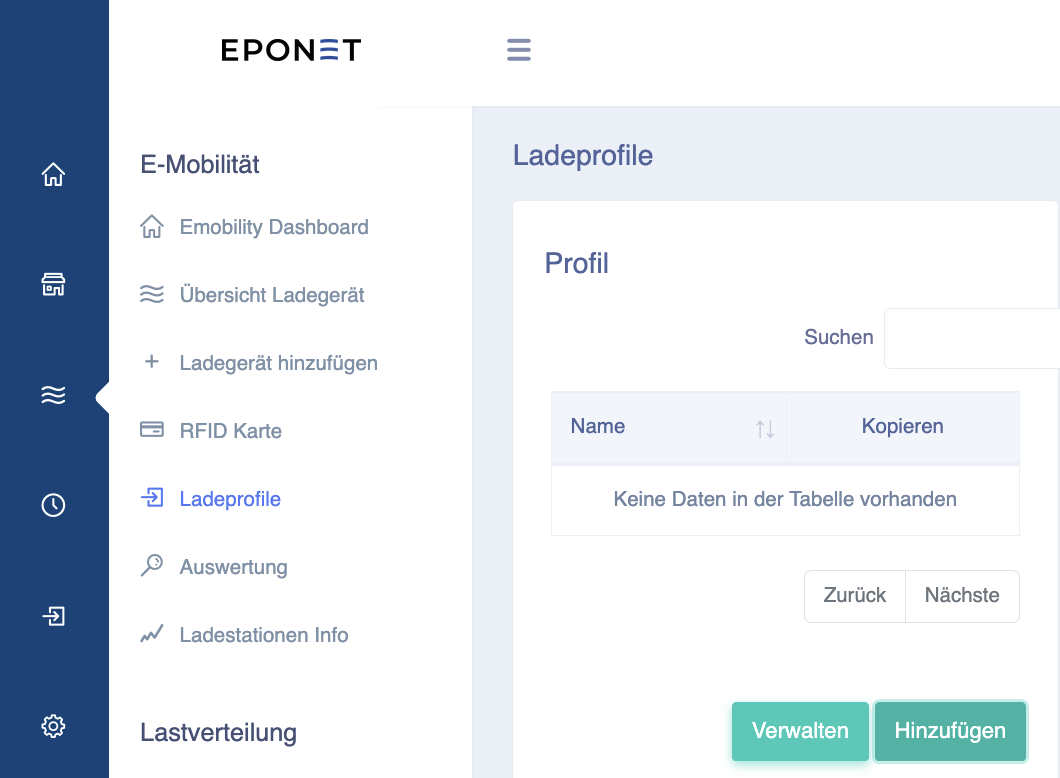
To do this, log in to your charging infrastructure account at portal.eponet.ch and go to E-mobility in the blue area on the left-hand side of the page. Then select Charging profiles in the white field next to it.
Here you will see the existing charging profiles, if any.
For a new charging infrastructure, this area will still be empty.
Before you create a new charging profile, here is some important information about prices:
Important information:
Eponet is not responsible for prices (except for ImmoConnect EVU). Please ensure that you enter the correct information – if incorrect prices are entered and the user is billed incorrectly, this can only be changed retrospectively to a limited extent and we will have to charge for this on a time and material basis. Please ensure that you enter the correct information (the price is in CHF – if the price per kWh is 31 centimes, the correct entry is 0.31).
Prices include VAT.
When applying the tariffs, please note that surcharges of 1 cent/kWh must be added to Eponet and the standby power of the infrastructure. For example, a total surcharge of 3 cents must be added to the tariff.
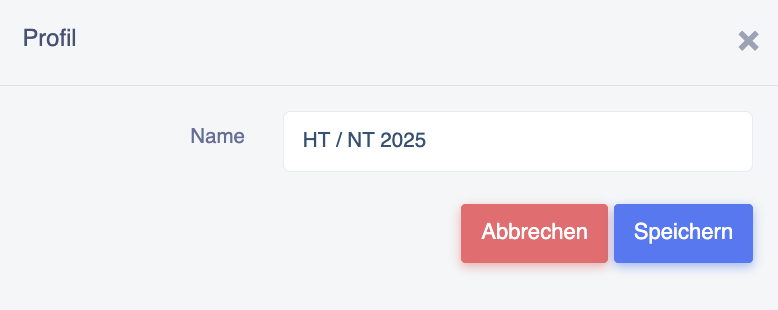
To create a new charging profile, press the green 'Add' button and create your first profile. We recommend using a unique name here. If, for example, there are high and low tariffs, e.g. HT / NT 2025:
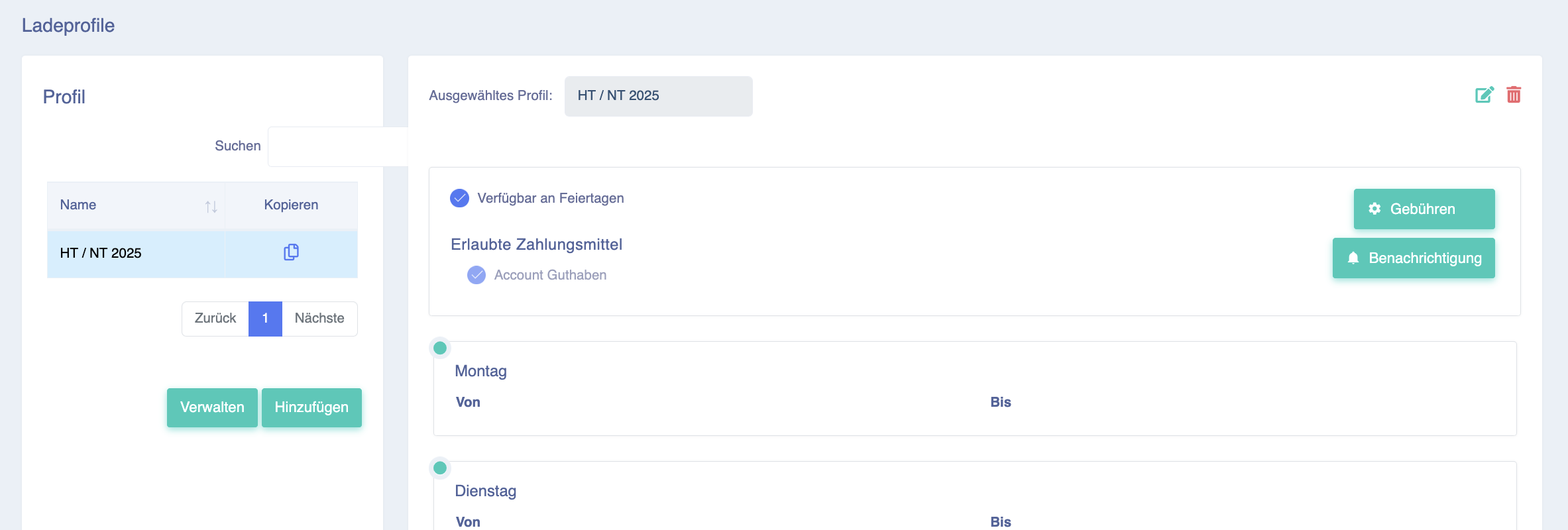
Now click on the new charging profile (so that it is marked in blue) and select the fees in the top right-hand corner:
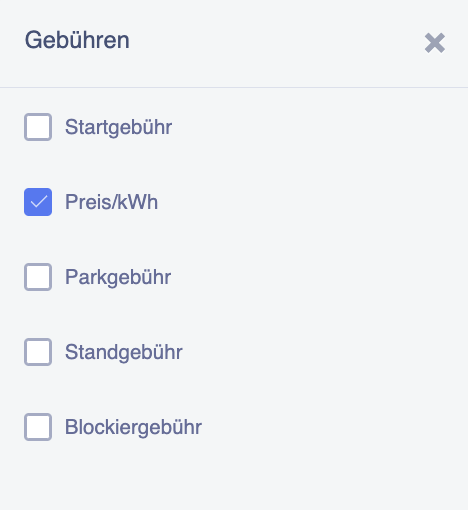
For STWE or rental properties, only the price/kWh is usually required, which is why only this example is described here:
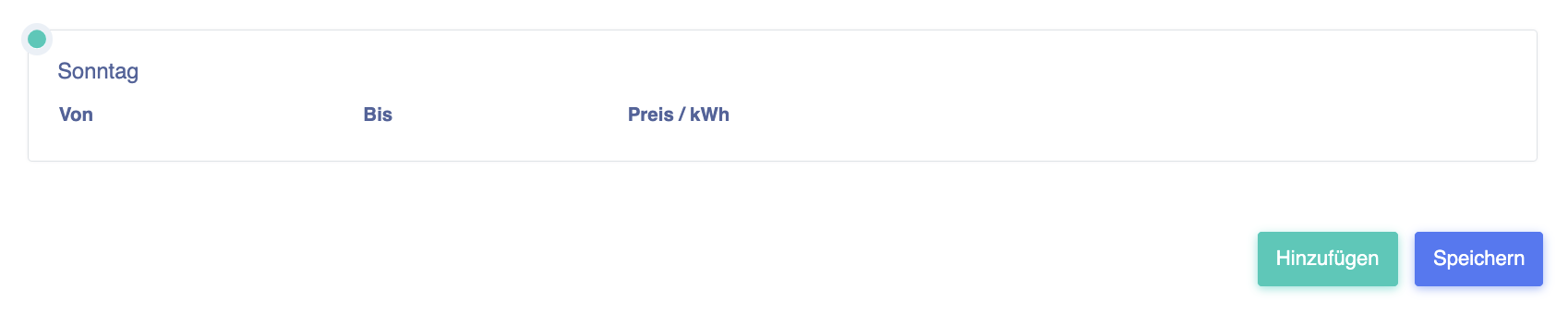
Now continue at the bottom by pressing the Add button:
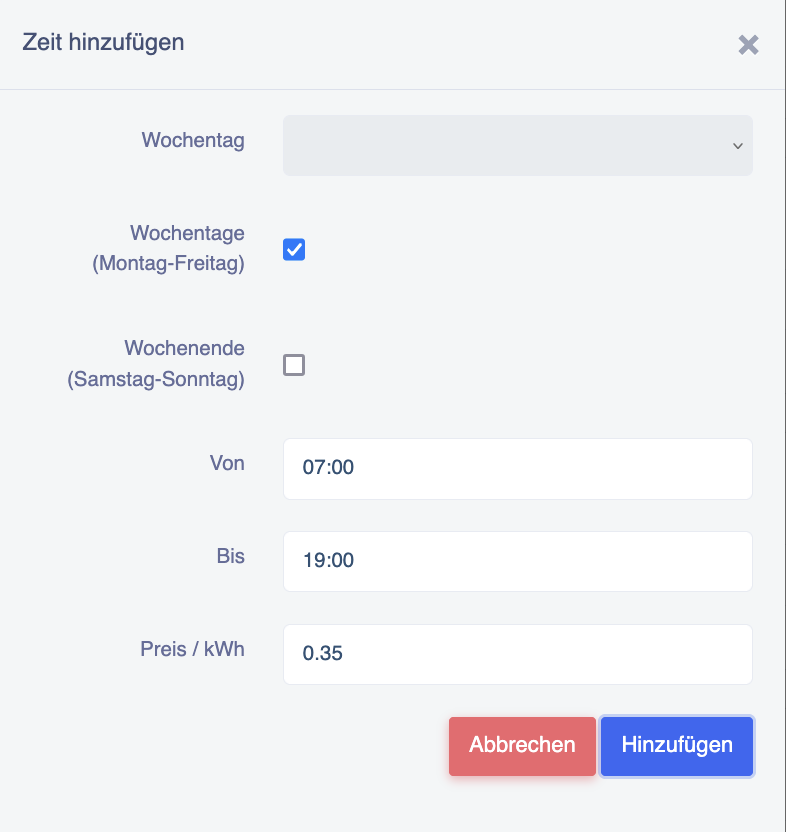
You can now enter different time ranges and days at the same time. Example: If the high tariff is 35 pence/kWh from 7 a.m. to 7 p.m., you can enter this tariff for Monday to Friday at the same time:
Continue with all times/rates until everything is entered 24/7. All time periods must be covered. For example, if there is a gap from 7 p.m. to 7.15 p.m., charging is free during this time!
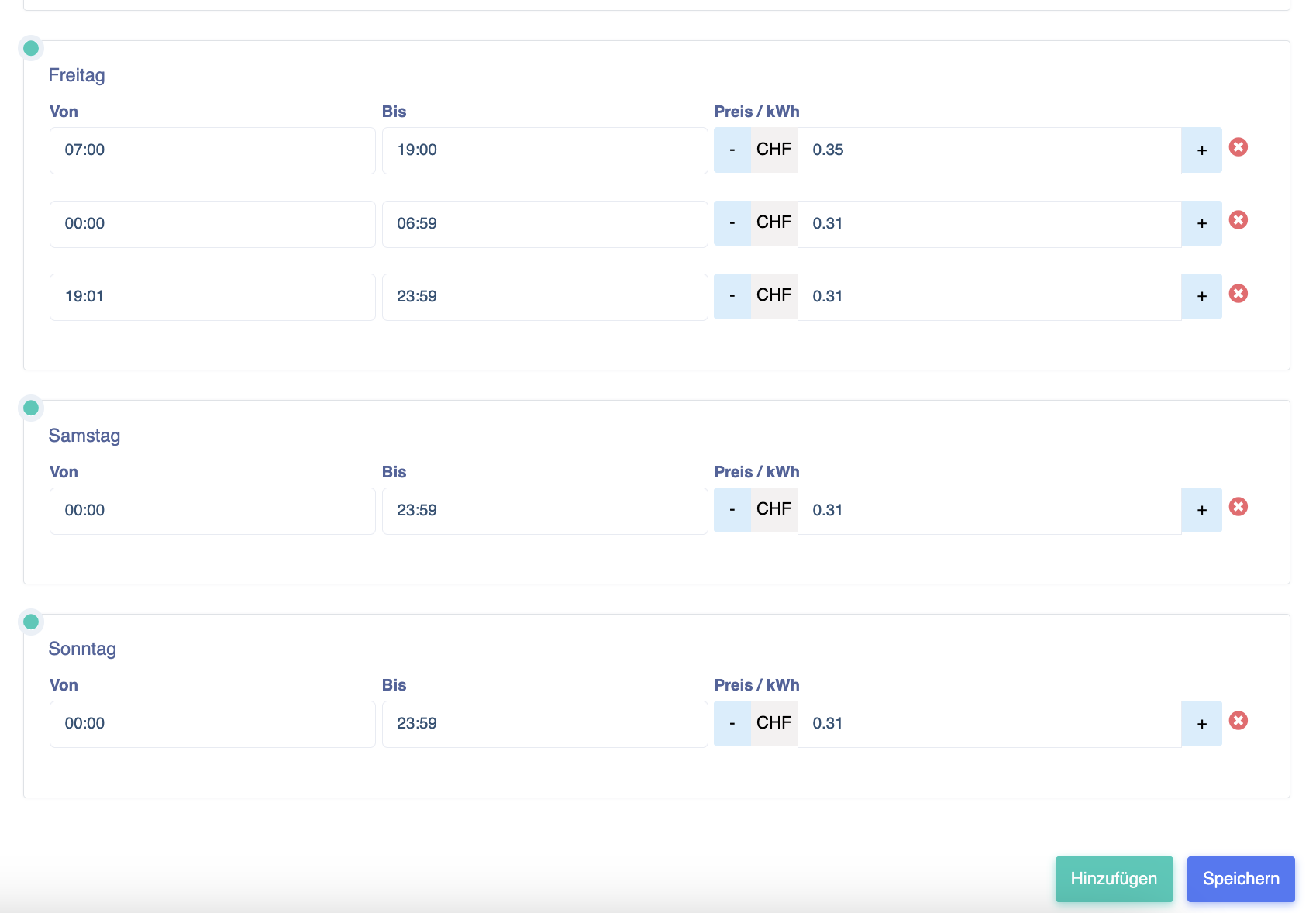
Please note: These settings must be confirmed at the end by pressing the Save button. Otherwise, the data will be lost.