
RFID card management - E-mobility
RFID cards can be managed in various places.
On the home page in the RFID card overview, under E-mobility or under Machines.
This chapter describes the function in e-mobility.
Here you can see the RFID card(s) on this account in connection with e-mobility.
An RFID card can have different functions depending on the configuration. For example, for charging authorisation at charging stations, for starting a machine (washing machine, tumble dryer, etc.) or for access control (opening doors).
Adding RFID cards
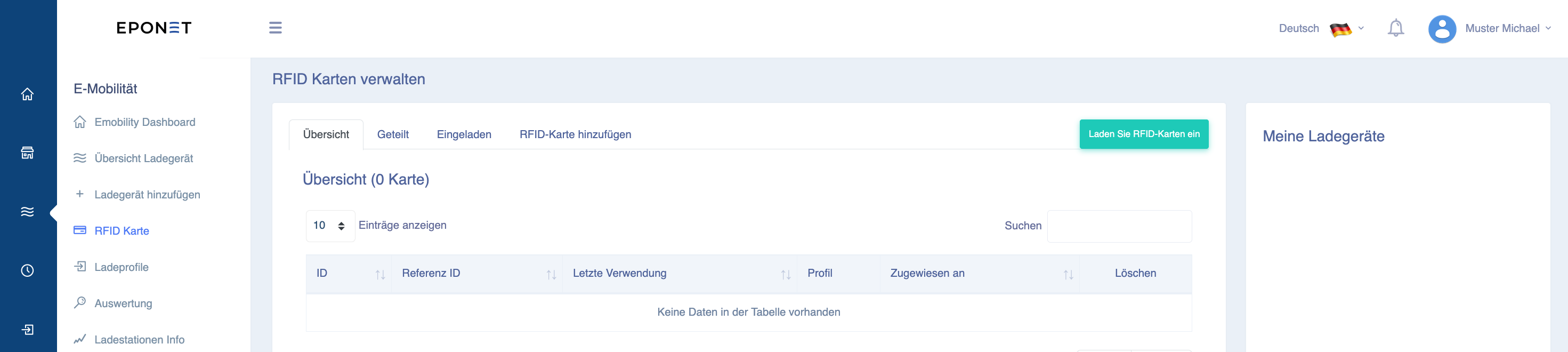
Here you will see the four tabs: Overview, Shared, Invited and Add RFID card.
Under Add RFID card, you can register your card: Enter the number on your Eponet RFID card and confirm with "Add card":
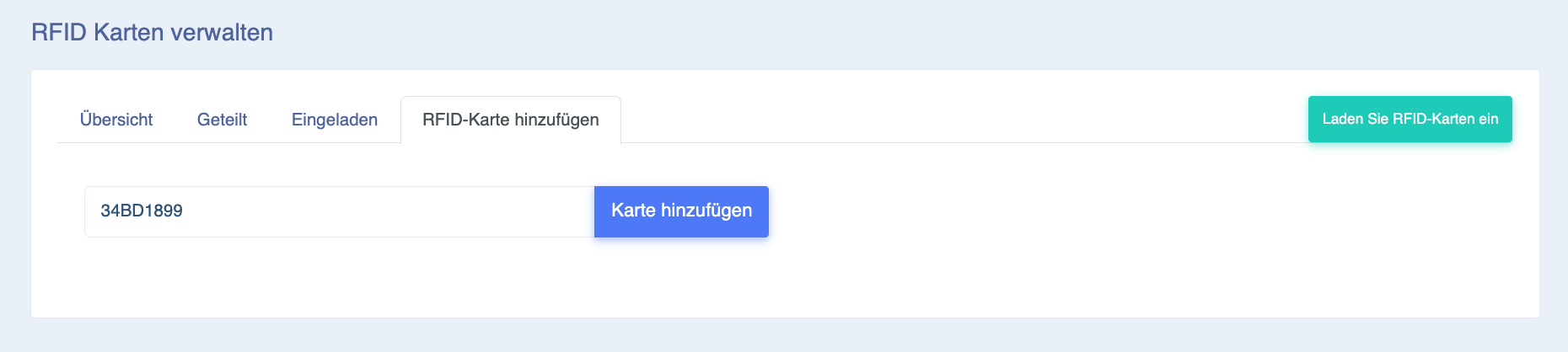
RFID numbers are entered in Eponet without spaces or colons. If your RFID card has a number printed on it, e.g. 12:34:56:78, this must be entered without spaces or dots, i.e. 12345678
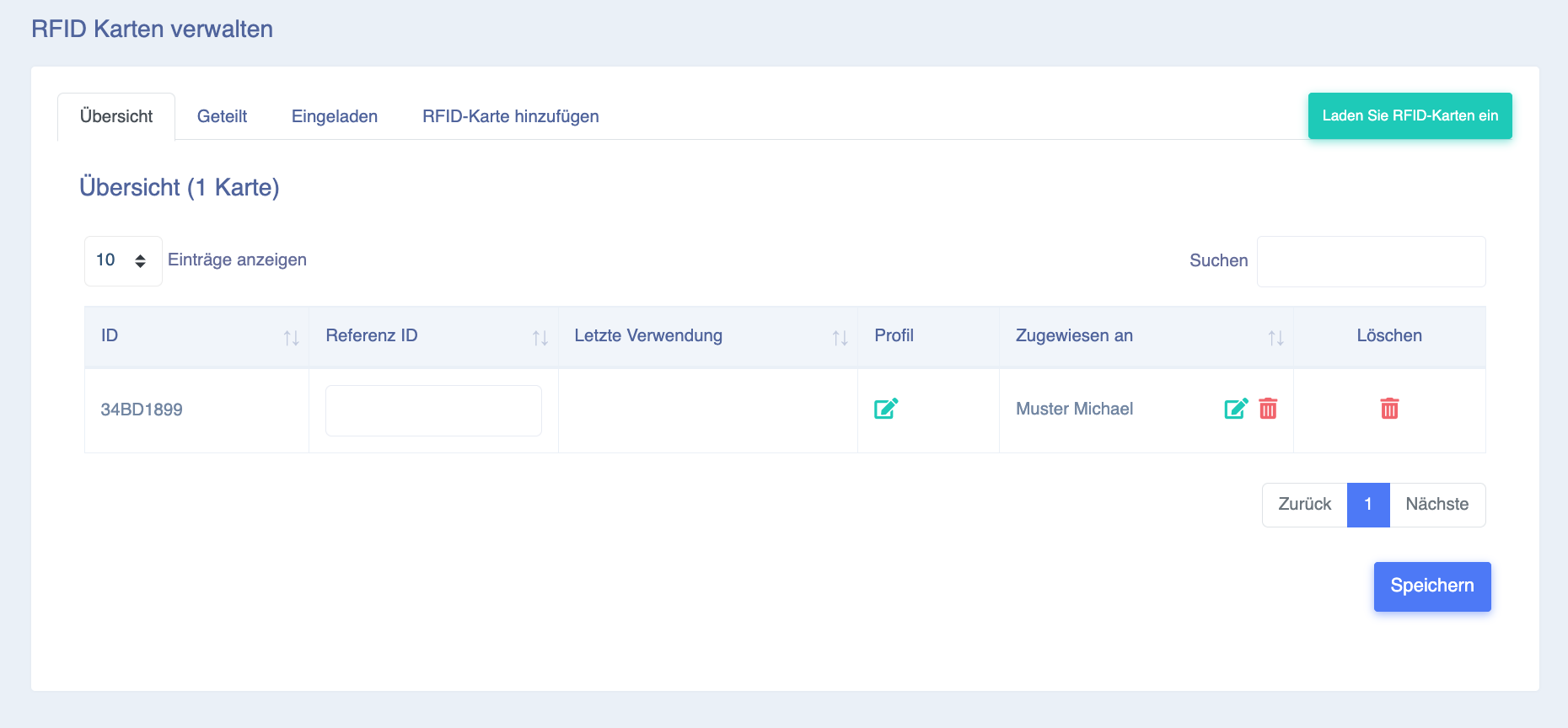
The card will then appear in the table (under the Overview tab). In the Reference ID field, you can save your own details for your information (e.g. car number). A card can also be removed again by clicking Delete.
Shared tab
Under the Shared tab, you can see where you have shared your RFID card(s) or where and at what price you can charge your vehicle with an RFID card. Click on your RFID card here and you will see in this example that this RFID card can be used to charge at the "Keba charging station on PP7" (and at what price):
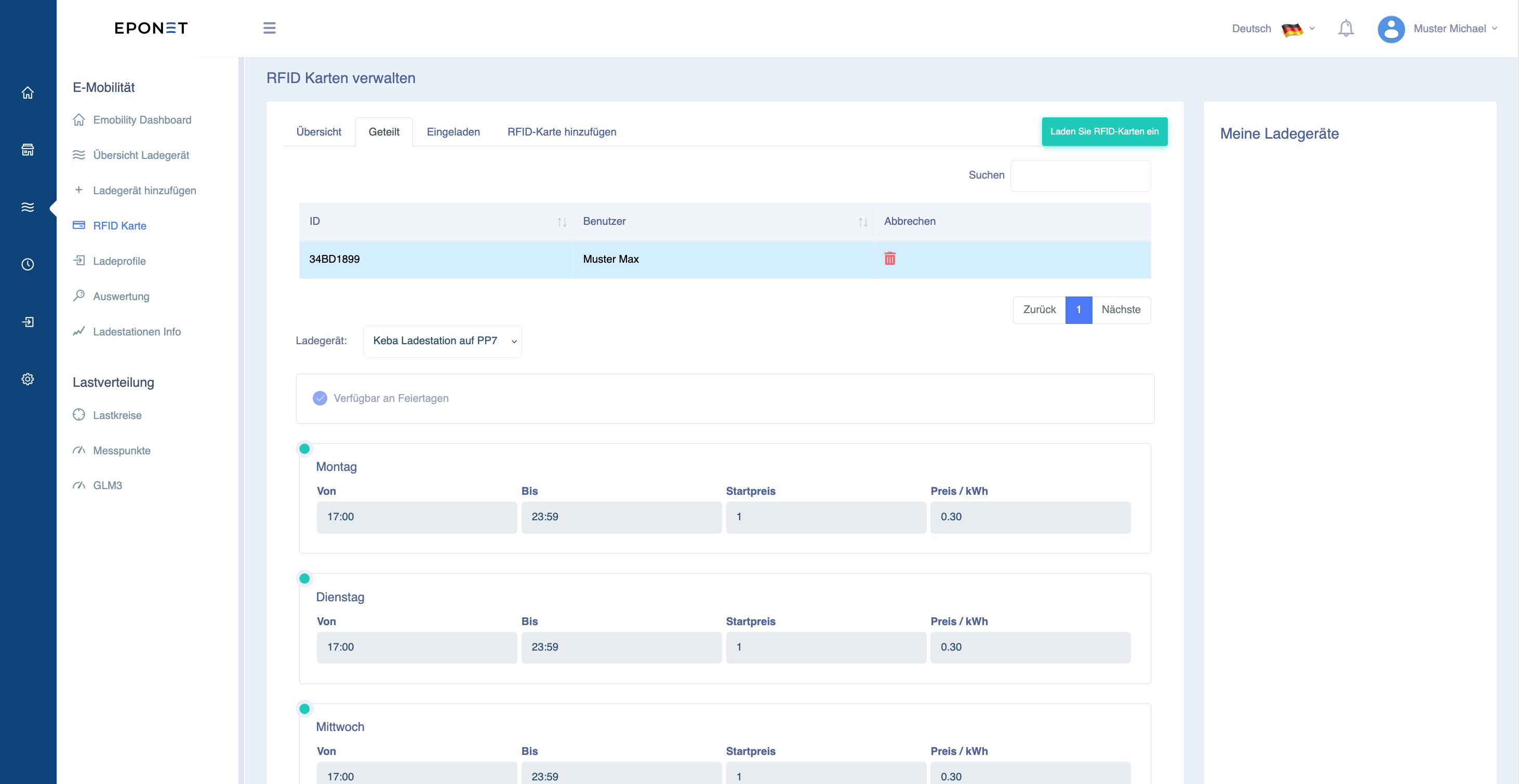
No charging station and prices visible under "Shared" yet? You must first be invited by the operator. To do this, contact the operator and provide them with the email address of your account so that they can invite you.
"Invited" tab
Under the "Invited" tab, as the operator of a charging infrastructure, you can see who is invited to your charging station and at what price. Click on your RFID card here and you will see in this example that this RFID card is authorised to charge at the "Keba charging station on PP7" (the price can be assigned or changed under Profile):
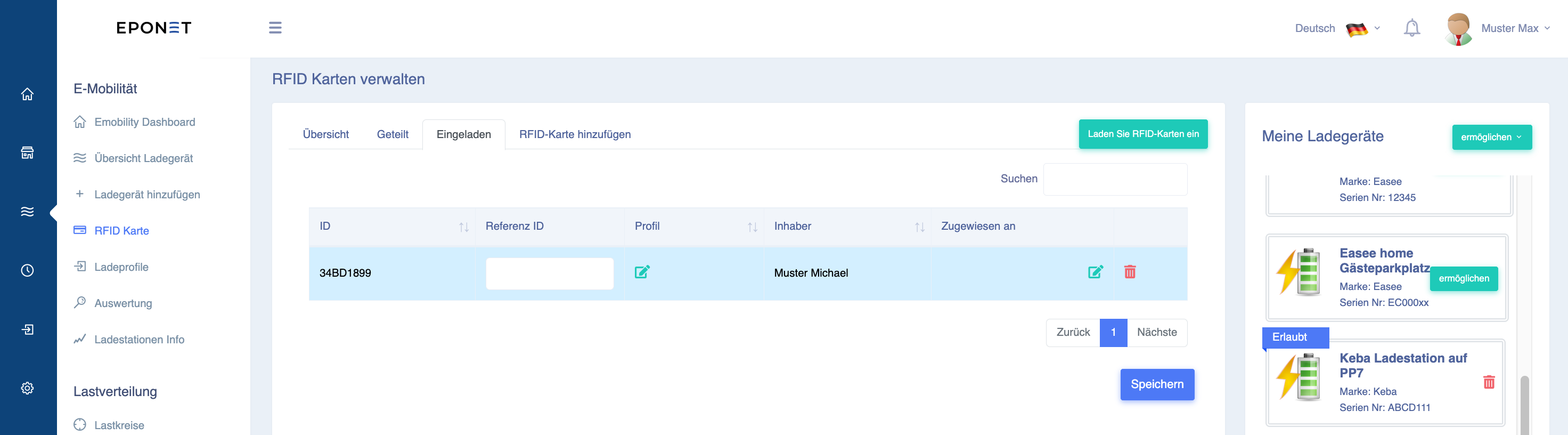
If an exclamation mark icon appears here under "Invited" for an RFID card, this means that the user has been invited without a price profile and can therefore charge free of charge.
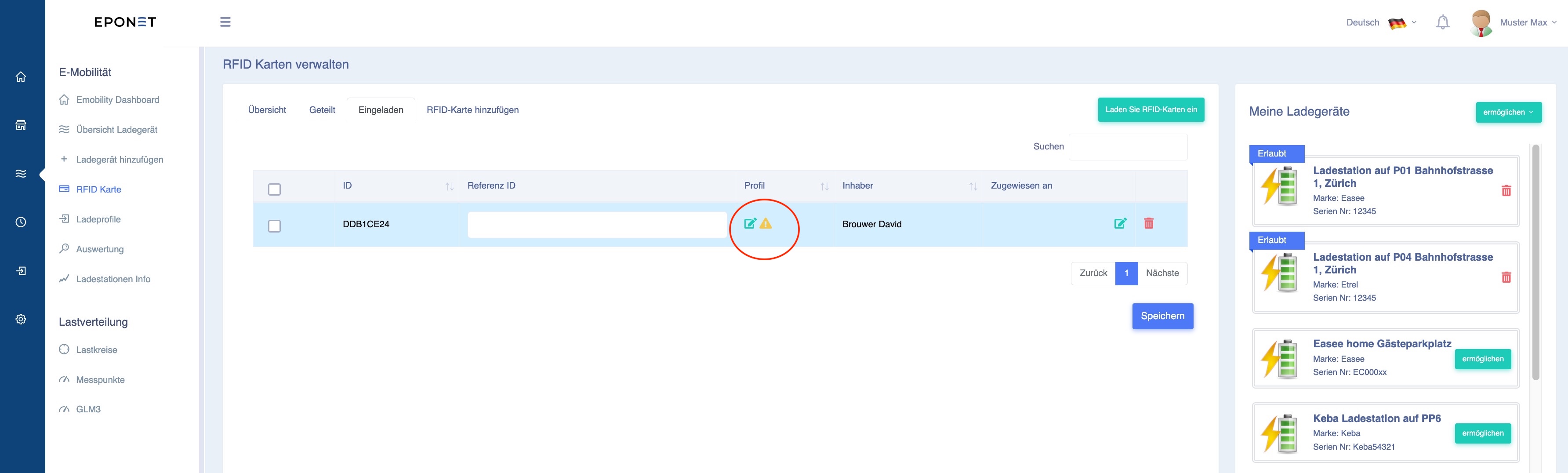
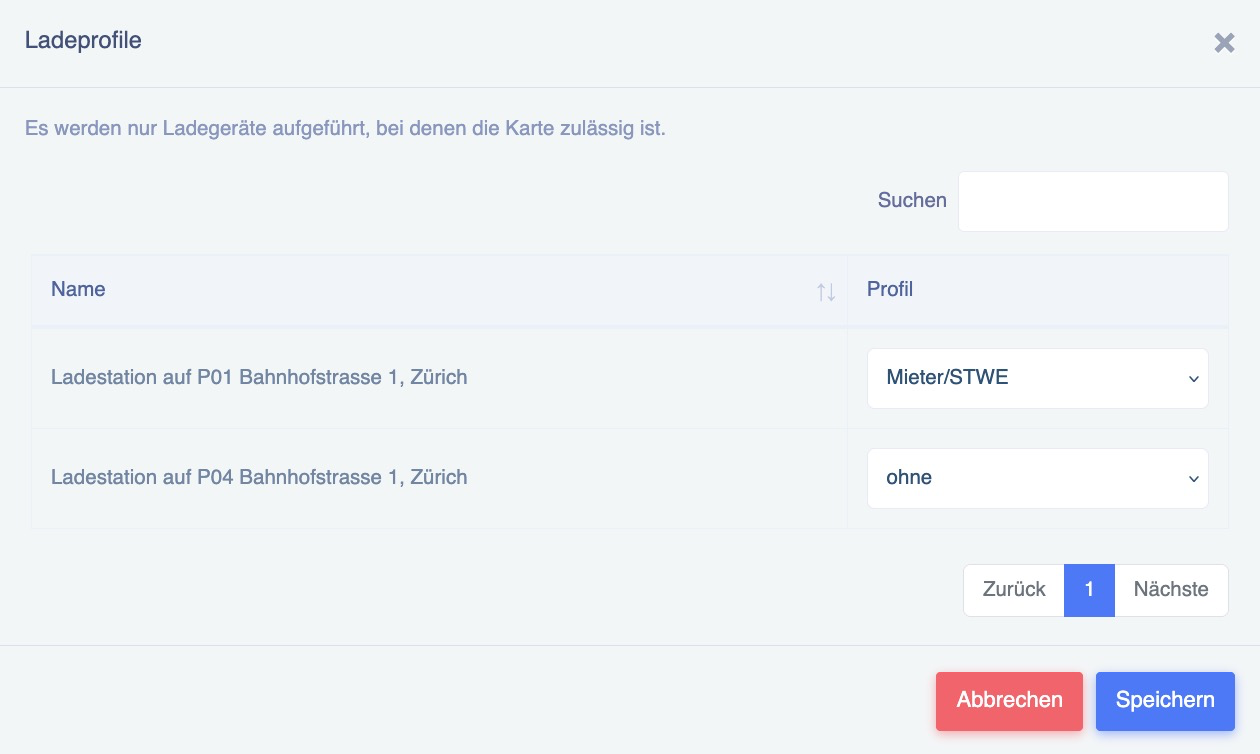
The green edit icon can be used to check or assign prices. A window will open. In this example, you can see that no price has been assigned to the second charging station:
The "Invited" tab also offers the option of batch management for invited RFID cards. To do this, select one or more RFID cards and click on the green "Assign" button:
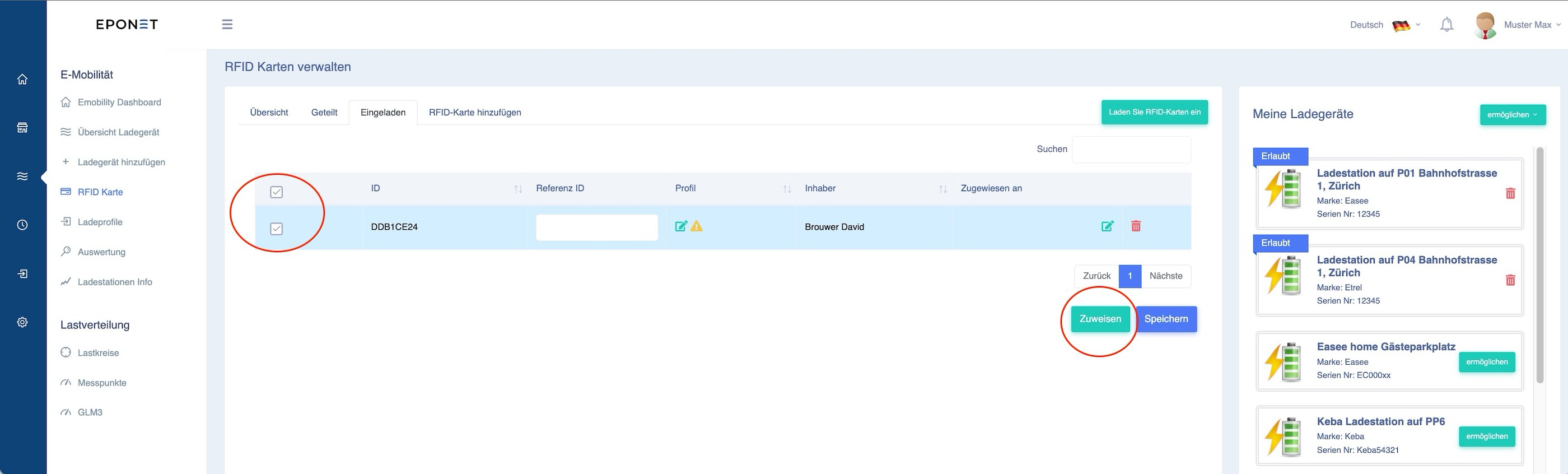
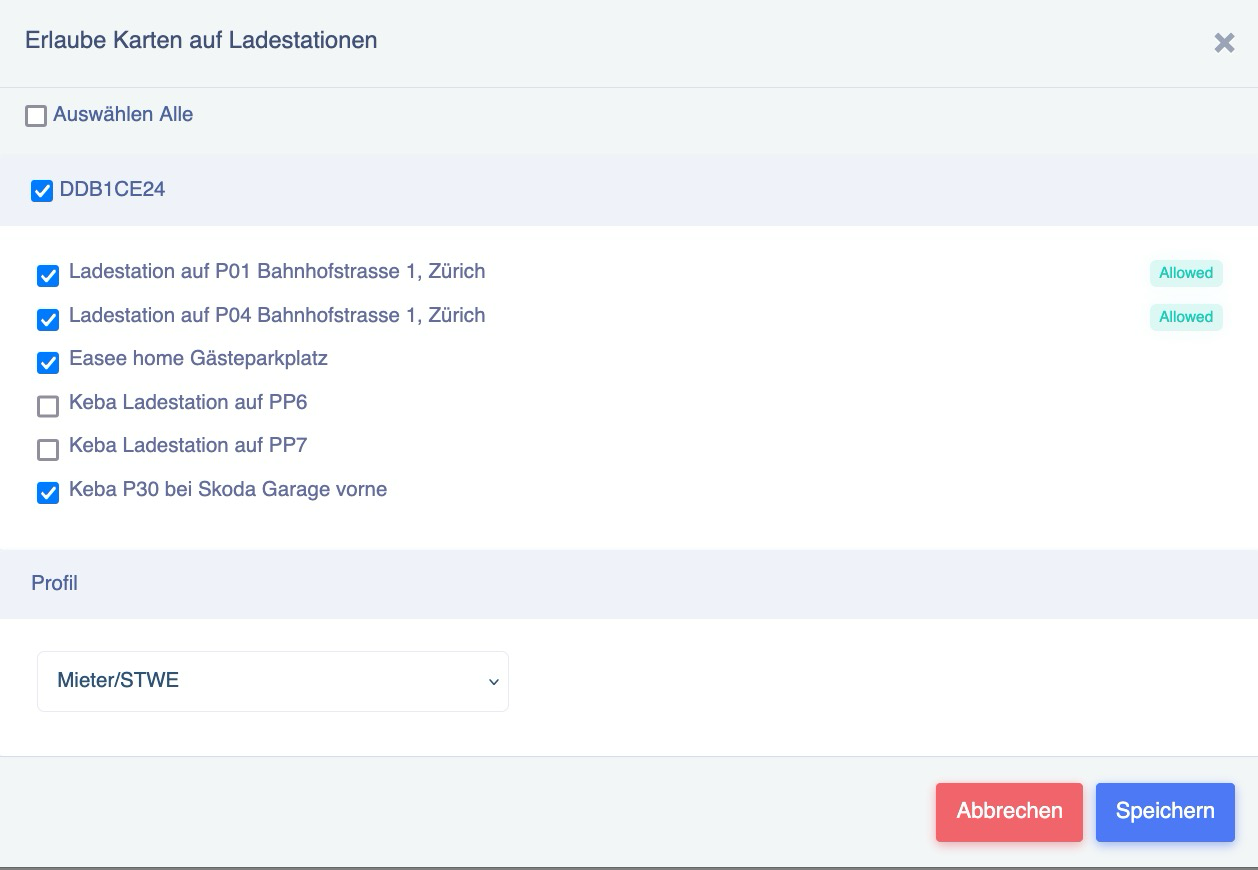
In the following window, you can now assign the authorisation and price profile to an RFID card in one go:
If you have an Eponet RFID card, the number printed on the card is also the number stored on the card that is read. This is not always the case. RFID cards from other providers can also be stored, provided they comply with the current RFID standard for charging stations.
Supported RFID technology: Passive HF RFID tags according to ISO/IEC
14443 or ISO/IEC 15693 (NFC) at 13.56 MHz are supported
. The question may arise as to whether MiFare Classic is also supported, and if so, 1k or 4k. The answer is that it does not matter. The charging station only reads the UUID of the chip. It therefore does not matter whether the chip has 1k or 4k memory.
It is not recommended to write to RFID cards, as depending on the charging station, the value stored in the memory may be read instead of the UUID. This can lead to incompatibility, e.g. with Hubject.