
Integration of the Easee AC charging station into the Eponet portal
These instructions are step 3 for connecting an Easee charging station to the Eponet portal.
Step 1 can be found at this link: Basic instructions for integrating charging stations
|
|
Software versions for Easee charging stations. The Easee can now also be controlled directly via OCPP in load management. This means that a separate account is no longer required for each installation.
PIN – A PIN is included with the charging station. You will need this for connection and configuration. |
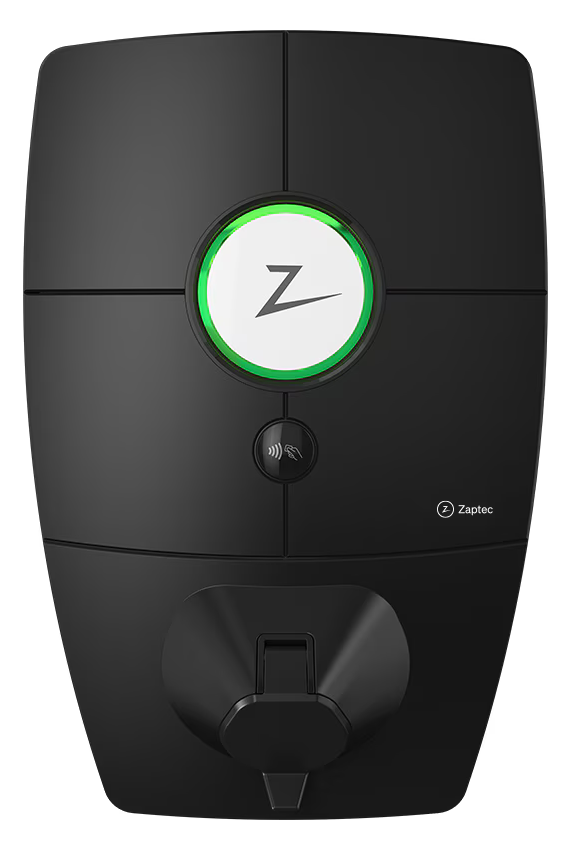
Preparing the charging station via Easee Cloud
The Easee charging station is configured via the Easee Cloud. Log in to the Easee Cloud, select the desired location and configure the Easee Cloud according to the manufacturer's instructions.
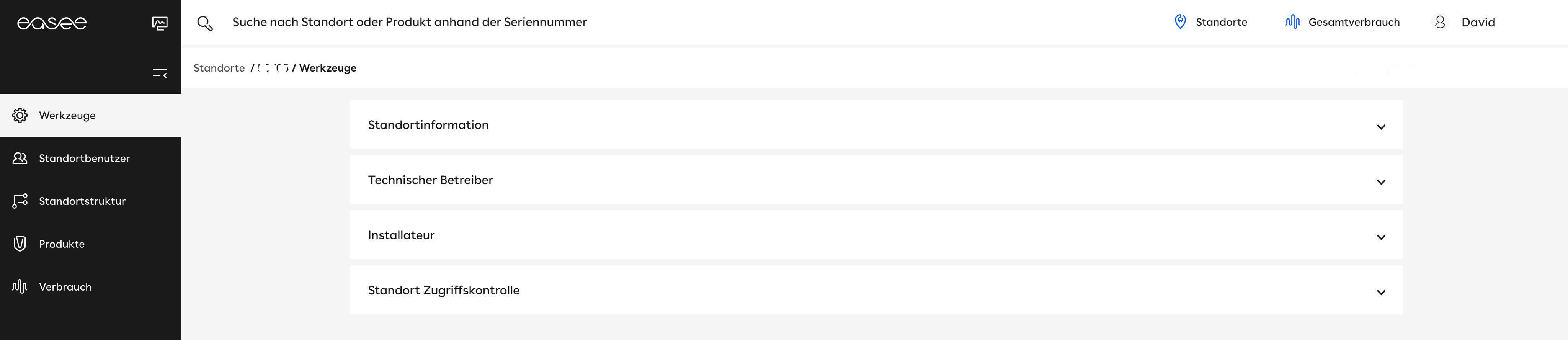
Once the Easee system has been configured, you can easily switch the location to Eponet via Tools > Technical Operator:
Remove the previous operator and select Eponet:
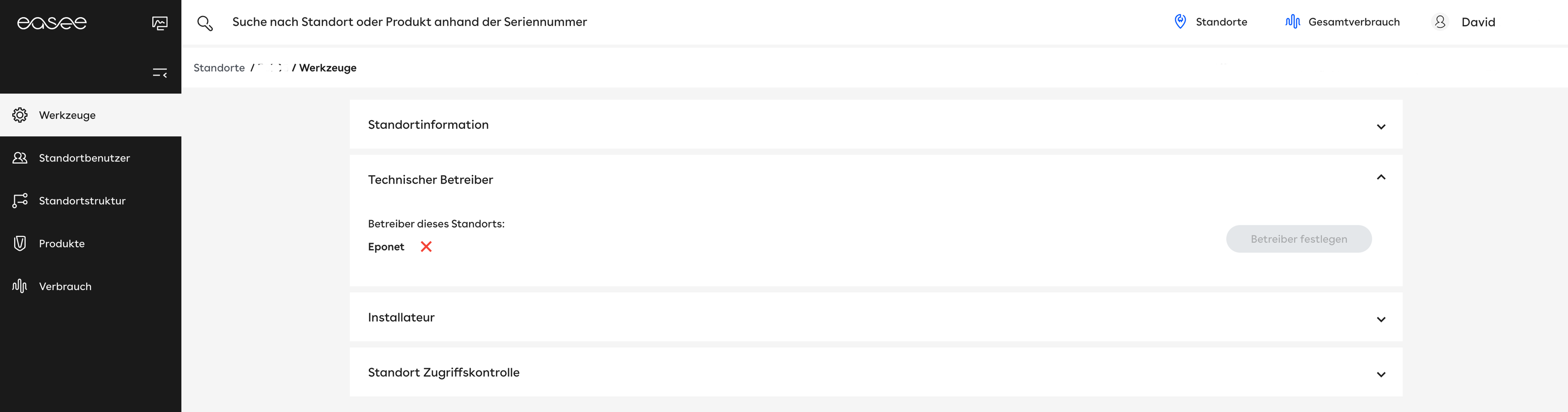
From this point on, the location is connected to the Eponet OCPP server (all charging stations in this installation are connected to Eponet).
Important
Make a note of, or even better, copy the serial number of your Easee charging station (e.g. EC102xxx). You will need this serial number later in the Eponet portal.
You can easily copy it under Products.
We recommend the following configuration (must be set for each charging station in the Easee Cloud). Please note that Eponet is not responsible if the charging station is configured incorrectly and, for example, offline charging is permitted, resulting in incorrect billing in the Eponet portal:
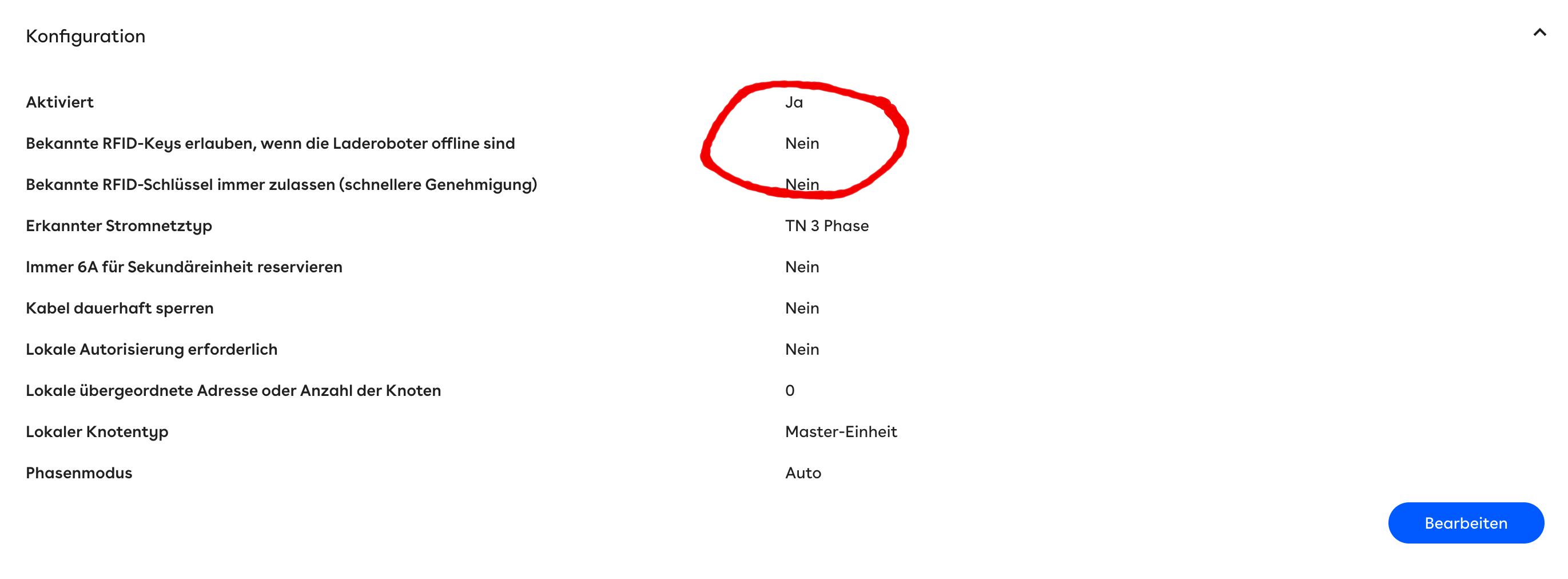
Please ensure that the configuration is set correctly as shown above. Please note that Eponet is not responsible if the charging station is configured incorrectly and, for example, offline charging is permitted, resulting in incorrect billing in the Eponet portal.
From this point on, the installation is connected to the Eponet OCPP server (all charging stations in this installation are connected to Eponet).
Checklist:
-
Authentication required > must be activated
-
Deactivate authorisation when the charging stations are offline > must not be activated
-
Is the charging station online on the Eponet portal?