
Integration of ABB AC Terra charging station into the Eponet portal with WSS
These instructions are step 3 for connecting an ABB AC Terra charging station to the Eponet portal.
To use these instructions, log in to Eponet (info@eponet.ch) to be added to our web app. This is the only way you can follow these instructions.
Alternatively, follow these instructions.
Step 1 can be found at this link: Basic instructions for integrating charging stations
|
|
Software versions ABB AC Terra
PIN – A PIN is included with the charging station. You will need this for connection and configuration. |
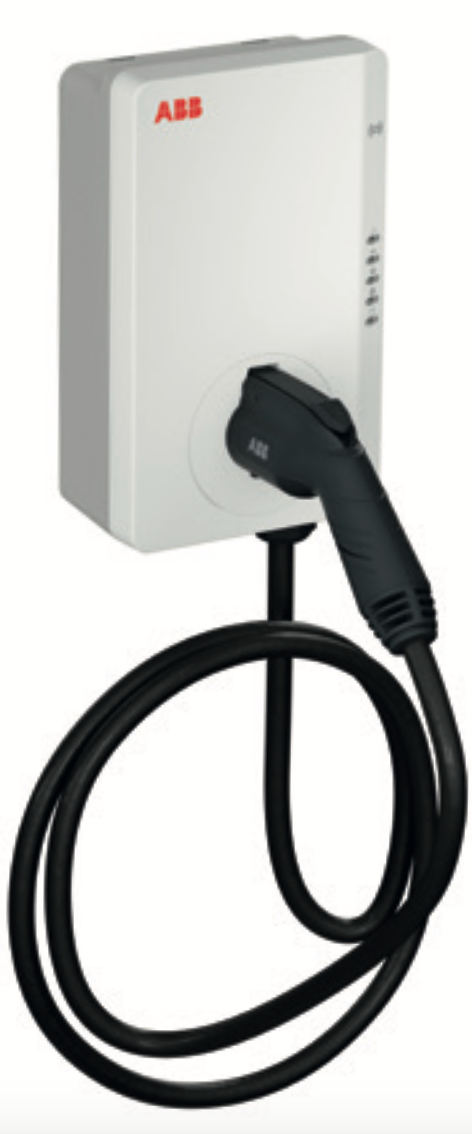
Prepare the charging station via TerraConfig
The ABB Terra AC charging station is configured via the TerraConfig app using Bluetooth. This requires a TerraConfig portal account. If you do not already have one, you can apply for it via: AC Terra Switzerland account application
Here you can simply search for "eponet" and select the link shown. The serial number is stored automatically and does not need to be entered separately in the link.
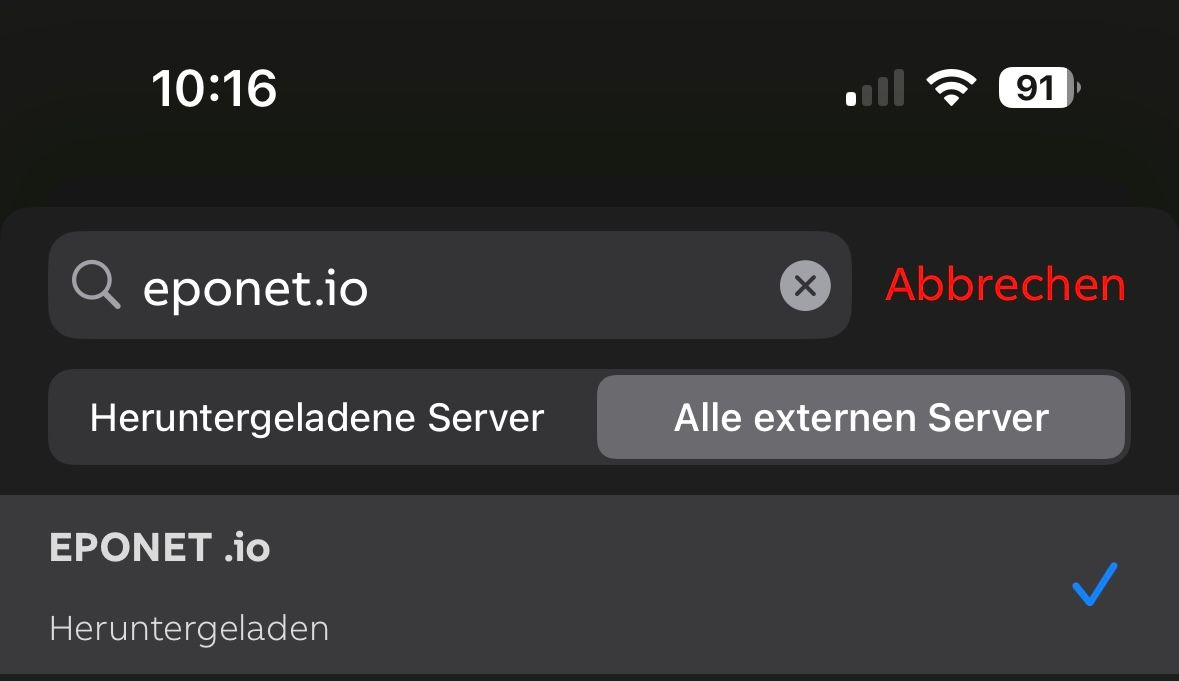
Please note: With the eponet.io OCPP link, the charging station sends the serial number without hyphens, i.e. as follows: TACW2241021G0XXX – if the charging station does not come online at Eponet, it may be that the charging station is recorded in the Eponet portal with hyphens: TACW22-4-1021-G0XXX. In this case, edit the charging station and enter the serial number without hyphens using the "Replace charging station" button.
Important:
The charging station must have software version 1.3.5 or higher. Via the TerraConfig app, the setting "Activate external RFID" must be set under RFID. Please note the serial number of your ABB Terra charging station (e.g. TACW2241021Gxxx). You will need this serial number later in the Eponet portal.
Checklist:
-
Software checked / latest version?
-
Internet configured / online?
-
Free charging deactivated?
-
OCPP installed and charging station online on the Eponet portal?
-
External RFID activated?