# Integration of EV Buddy Pro smart AC charging station into the Eponet portal

These instructions are step 3 for connecting an Autel AC charging station to the Eponet portal.

Step 1 can be found at this link: [Basic instructions for integrating charging stations](https://wiki.eponet.ch/books/ladestationen/chapter/integration-ladestation)

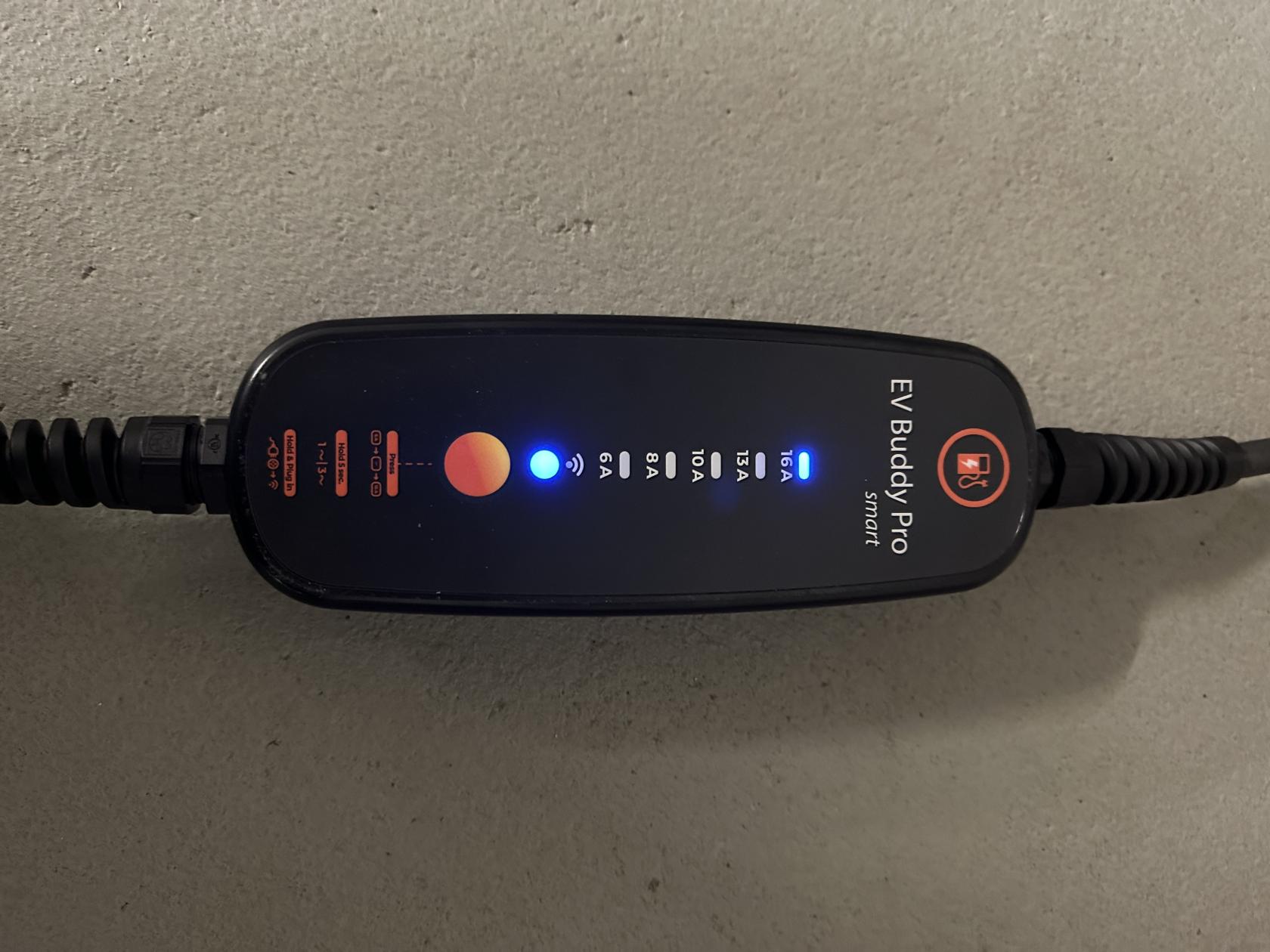
<table border="1" id="bkmrk-software-versionen-z" style="border-collapse: collapse; width: 100%;"><colgroup><col style="width: 37.3063%;"></col><col style="width: 62.6937%;"></col></colgroup><tbody><tr><td>[![IMG_1685 2.jpeg](https://wiki.eponet.ch/uploads/images/gallery/2025-04/scaled-1680-/H4qimg-1685-2.jpeg)](https://wiki.eponet.ch/uploads/images/gallery/2025-04/H4qimg-1685-2.jpeg)

</td><td style="border-color: rgb(255, 255, 255);"><p class="callout info">Software versions EV Buddy Pro smart Software version  
2.3.0 or higher is required.</p>

<p class="callout danger"> There is NO RFID reader installed, which makes it impossible to activate charging with an RFID card directly at the charging station.</p>

</td></tr></tbody></table>

The charging station must be connected to the power supply and the red button on the EV Buddy must be pressed for at least 0.5 seconds within 5 seconds.  
This generates the charging station's own Wi-Fi, which you must connect to for setup.

[![IMG_1679.png](https://wiki.eponet.ch/uploads/images/gallery/2025-04/scaled-1680-/img-1679.png)](https://wiki.eponet.ch/uploads/images/gallery/2025-04/img-1679.png)

The Wi-Fi password can be found on the white card that comes with the charging station (see image below).

[![IMG_1682 2.jpeg](https://wiki.eponet.ch/uploads/images/gallery/2025-04/scaled-1680-/rvFimg-1682-2.jpeg)](https://wiki.eponet.ch/uploads/images/gallery/2025-04/rvFimg-1682-2.jpeg)

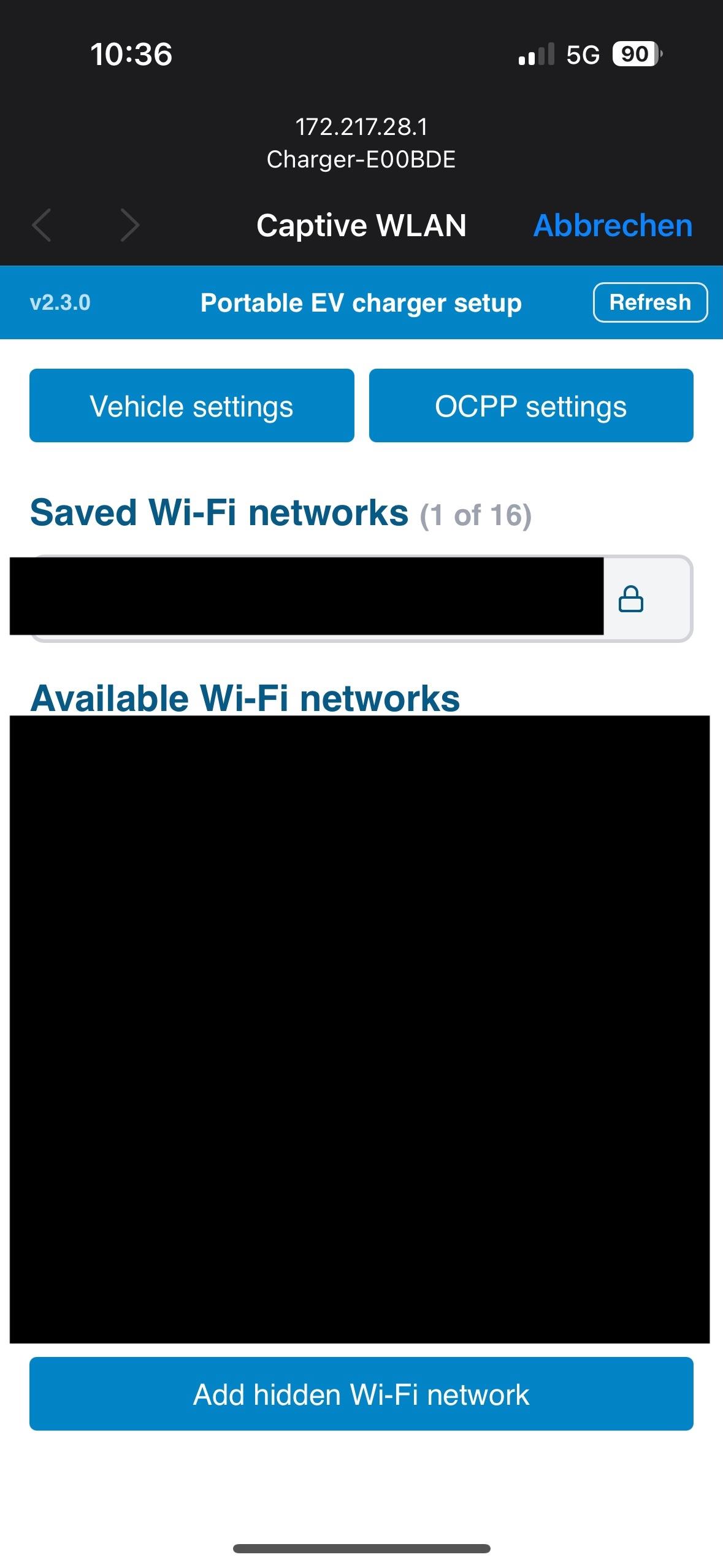
Once you have connected to the charging station's Wi-Fi, a settings page will open where you can make the necessary configurations.  
First, select and connect to your local Wi-Fi network.

<p class="callout danger">A 2.4 GHz Wi-Fi network must be used. The connection will not work with a 5 GHz network.</p>

[![IMG_1680.jpeg](https://wiki.eponet.ch/uploads/images/gallery/2025-04/scaled-1680-/img-1680.jpeg)](https://wiki.eponet.ch/uploads/images/gallery/2025-04/img-1680.jpeg)

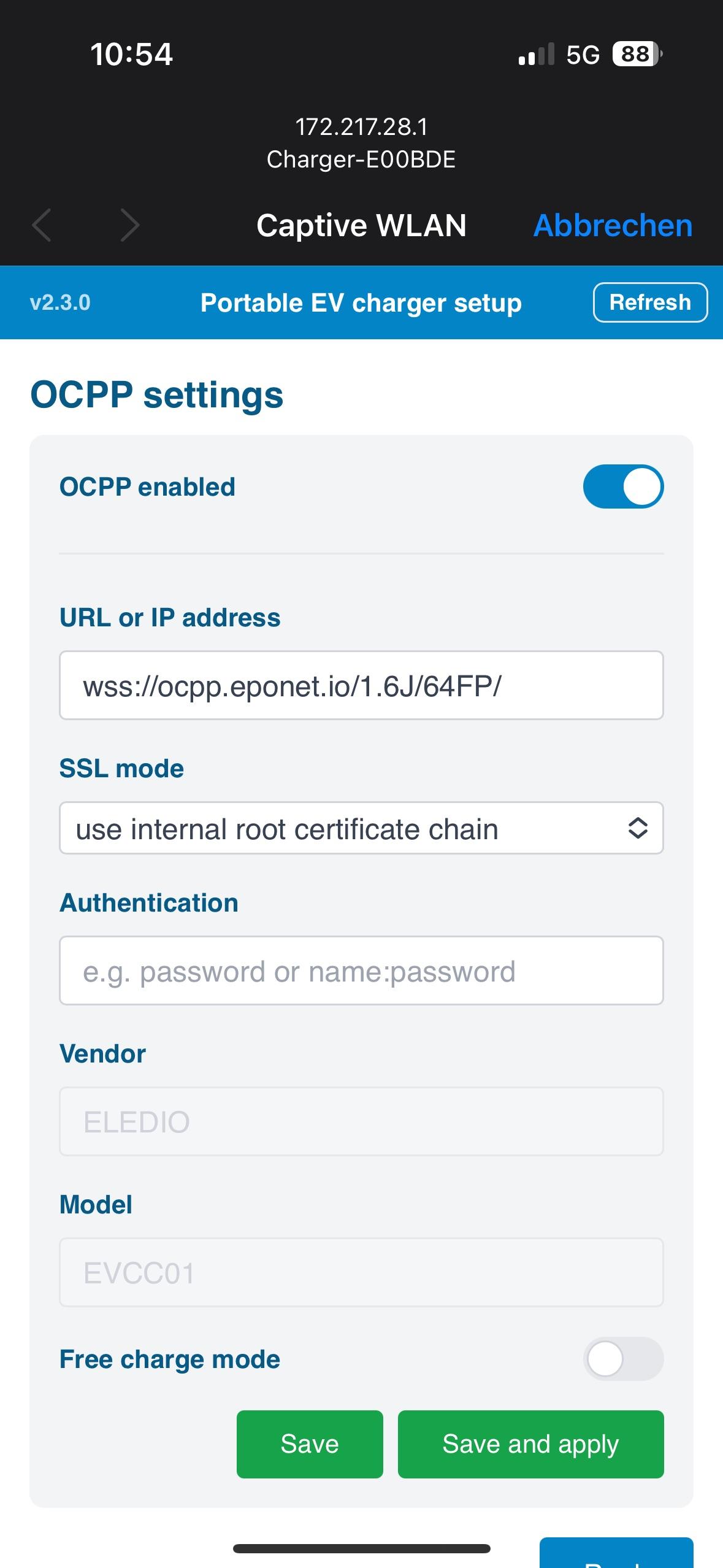
Then, click on the "OCPP settings" tab to set up the connection with Eponet.

[![IMG_1684 2.jpeg](https://wiki.eponet.ch/uploads/images/gallery/2025-04/scaled-1680-/img-1684-2.jpeg)](https://wiki.eponet.ch/uploads/images/gallery/2025-04/img-1684-2.jpeg)

Once everything has been set up as shown in the image above and the charging station has been registered on the Eponet portal, it will be displayed as "Online".

<p class="callout info">The serial number for the Eponet portal can be taken from the white card provided and does not need to be entered behind the OCPP link.</p>

wss://ocpp.eponet.io/1.6J/65FB/

**Checklist:**

- Software checked / latest version?
- Internet configured / online?
- OCPP server: Eponet link selected and charging station online on the Eponet portal?

[Now continue with step 4.](https://wiki.eponet.ch/books/ladestationen/page/schritt-4-ladegerat-hinzufugen-allgemeiner-schritt)