| [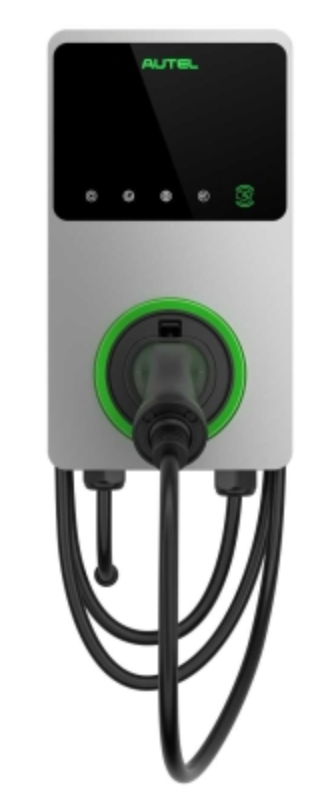](https://wiki.eponet.ch/uploads/images/gallery/2025-01/Jcygrafik.png) | Software Versionen Autel MaxiCharger AC Ladestation V1.15 (Leistungsregelungsmodul) ist die tiefste Version die unterstützt wird. V1.16 (Leistungsregelungsmodul) ist geprüft und wird von Eponet unterstützt V1.19 (Leistungsregelungsmodul) und V1.50 (Ladesteuergerät) ist geprüft und wird von Eponet unterstützt (empfohlene Version) PIN - Im Lieferumfang der Ladestation ist ein PIN dabei. Diesen benötigen Sie zwingend für die Verbindung und Konfiguration. Tipp: Legen Sie diesen PIN im Eponet Portal bei jeder Ladestation ab. Noch besser als Foto zusammen mit dem QR-Code, denn bei der Konfiguration mit der App können Sie sich blitzschnell via diesem QR-Code einloggen. Auch für späteren Support ist der PIN zwingend. |
Zugangsdaten zur Config App von Autel müssen frühzeitig bei
**Wichtig:** Die Ladestation muss Software Version V1.16 oder höher haben. Notieren Sie bitte die Serien-Nummer Ihrer Autel MaxiCharger Ladestation (z.B. AE0022A1GN5C0Gxxx). Diese Serien-Nummer benötigen Sie nachher im Eponet Portal.
Verbinden Sie sich mit der App „Autel Config“ und wählen Sie bei bei OCPP Server EPONET aus. Nach der Auswahl startet die Ladestation neu und beim OCPP Server sollte verbunden stehen. [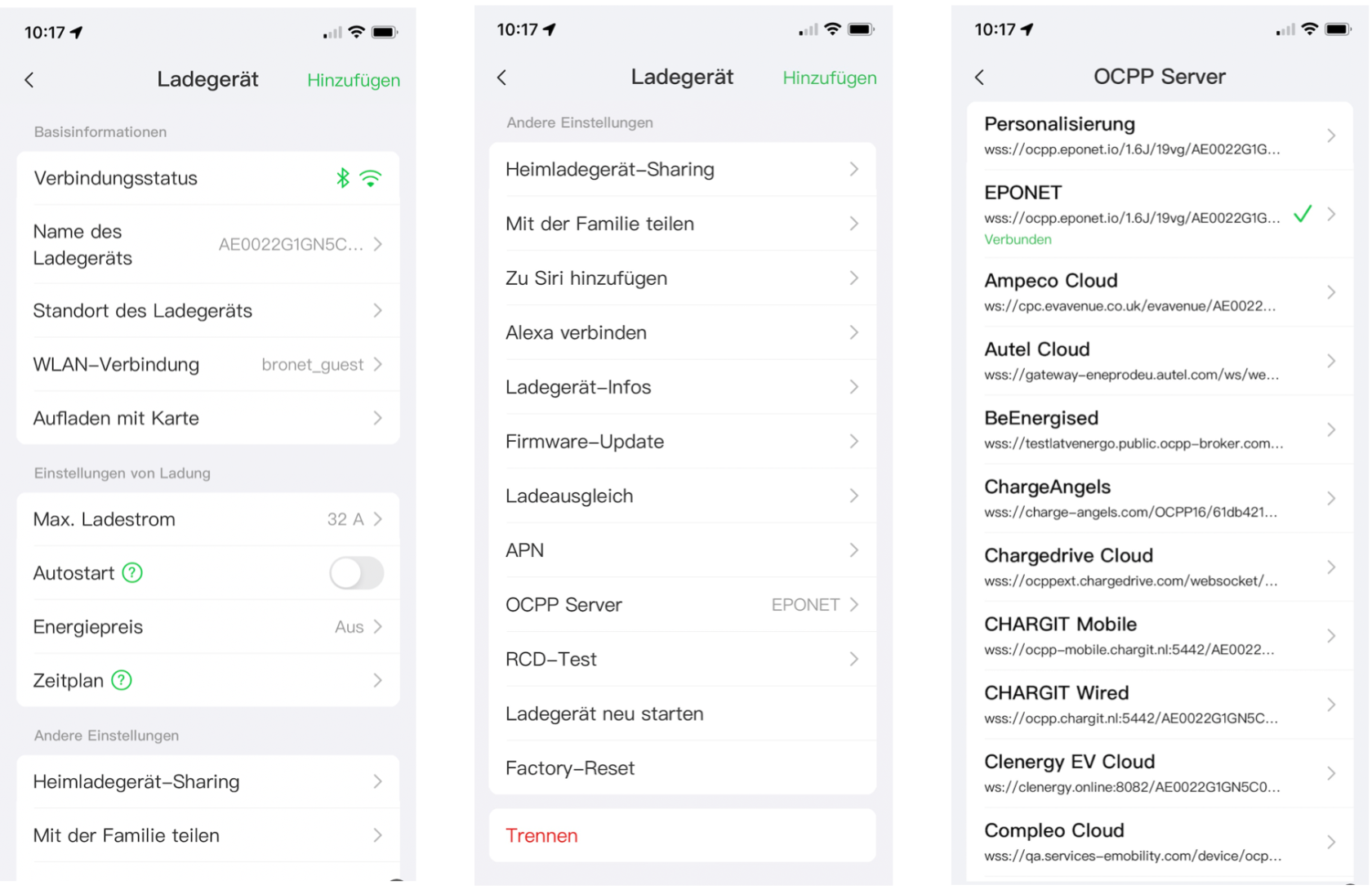](https://wiki.eponet.ch/uploads/images/gallery/2025-01/NX3grafik.png) **Checkliste:** - Software kontrolliert / neuester Stand? - Internet konfiguriert / online? - OCPP Server: Eponet Link ausgewählt und Ladestation Online auf dem Eponet Portal?Bitte stellen Sie sicher, dass Konfiguration korrekt eingestellt ist. Bitte beachten Sie, Eponet ist nicht verantwortlich, wenn die Ladestation falsch konfiguriert und zum Beispiel offline Laden erlaubt ist und dadurch keine korrekte Abrechnung im Eponet Portal erfolgt.
[Fahren Sie nun wieder mit dem Schritt 4 weiter.](https://wiki.eponet.ch/books/ladestationen/page/schritt-4-ladegerat-hinzufugen-allgemeiner-schritt)