Integration Schneider AC charging station
Instructions for connecting EVlink charging stations to the Eponet portal.
- Integration of EVlink AC (old version) charging station into the Eponet portal
- Integration of EVlink Pro AC (new version) charging station into the Eponet portal
Integration of EVlink AC (old version) charging station into the Eponet portal
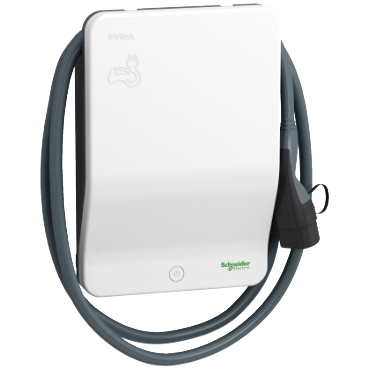
These instructions are step 3 for connecting an EVlink AC charging station (Schneider Electric) to the Eponet portal.
Step 1 can be found at this link: Basic instructions for integrating charging stations
|
|
Software versions EV Link charging station |
The EV Link is configured via the web browser. To do this, the IP address of the charging station must be entered in the browser. The standard login details are as follows.
Username: admin
Password: ADMIN
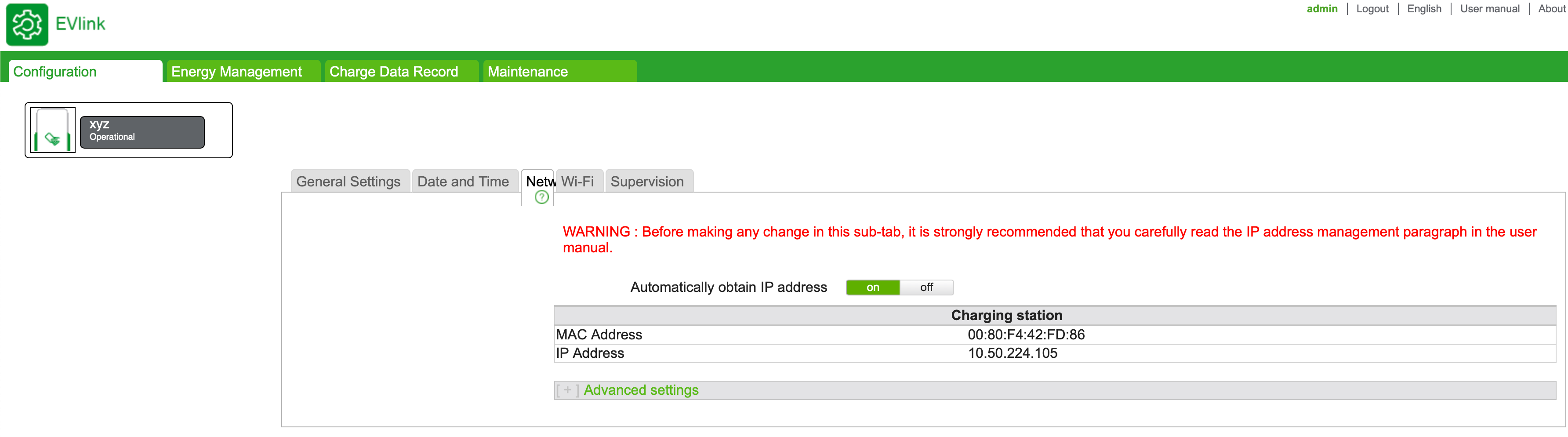
After successfully logging in, the IP address can be set or left on DHCP under "Configuration - Network".
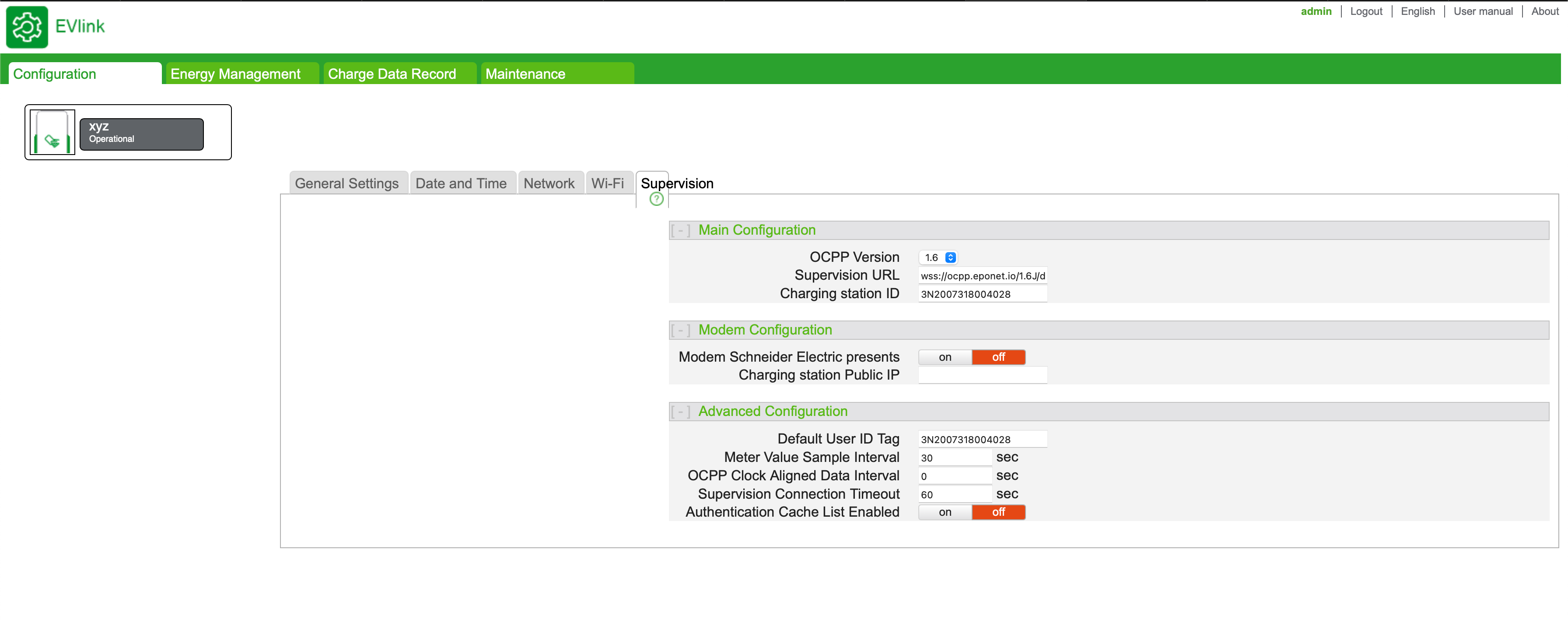
The OCPP link is entered under "Configuration - Supervision".
OCPP link: wss://ocpp.eponet.io/1.6J/dd60
The "Charging station ID" must be left at the default setting.
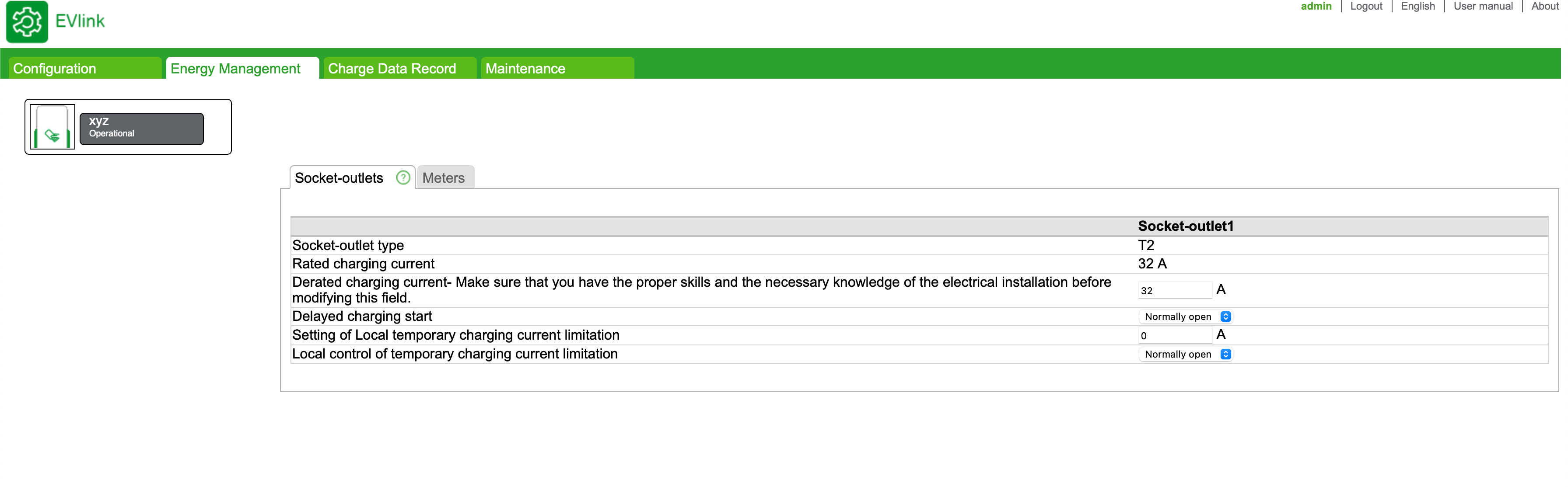
Here are the settings for "Energy Management":
After making these settings, save them and restart the charging station. The charging station should then come online on the Eponet portal.
Please make a note of the serial number of your EVlink charging station (e.g. 2004XXXX). You will also need this serial number later in the Eponet portal.
Checklist:
-
Software checked / latest version?
-
OCPP installed and charging station online on the Eponet portal
Integration of EVlink Pro AC (new version) charging station into the Eponet portal
These instructions are step 3 for connecting an EVlink AC charging station (Schneider Electric) to the Eponet portal.
Step 1 can be found at this link: Basic instructions for integrating charging stations
|
|
Software versions EV Link Pro AC charging station OCPP link: wss://ocpp.eponet.io/1.6J/dd60/ |
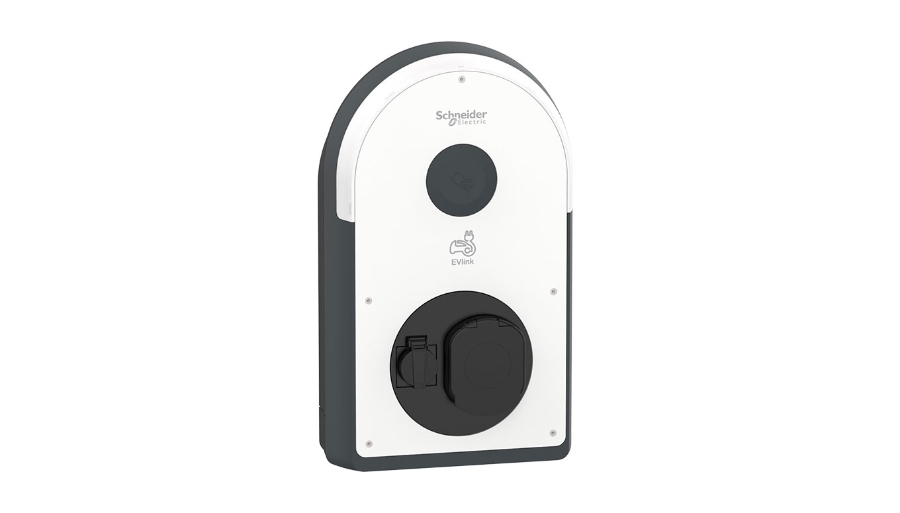
The EV Link is configured via Schneider's eSetup app.
First, check that the charging station's firmware is at least version 1.6.1.
If this is not the case, you can update it via the app.
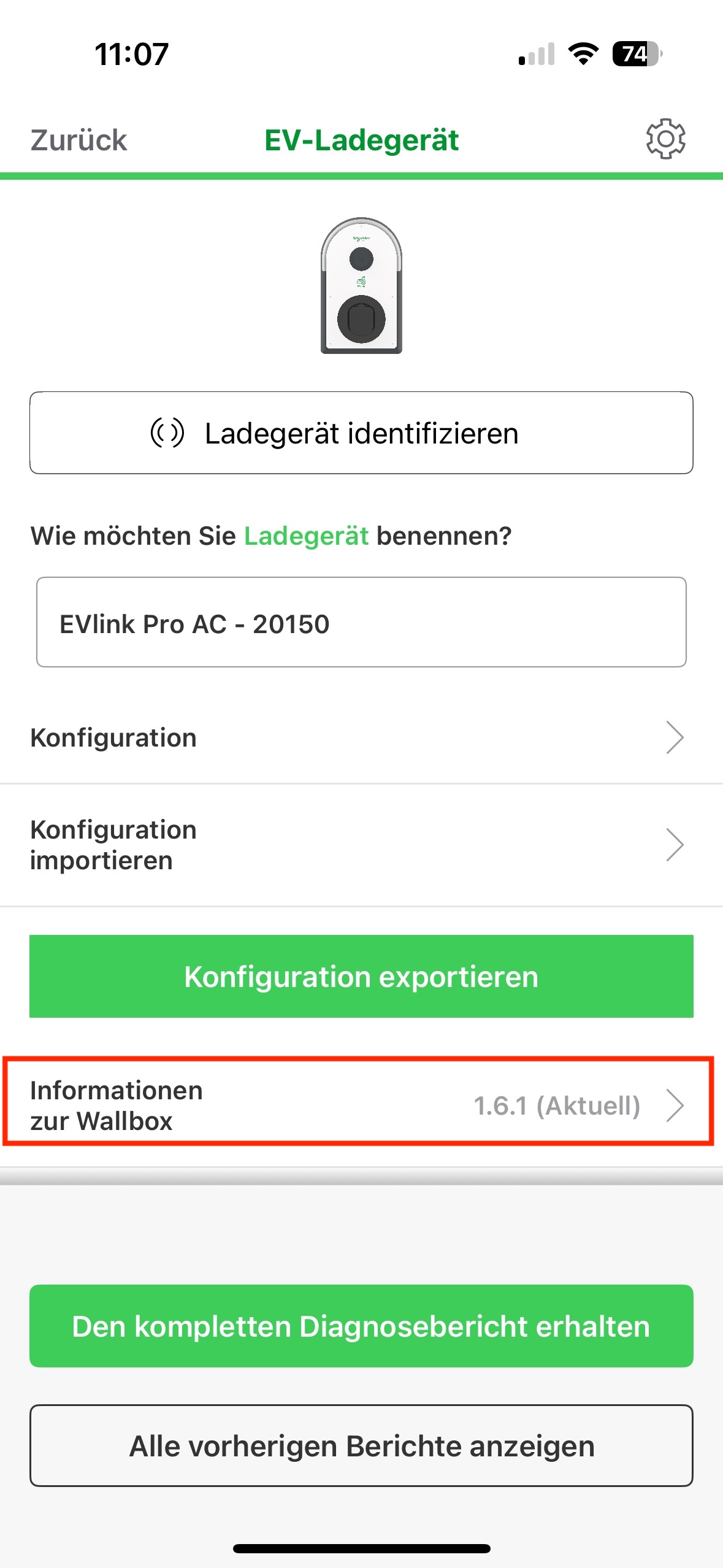
To do this, click on the area marked in red.
You can then update the firmware via the cloud or via a USB stick, which can be plugged into the charging station. You can download the appropriate firmware from the official Schneider homepage.
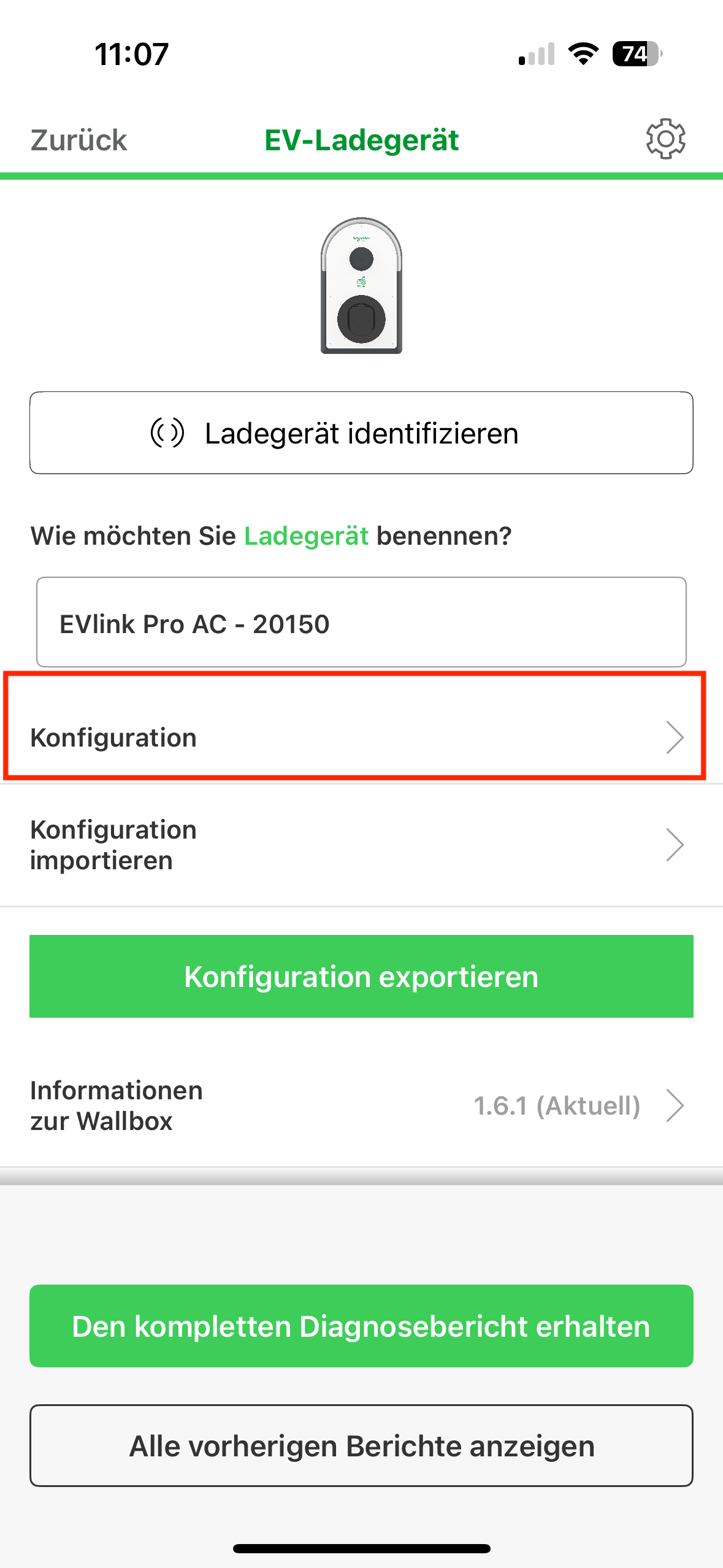
Now click on "Configuration".
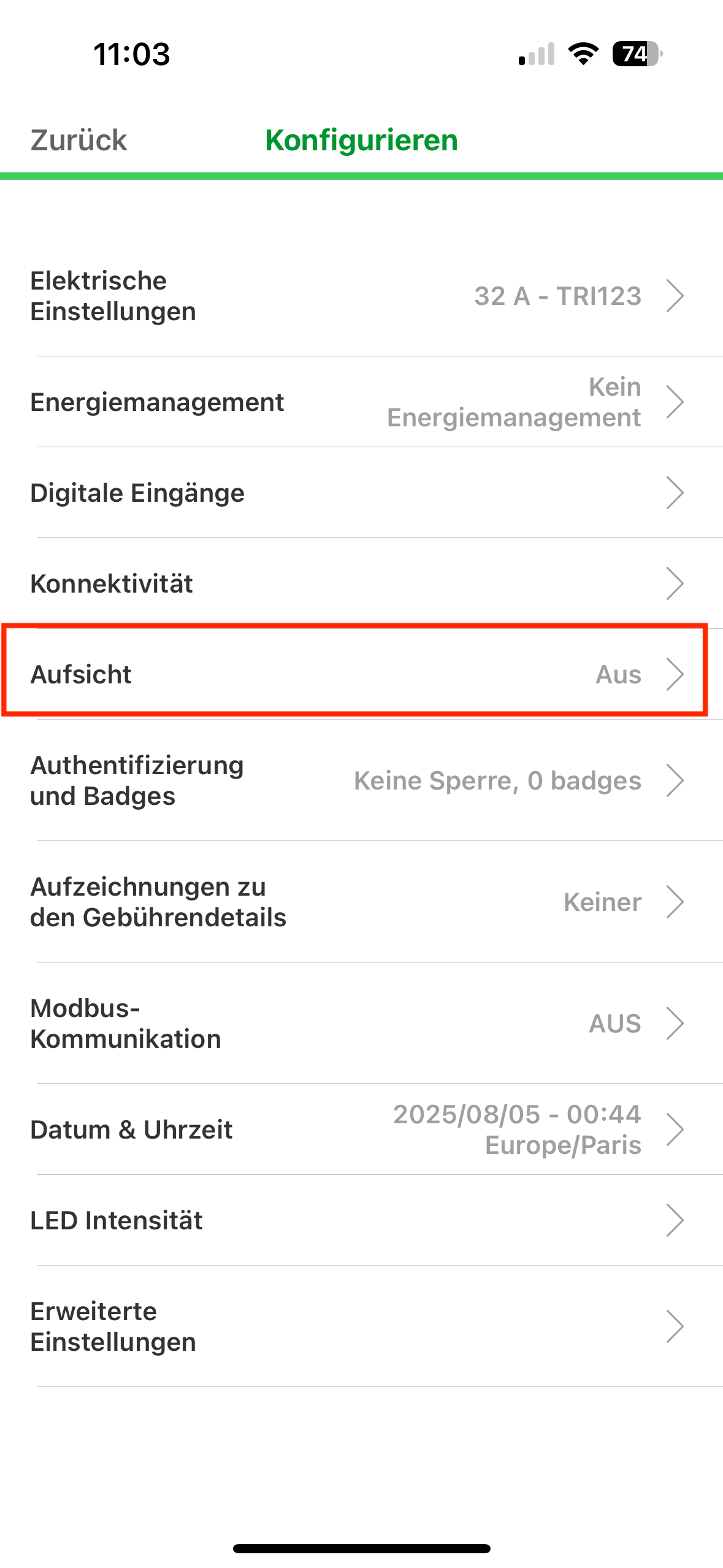
Now click on "Supervision".
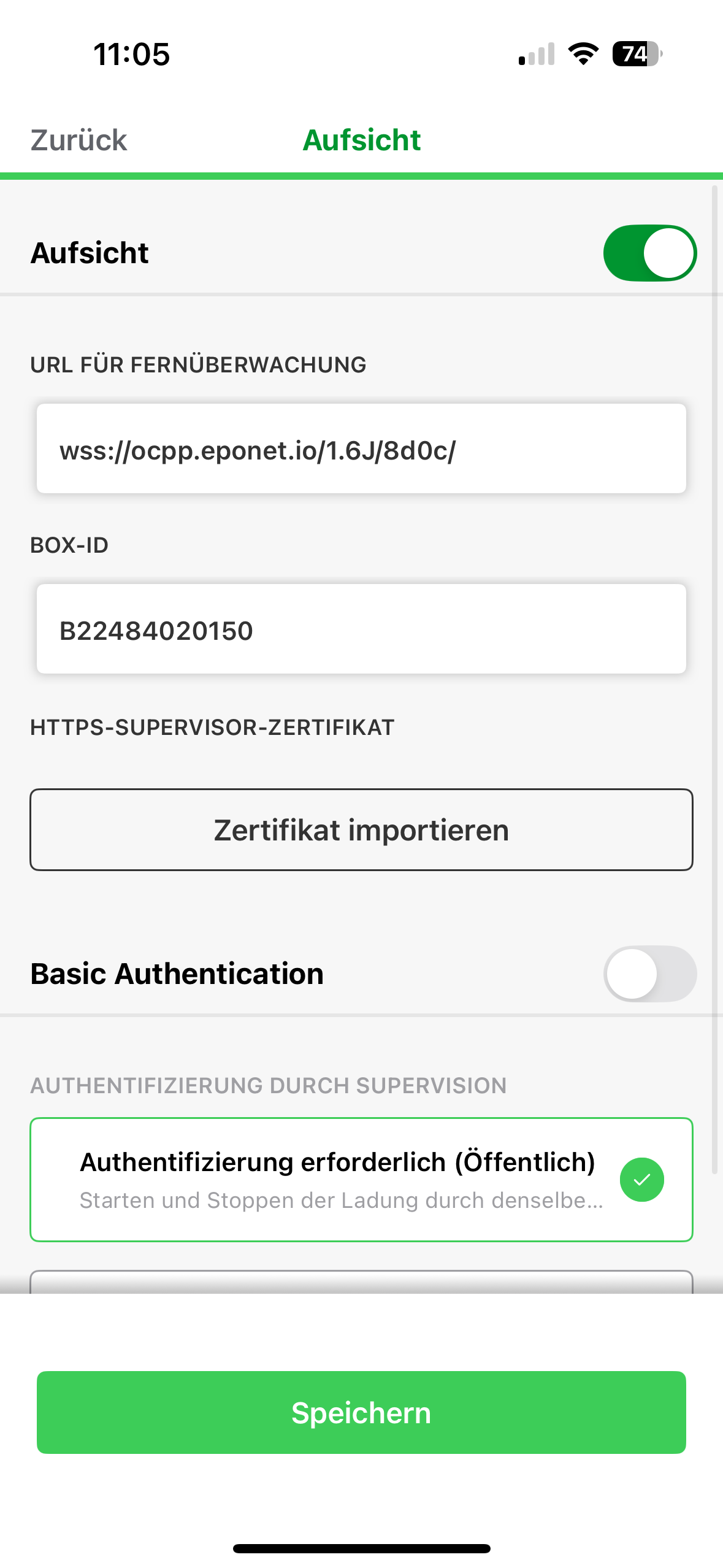
Now activate "Supervision" and enter the URL as shown above.
The BOX ID must be entered as shown above and corresponds to the serial number that must be entered on the Eponet portal.
Now click on "Save". The charging station should then be displayed as online on the Eponet portal.
Checklist:
-
Software checked / latest version?
-
OCPP installed and charging station online on the Eponet portal