# Integration of Mennekes charging station

Instructions for connecting Mennekes charging stations to the Eponet portal

# Integration of Mennekes AC charging station into the Eponet portal

These instructions are step 3 for connecting a Mennekes AC charging station to the Eponet portal.

Step 1 can be found at this link: [Basic instructions for integrating charging stations](https://wiki.eponet.ch/books/ladestationen/page/schritt-1-konto-vorbereiten-allgemeiner-schritt)

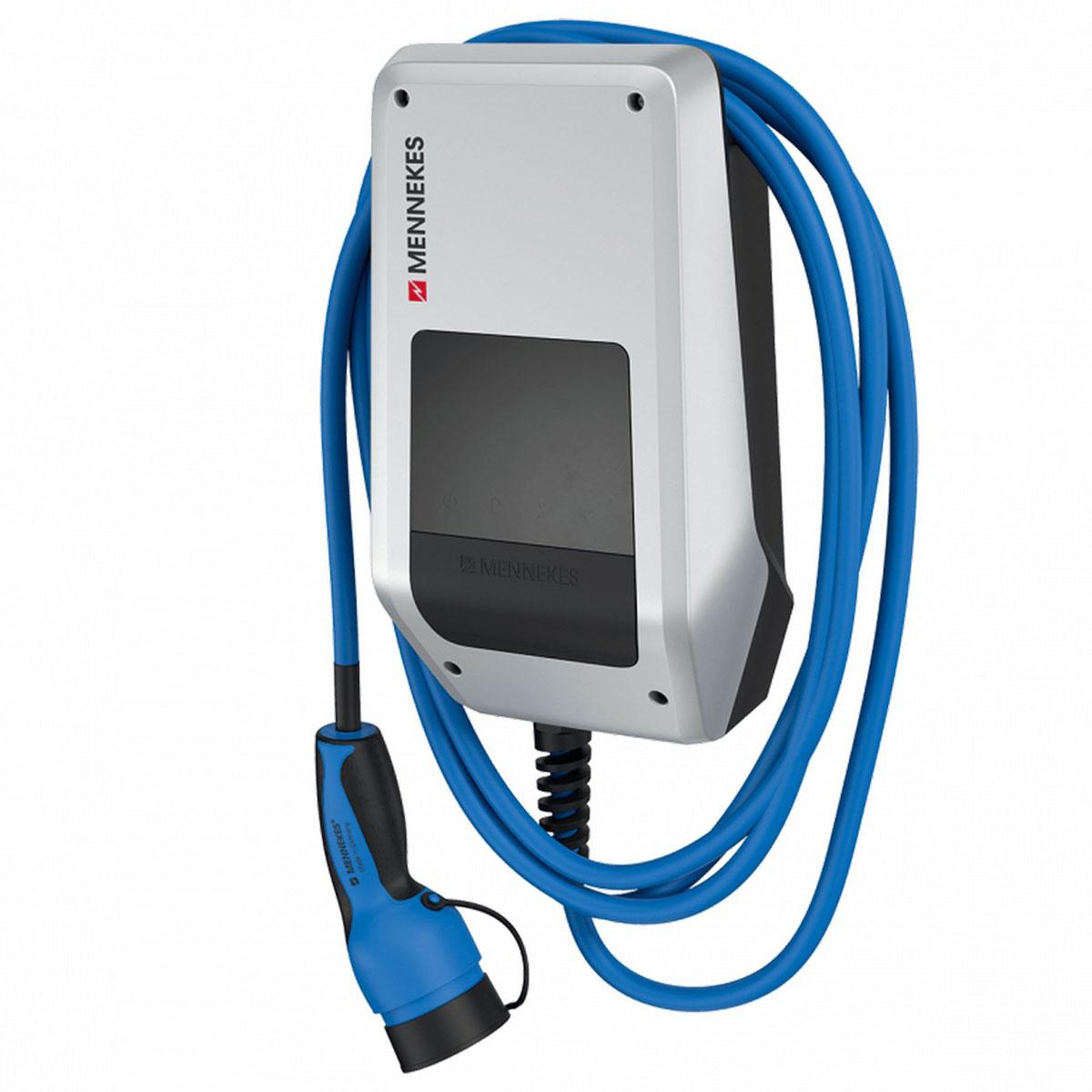
<table border="1" id="bkmrk-software-versionen-z" style="border-collapse: collapse; width: 100%;"><colgroup><col style="width: 37.3063%;"></col><col style="width: 62.6937%;"></col></colgroup><tbody><tr><td>[![526931_Mennekes_Ladestation_Amtron_Compact_3_711_C2_fuer_E-Fahrzeu_2164820_01.jpg.jpg](https://wiki.eponet.ch/uploads/images/gallery/2025-09/scaled-1680-/526931-mennekes-ladestation-amtron-compact-3-711-c2-fuer-e-fahrzeu-2164820-01-jpg.jpg)](https://wiki.eponet.ch/uploads/images/gallery/2025-09/526931-mennekes-ladestation-amtron-compact-3-711-c2-fuer-e-fahrzeu-2164820-01-jpg.jpg)

</td><td style="border-color: rgb(255, 255, 255);"><p class="callout info">Mennekes software  
versions At least software version xxx is required.</p>

</td></tr></tbody></table>

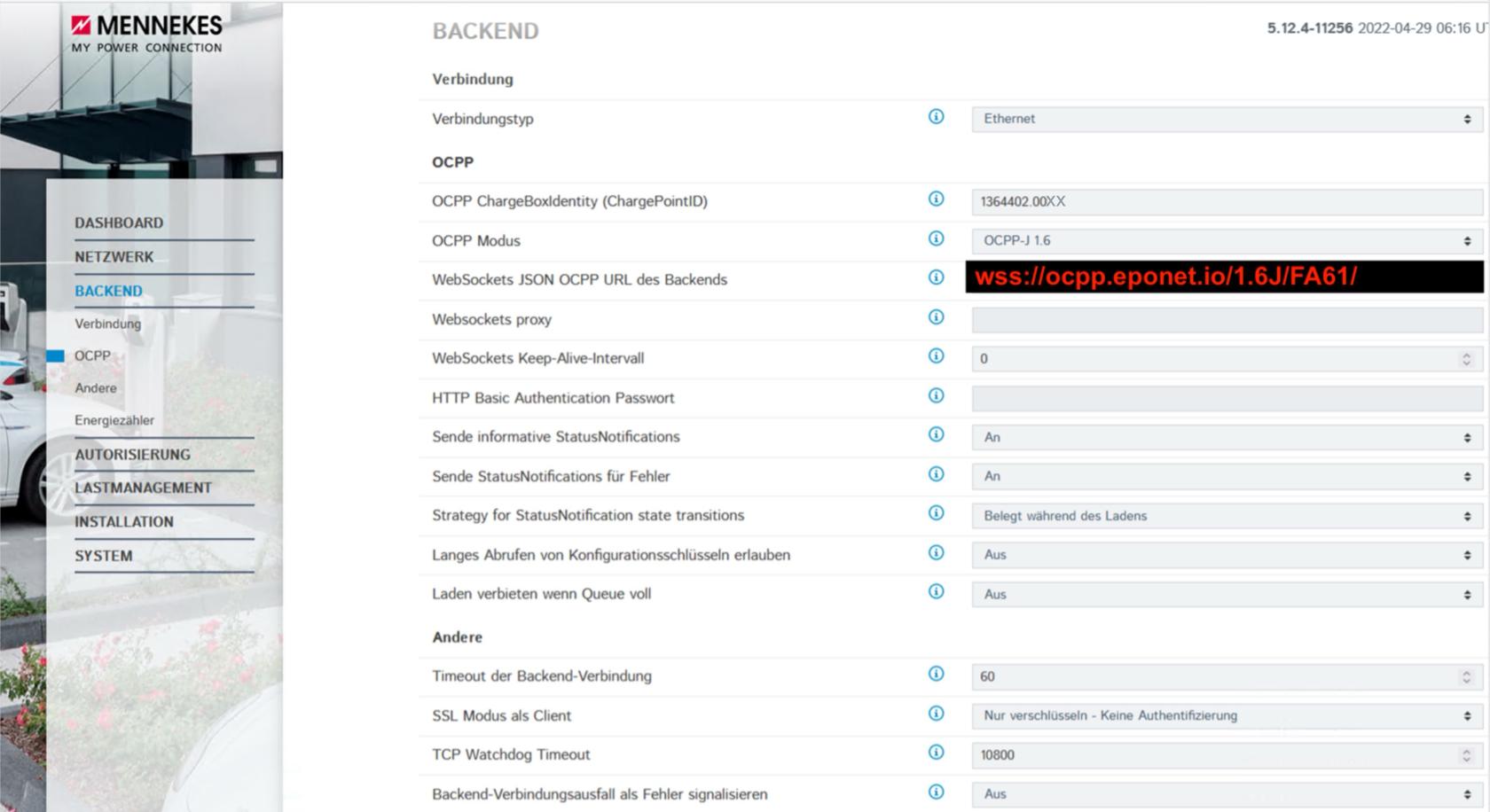
Enter the IP address of the charging station in the address bar of your browser and log in with the user name and password provided in the accompanying documents.

The following settings will then open.  
Configure everything as shown in the images.

<p class="callout info">The "ChargePointID" corresponds to the serial number of the charging station and must be unique.</p>

[![Bildschirmfoto 2025-09-29 um 15.40.04.jpg](https://wiki.eponet.ch/uploads/images/gallery/2025-09/scaled-1680-/bildschirmfoto-2025-09-29-um-15-40-04.jpg)](https://wiki.eponet.ch/uploads/images/gallery/2025-09/bildschirmfoto-2025-09-29-um-15-40-04.jpg)wss://ocpp.eponet.io/1.6J/FA61/

[![Menekes2.png](https://wiki.eponet.ch/uploads/images/gallery/2025-09/scaled-1680-/menekes2.png)](https://wiki.eponet.ch/uploads/images/gallery/2025-09/menekes2.png)
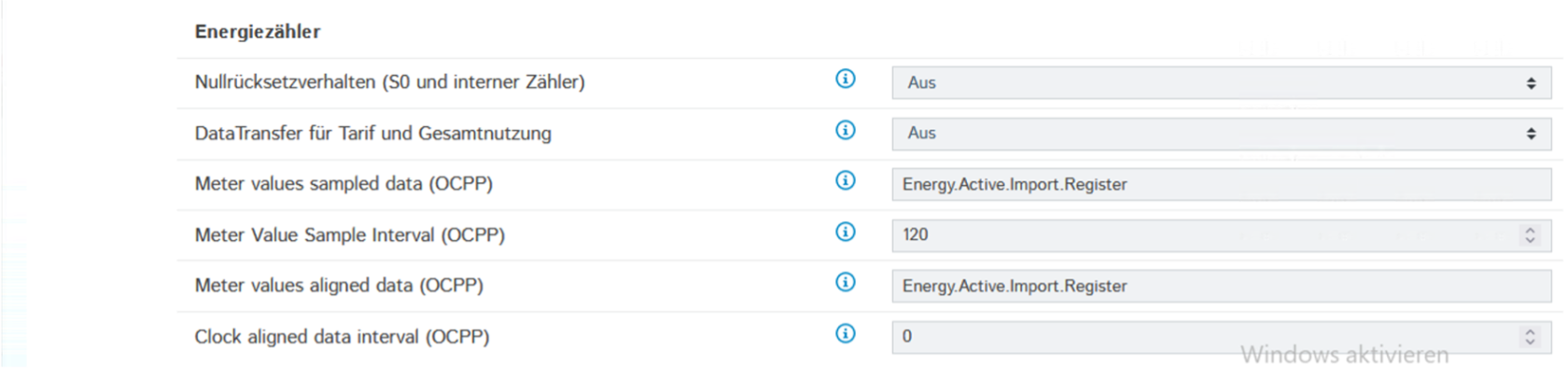
[![Menekes3.png](https://wiki.eponet.ch/uploads/images/gallery/2025-09/scaled-1680-/menekes3.png)](https://wiki.eponet.ch/uploads/images/gallery/2025-09/menekes3.png)
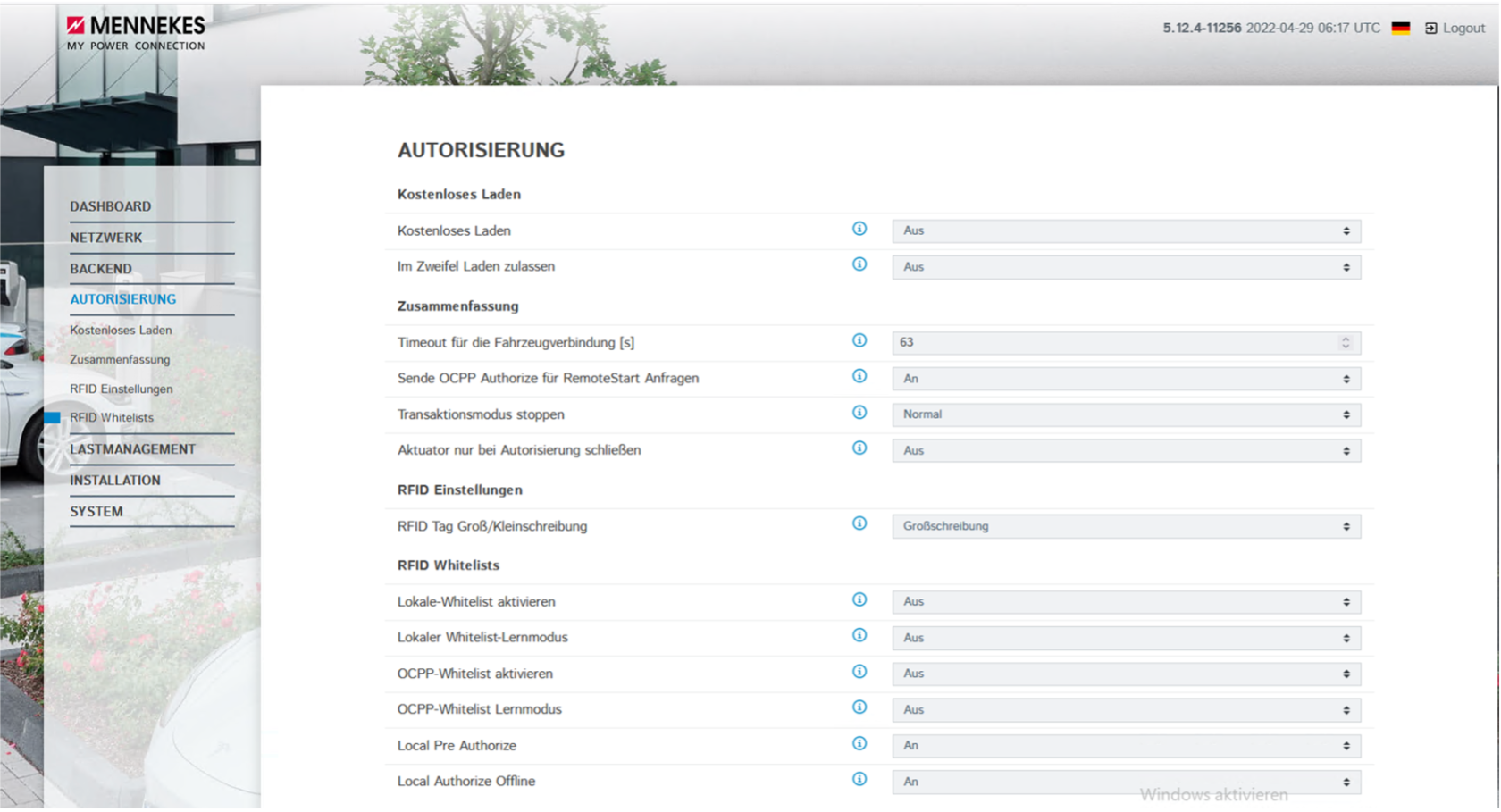
[![Menekes4.png](https://wiki.eponet.ch/uploads/images/gallery/2025-09/scaled-1680-/menekes4.png)](https://wiki.eponet.ch/uploads/images/gallery/2025-09/menekes4.png)
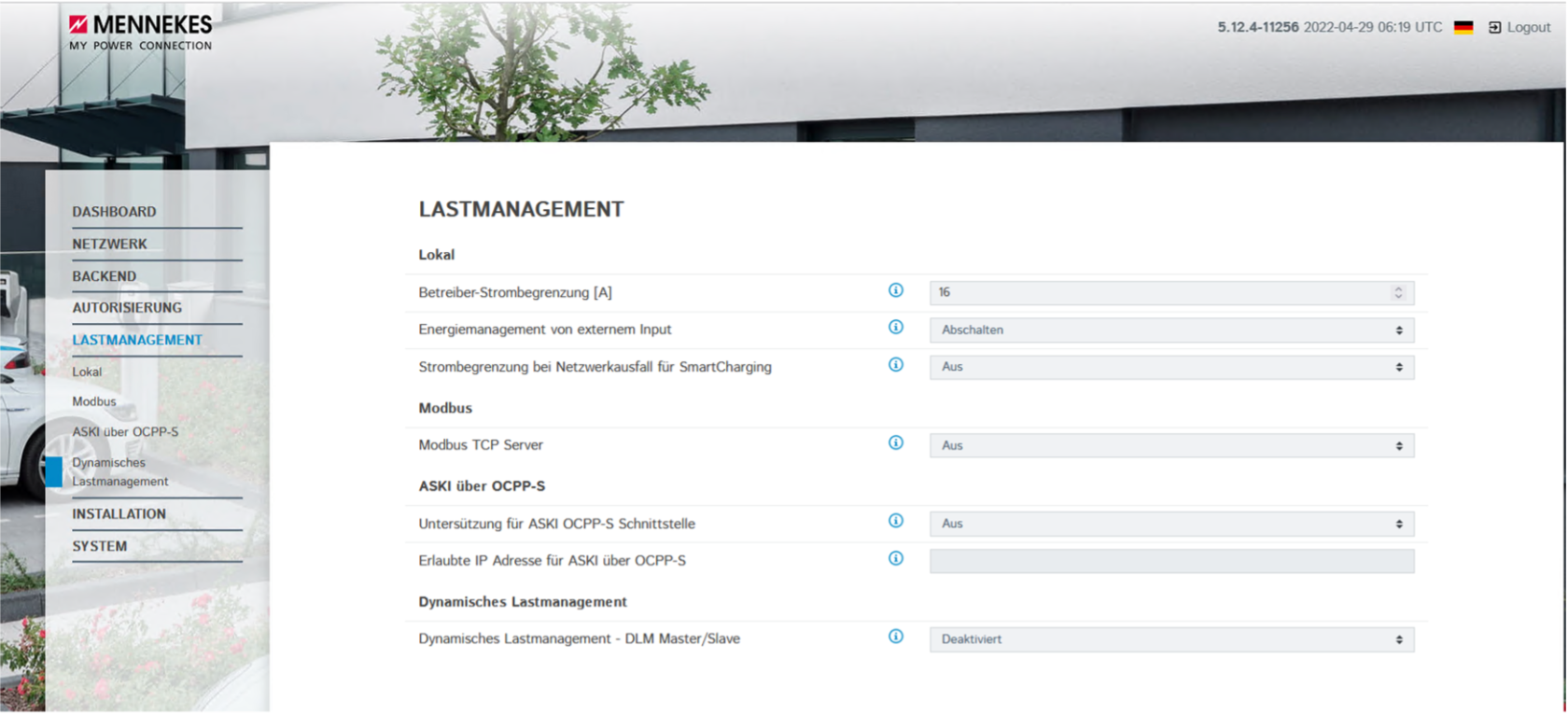
[![Mennekes5.png](https://wiki.eponet.ch/uploads/images/gallery/2025-09/scaled-1680-/mennekes5.png)](https://wiki.eponet.ch/uploads/images/gallery/2025-09/mennekes5.png)
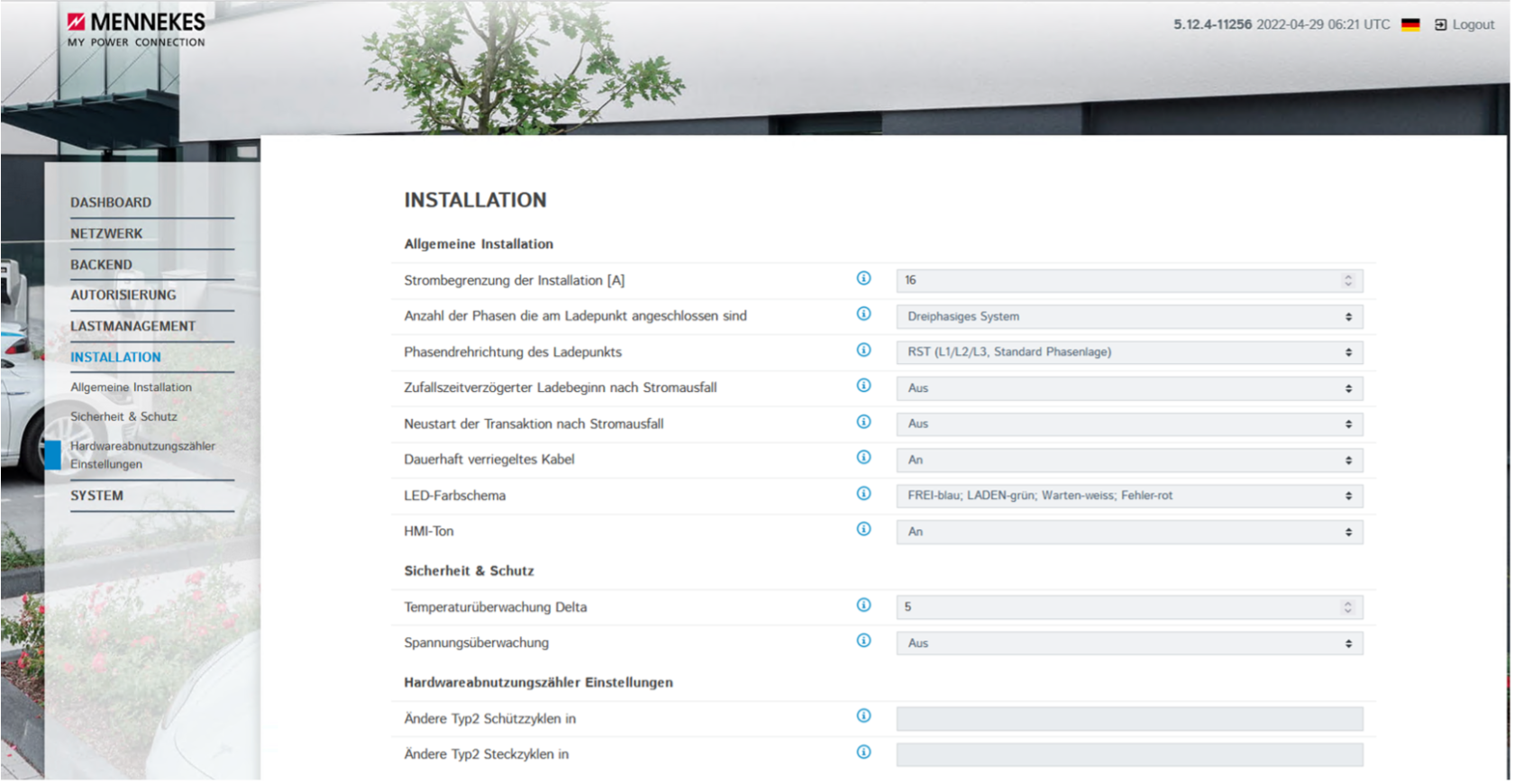
Then save the settings and restart the charging station.  
This should bring the charging station online on the Eponet portal.

**Checklist:**

- Software checked / latest version?
- Internet configured / online?
- OCPP server: Eponet link set up and charging station online on the Eponet portal?

[Now continue with step 4.](https://wiki.eponet.ch/books/ladestationen/page/schritt-4-ladegerat-hinzufugen-allgemeiner-schritt)

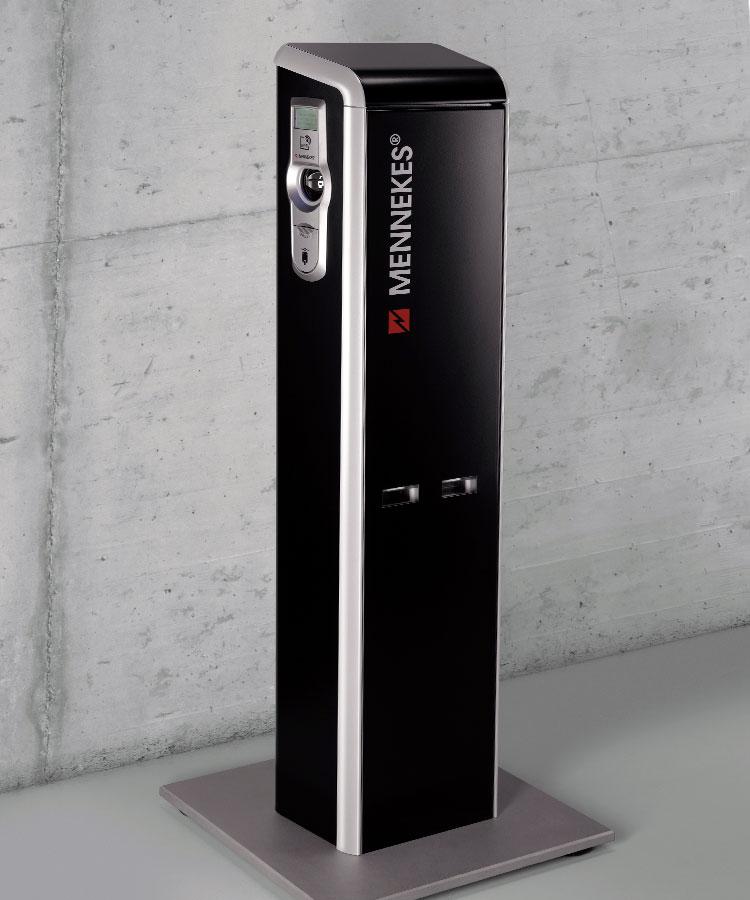
# Integration of Mennekes ACU charging station into the Eponet portal

These instructions are step 3 for connecting a Mennekes AC charging station to the Eponet portal.

Step 1 can be found at this link: [Basic instructions for integrating charging stations](https://wiki.eponet.ch/books/ladestationen/page/schritt-1-konto-vorbereiten-allgemeiner-schritt)

<table border="1" id="bkmrk-software-versionen-z" style="border-collapse: collapse; width: 100%;"><colgroup><col style="width: 37.3063%;"></col><col style="width: 62.6937%;"></col></colgroup><tbody><tr><td>[![mennekes-slide-2-3285424422.jpg](https://wiki.eponet.ch/uploads/images/gallery/2025-11/scaled-1680-/mennekes-slide-2-3285424422.jpg)](https://wiki.eponet.ch/uploads/images/gallery/2025-11/mennekes-slide-2-3285424422.jpg)

</td><td style="border-color: rgb(255, 255, 255);">  
</td></tr></tbody></table>

First, connect to the ACU, which is located inside the charging station, using a cable.

After logging in, set up the charging station as shown in the following images.

[![grafik-20251029-093126.png](https://wiki.eponet.ch/uploads/images/gallery/2025-11/scaled-1680-/grafik-20251029-093126.png)](https://wiki.eponet.ch/uploads/images/gallery/2025-11/grafik-20251029-093126.png)

[![grafik-20251029-092856.png](https://wiki.eponet.ch/uploads/images/gallery/2025-11/scaled-1680-/grafik-20251029-092856.png)](https://wiki.eponet.ch/uploads/images/gallery/2025-11/grafik-20251029-092856.png)

wss://ocpp.eponet.io/1.6J/FA61/

Then save the settings and restart the charging station. Under "Info" you can see whether the charging station has successfully established a connection to the Eponet backend.

[![grafik.png](https://wiki.eponet.ch/uploads/images/gallery/2025-12/scaled-1680-/grafik.png)](https://wiki.eponet.ch/uploads/images/gallery/2025-12/grafik.png)

This should bring the charging station online on the Eponet portal.

Note:

If the connection cannot be established, you can only use "ws":

<span lang="EN-GB" style="mso-ansi-language: EN-GB;">ws://ocpp.eponet.io/1.6J/FA61/</span>

The reason for this is that the controllers only support TLS 1.0 because an older operating system is installed that cannot be updated via a firmware update.  
If a secure "wss" connection is required, this can only be implemented on site using a special Mennekes update (software update 2.15 including update to TLS 1.2).

**Checklist:**

- Software checked / latest version?
- Internet configured / online?
- OCPP server: Eponet link set up and charging station online on the Eponet portal?

[Now continue with step 4.](https://wiki.eponet.ch/books/ladestationen/page/schritt-4-ladegerat-hinzufugen-allgemeiner-schritt)