In diesem Beitrag wird beschrieben, wie ein Berechtigungsprofil erstellt werden kann um dies in einem zweiten Schritt einem anderen Eponet Konto die Möglichkeit zu geben, auf das Konto des Erstellers zuzugreifen.
Klicken Sie als erstes auf der linken Seite im Blauen Balken auf "Einstellungen" und dann auf "Berechtigungsprofile". Hier klicken Sie dann auf "Hinzufügen". [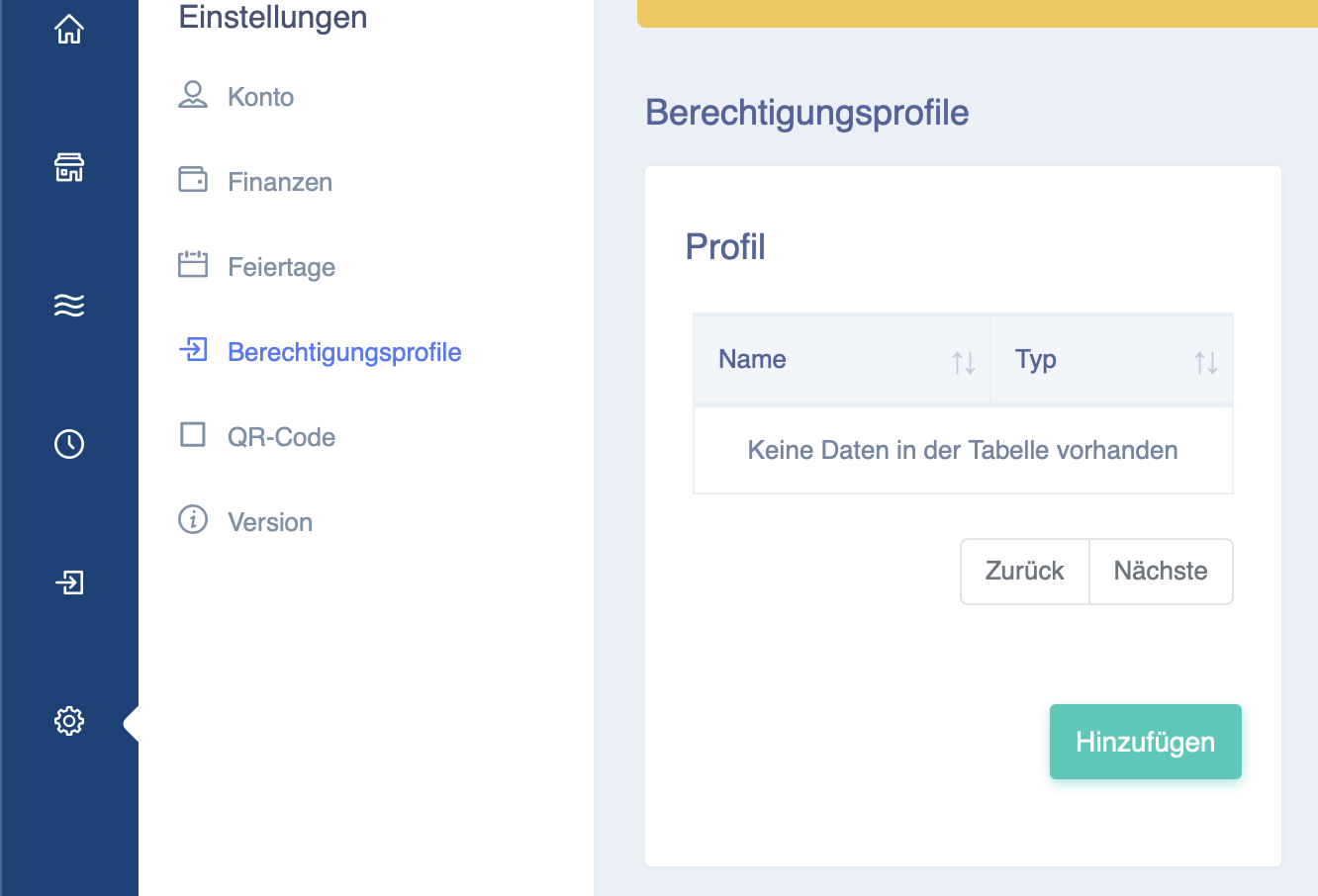](https://wiki.eponet.ch/uploads/images/gallery/2025-01/bildschirmfoto-2025-01-17-um-10-28-21.png) Nach dem Klick auf Hinzufügen öffnet sich ein neues Fenster. Hier können Sie nun einen Namen für das Profil eingeben. Im zu sehenden Beispiel heisst das Profil "Admin". [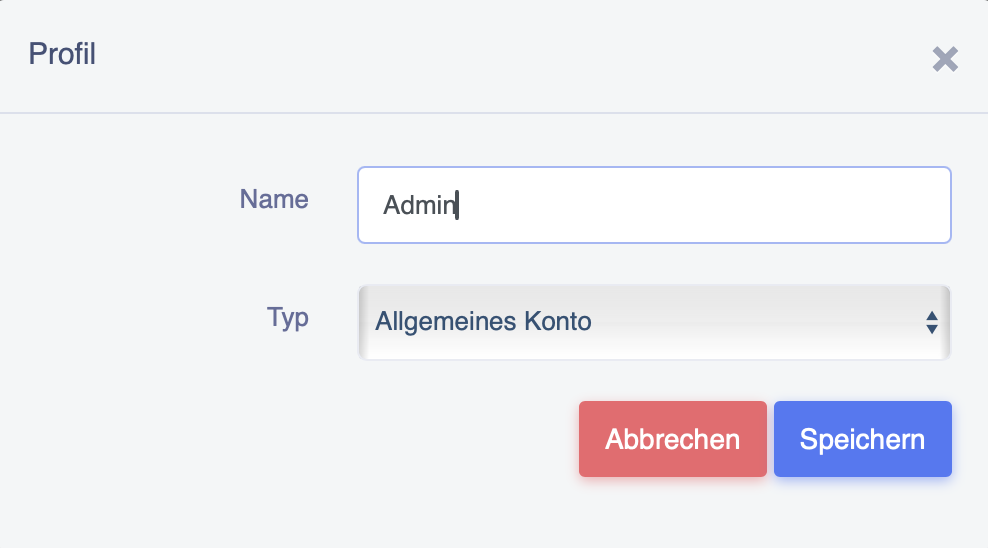](https://wiki.eponet.ch/uploads/images/gallery/2025-01/bildschirmfoto-2025-01-17-um-10-29-00.png) Nun können Sie auf "Allgemeines Konto" klicken und es öffnet sich das Fenster, welches unten zu sehen ist. Hier können Sie auswählen, auf was das Profil Zugang gewähren soll. [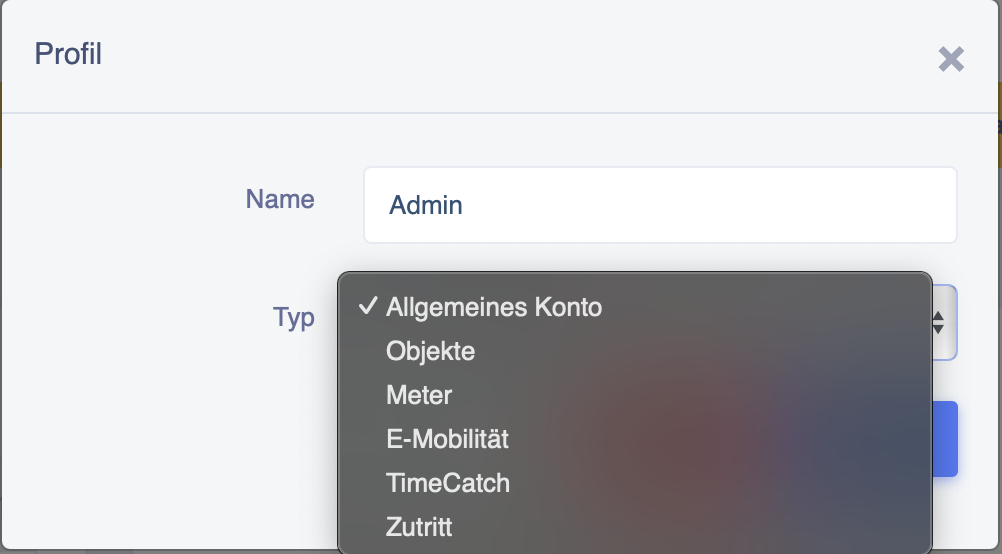](https://wiki.eponet.ch/uploads/images/gallery/2025-01/bildschirmfoto-2025-01-17-um-10-28-41.png) Drücken Sie nun auf speichern und das Profil wird erstellt und entsprechend angezeigt. Sie können dieses nun anklicken und wie unten zu sehen fein konfigurieren.Die Option "Super User" gibt die komplette Kontobedienung mit allen Optionen inklusive Finanzen frei.
[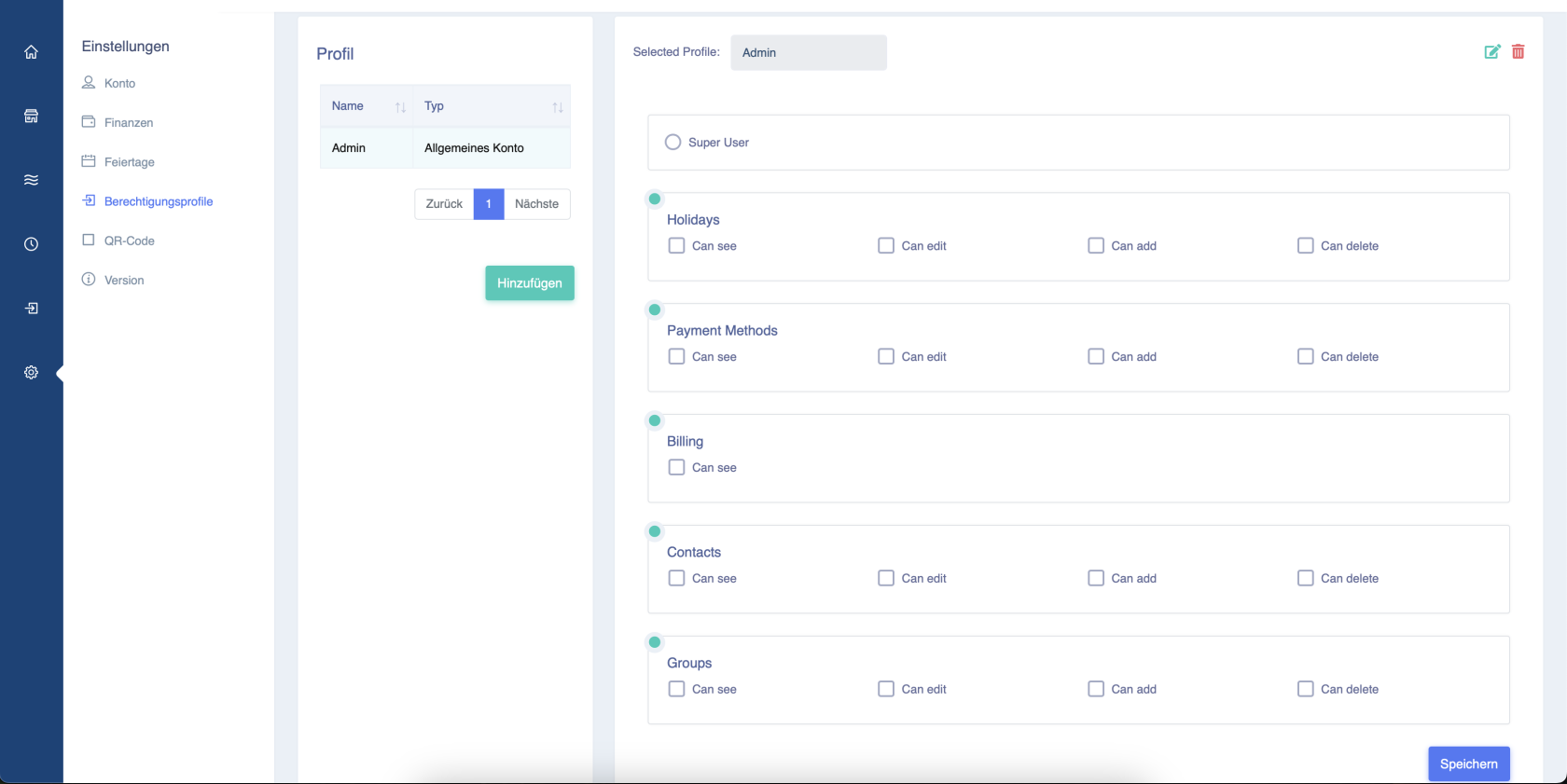](https://wiki.eponet.ch/uploads/images/gallery/2025-01/bildschirmfoto-2025-01-17-um-10-29-19.png) Nach Abschluss der Konfiguration drücken Sie auf speichern und das Profil ist erfolgreich erstellt.