This page explains how to create a charging profile. To do this, you need to know the current tariff model for the charging infrastructure.
To do this, log in to your charging infrastructure account at portal.eponet.ch and go to E-mobility in the blue area on the left-hand side of the page. Then select Charging profiles in the white field next to it. Here you will see the existing charging profiles, if any. For a new charging infrastructure, this area will still be empty. Before you create a new charging profile, here is some important information about prices:**Important information:** Eponet is not responsible for prices (except for ImmoConnect EVU). Please ensure that you enter the correct information – if incorrect prices are entered and the user is billed incorrectly, this can only be changed retrospectively to a limited extent and we will have to charge for this on a time and material basis. Please ensure that you enter the correct information (the price is in CHF – if the price per kWh is 31 centimes, the correct entry is 0.31).
Prices include VAT. When applying the tariffs, please note that surcharges of 1 cent/kWh must be added to Eponet and the standby power of the infrastructure. For example, a total surcharge of 3 cents must be added to the tariff.
To create a new charging profile, press the green 'Add' button and create your first profile. We recommend using a unique name here. If, for example, there are high and low tariffs, e.g. HT / NT 2025: [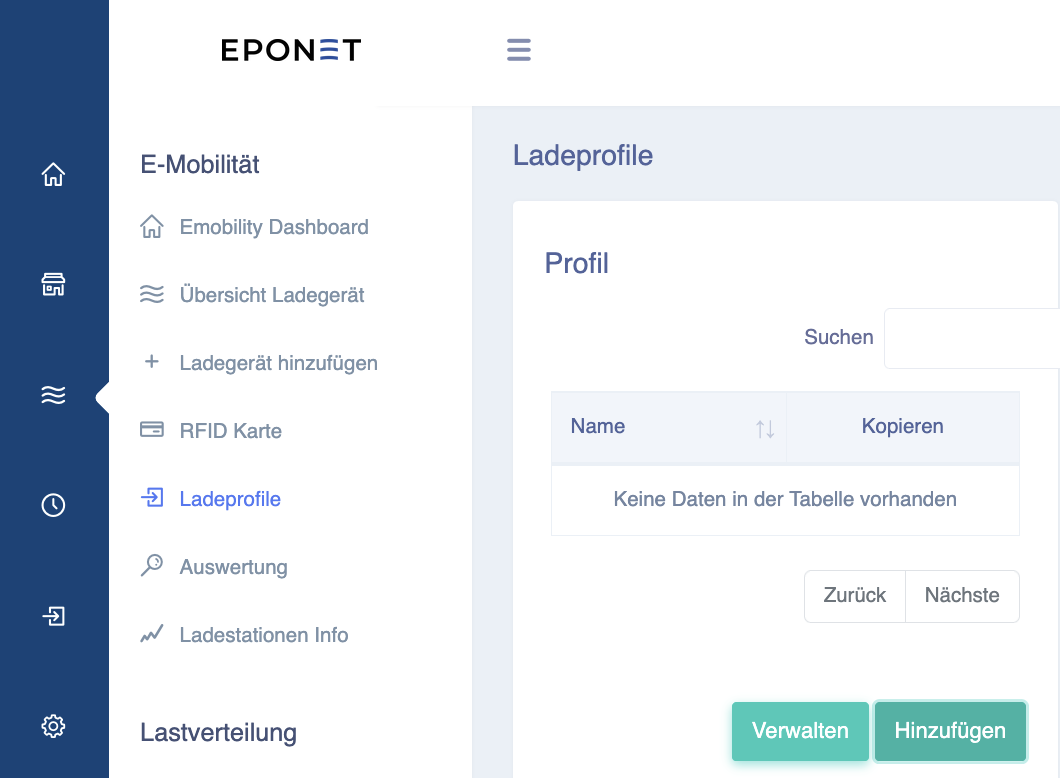](https://wiki.eponet.ch/uploads/images/gallery/2025-01/vFXgrafik.png) [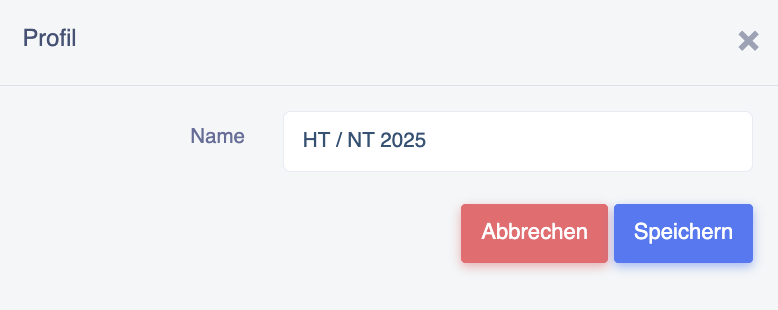](https://wiki.eponet.ch/uploads/images/gallery/2025-01/1XRgrafik.png) Now click on the new charging profile (so that it is marked in blue) and select the fees in the top right-hand corner: [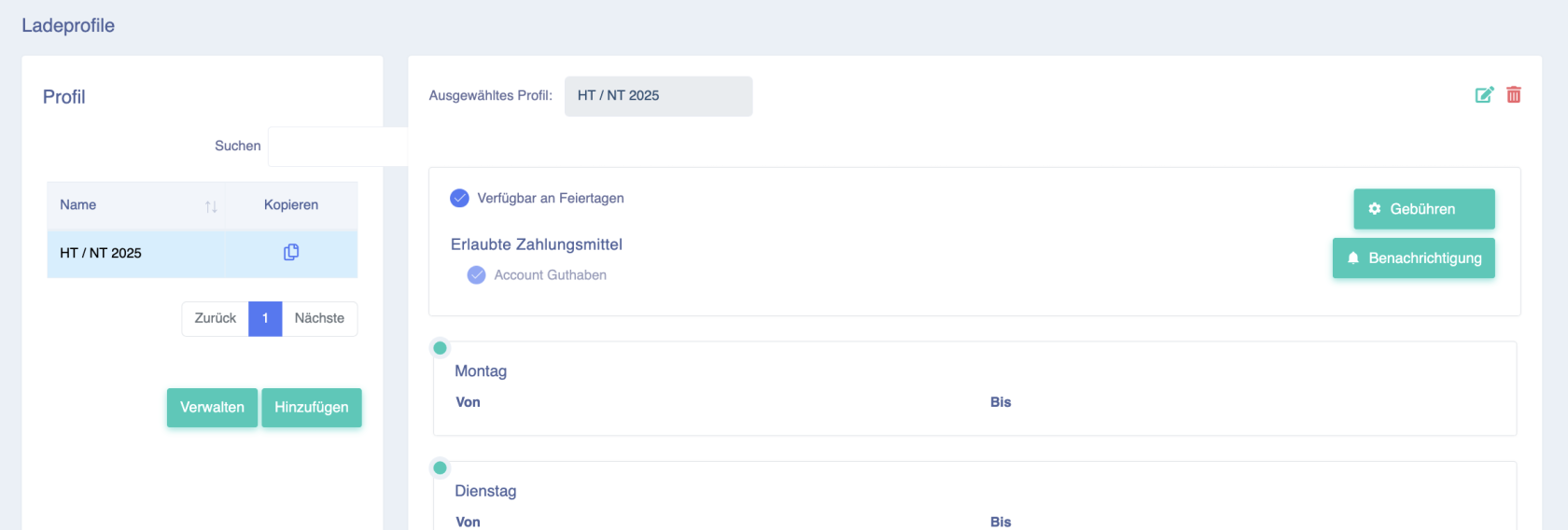](https://wiki.eponet.ch/uploads/images/gallery/2025-01/yCagrafik.png) For STWE or rental properties, only the price/kWh is usually required, which is why only this example is described here: [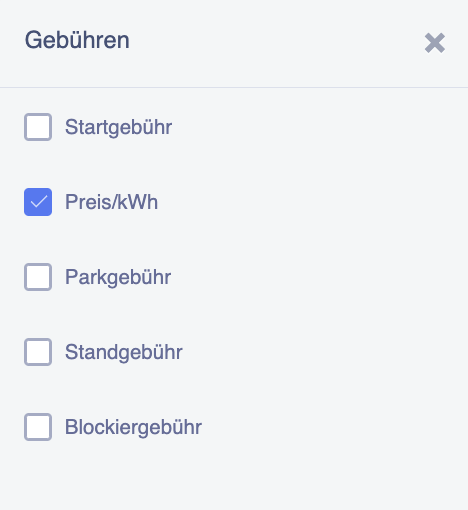](https://wiki.eponet.ch/uploads/images/gallery/2025-01/19egrafik.png) Now continue at the bottom by pressing the Add button: [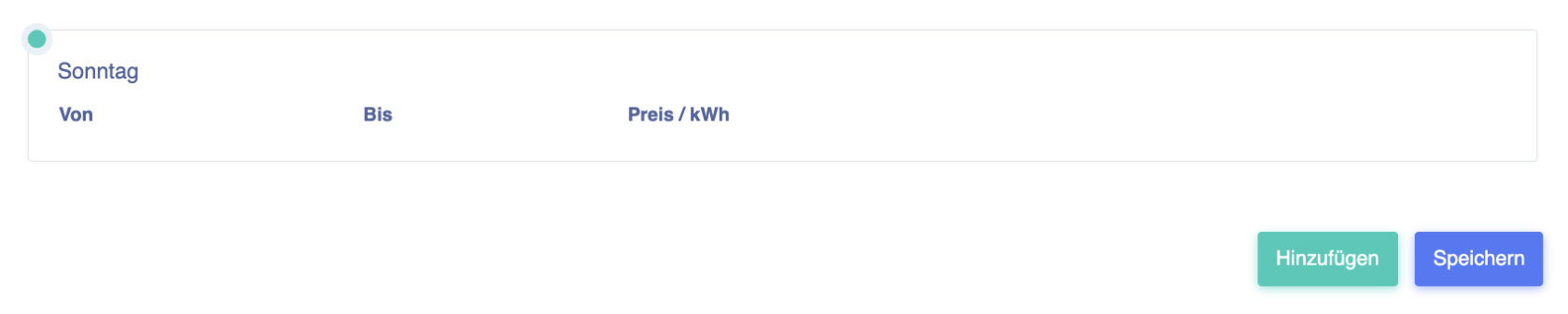](https://wiki.eponet.ch/uploads/images/gallery/2025-01/oRugrafik.png) You can now enter different time ranges and days at the same time. Example: If the high tariff is 35 pence/kWh from 7 a.m. to 7 p.m., you can enter this tariff for Monday to Friday at the same time: [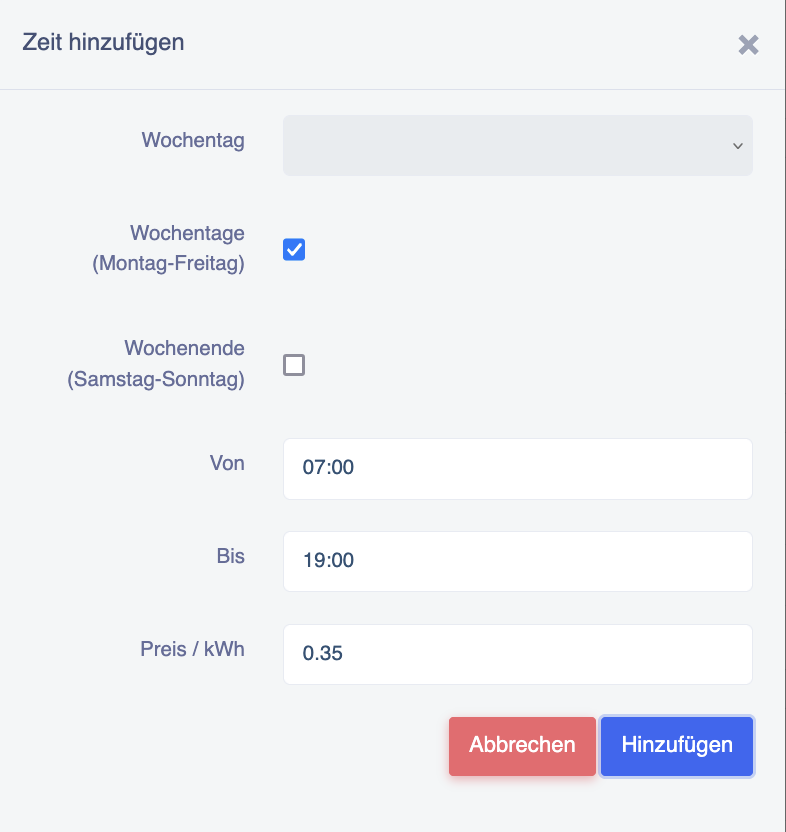](https://wiki.eponet.ch/uploads/images/gallery/2025-01/4Vagrafik.png) Continue with all times/rates until everything is entered 24/7. All time periods must be covered. For example, if there is a gap from 7 p.m. to 7.15 p.m., charging is free during this time! [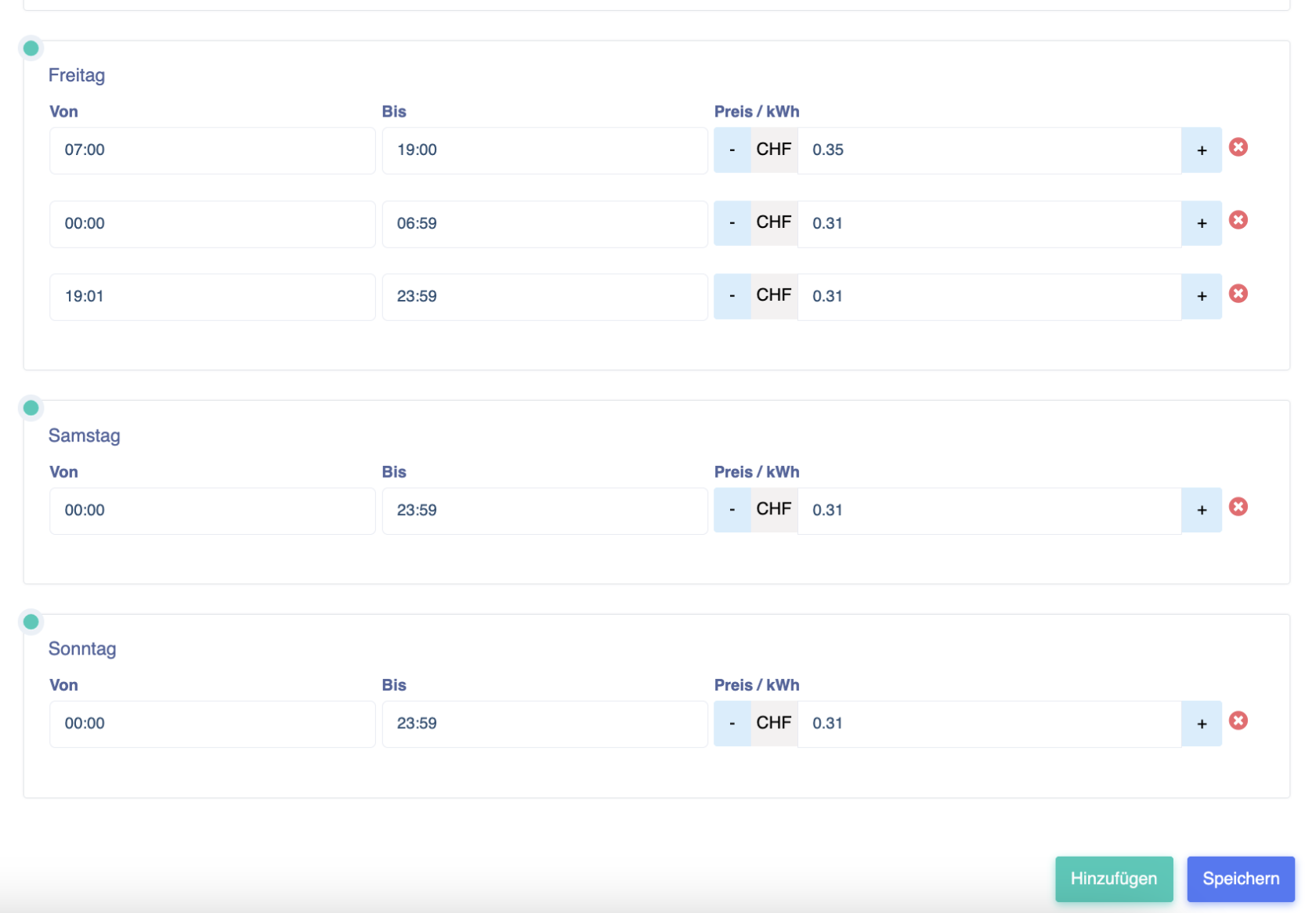](https://wiki.eponet.ch/uploads/images/gallery/2025-01/iZCgrafik.png)Please note: These settings must be confirmed at the end by pressing the Save button. Otherwise, the data will be lost.
# Charging profile for QR code charging (public charging) Please note that credit card fees must be included in the price. These will be charged to the charging infrastructure operator.Charging via QR code is done by credit card, Apple Pay, Google Pay, etc. Credit card providers charge a transaction fee of CHF 0.50 and credit card fees for this. These credit card fees and the Eponet service for the interface are charged to the infrastructure owner at 4.5%. As a charging station operator, we recommend that you include these fees in your calculations.
#### Example of a QR code charging profile With the green Fees button, you can select what should be active in your QR code charging profile. In this example, "Starting price", "Price/kWh" and "Blocking fee" have been activated. The starting price is intended to cover the £0.50 transaction fee. We recommend adding the 4.5% to the price/kWh. The blocking fee set in this example works as follows: When the vehicle finishes charging (charging complete), the timer for the free minutes starts running. Here, 45 free minutes are set. Once these 45 minutes have elapsed, a blocking fee of 10 pence per minute is charged. This ensures that charging stations are not blocked for hours on end, preventing other customers from charging their vehicles. [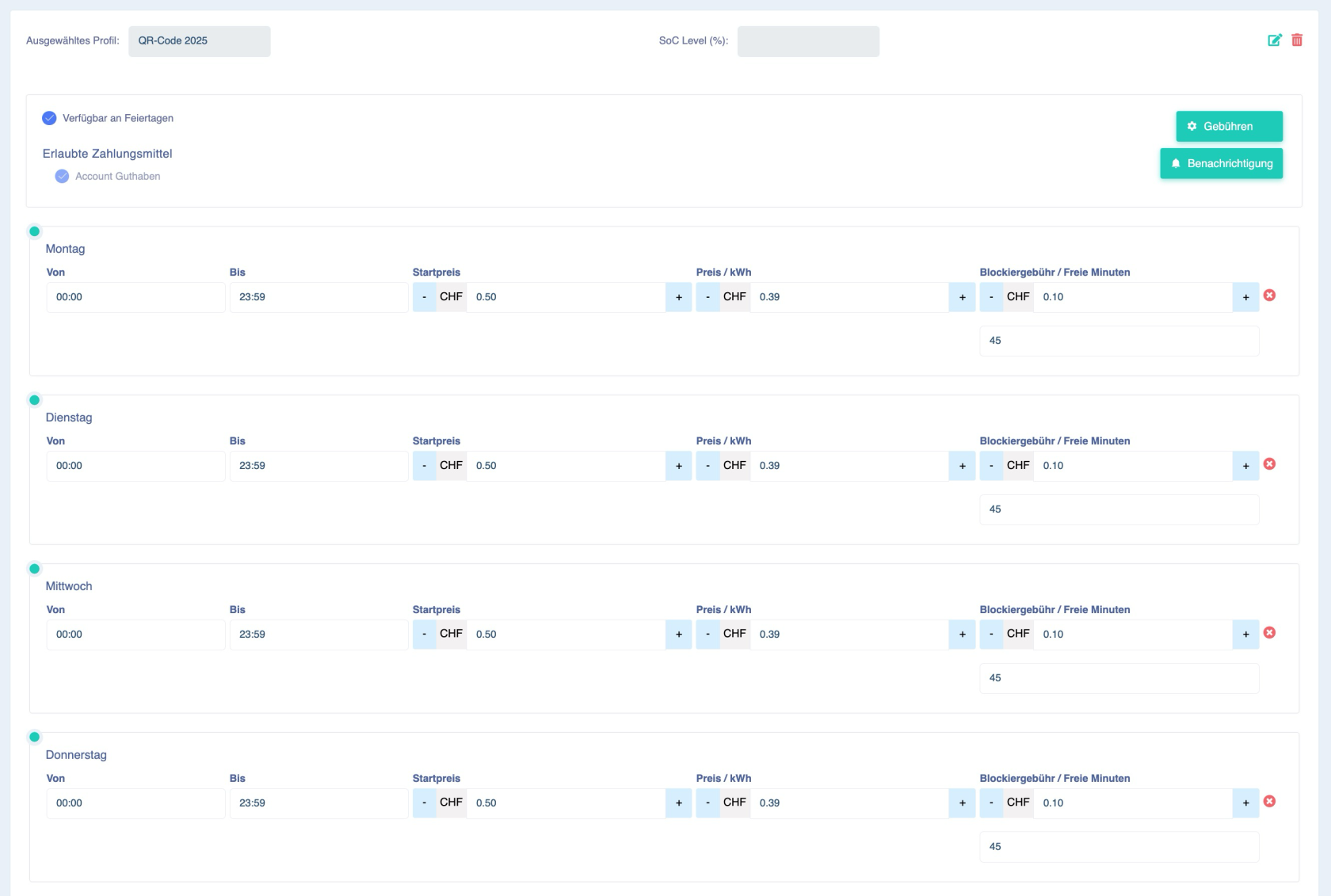](https://wiki.eponet.ch/uploads/images/gallery/2025-07/5H5grafik.png) Enabling QR code charging (for charging infrastructure owners) is described [here](https://wiki.eponet.ch/books/ladestationen/page/qr-code-laden-offentliches-laden-aktivieren). # Copy and customise loading profileThis article describes how to adjust the charging profile for your charging infrastructure when you switch to a new electricity tariff.
To do this, log in to your charging infrastructure account at portal.eponet.ch and go to E-mobility in the blue area on the left-hand side of the page. Then select Charging profiles in the white field next to it. Here you will see the existing charging profiles. If you have several charging profiles, select the one you want to change or copy. In this case, the charging profile "HT / NT STWE 2024" is selected and you can see the current tariffs for this charging profile: [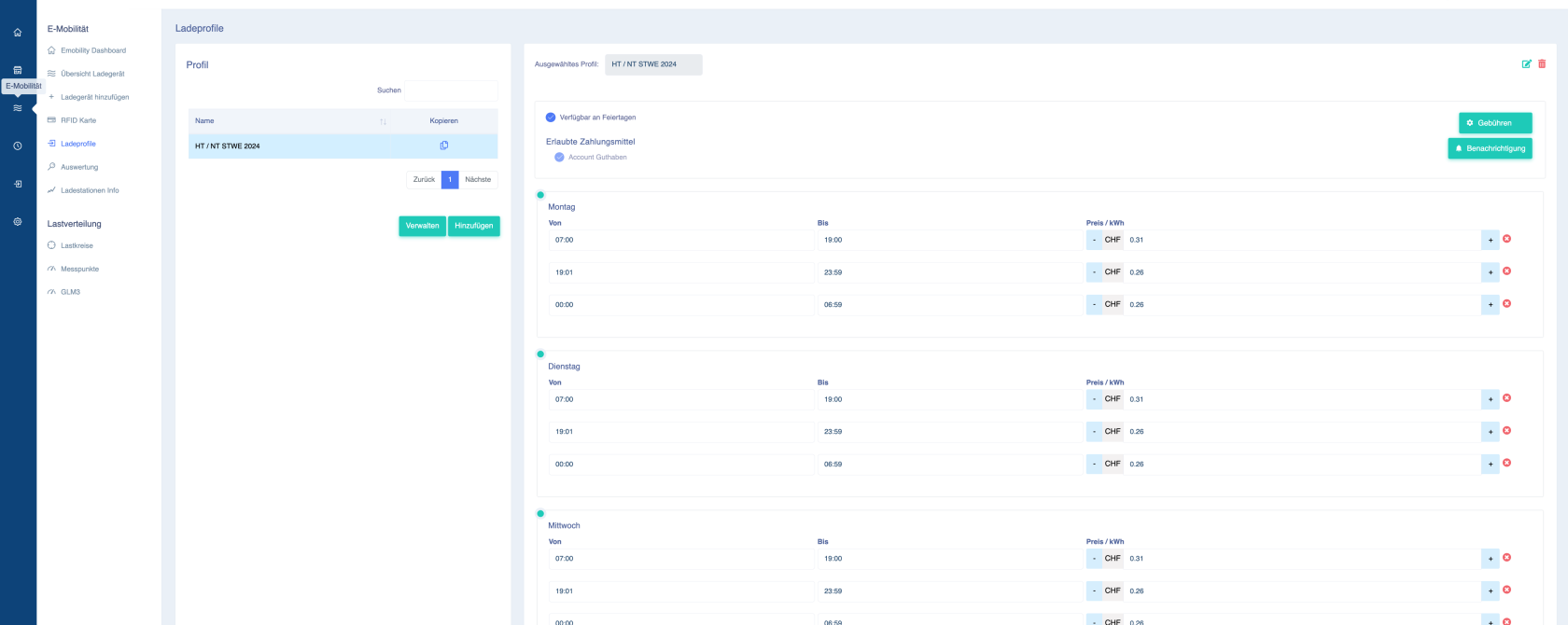](https://wiki.eponet.ch/uploads/images/gallery/2025-01/bBJgrafik.png) You can, of course, simply adjust this charging profile. However, we recommend copying it and then adjusting the new one and assigning it to your users. #### Copy and adjust charging profile Click on the "Copy" icon for the desired charging profile: [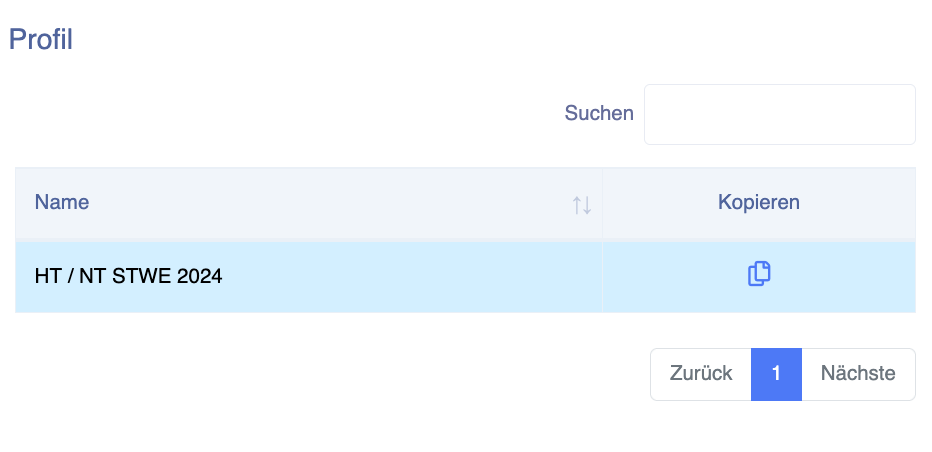](https://wiki.eponet.ch/uploads/images/gallery/2025-01/kfAgrafik.png) Now give the new charging profile a name, for example "HT / NT STWE 2025", and press Save: [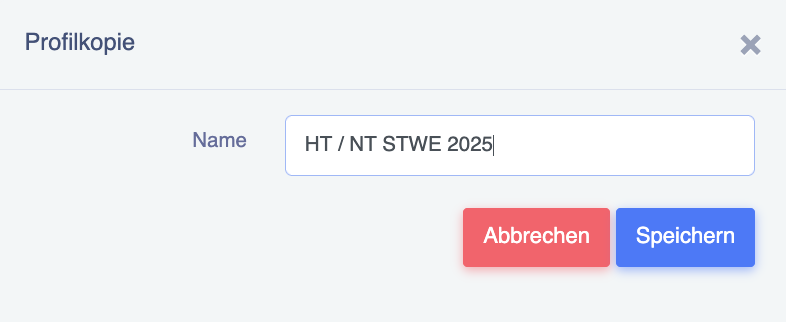](https://wiki.eponet.ch/uploads/images/gallery/2025-01/arfgrafik.png) You have now created the new loading profile by copying it. If the times for high and low tariffs have not changed, you can simply enter the new prices: [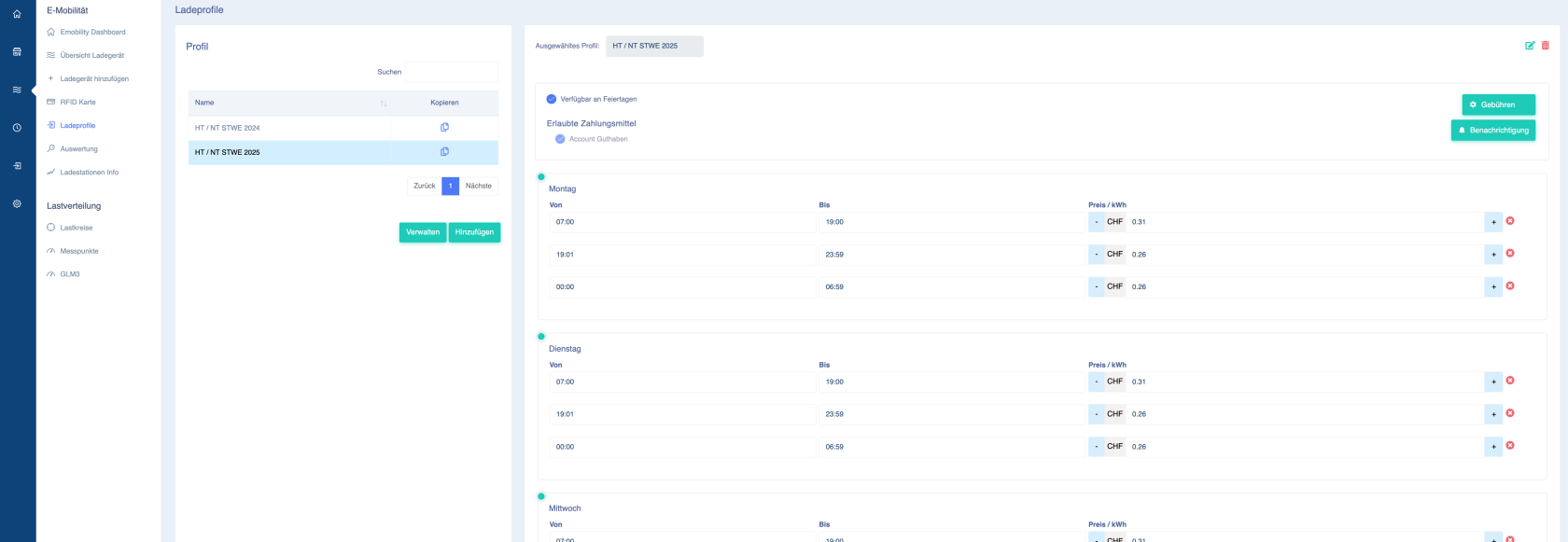](https://wiki.eponet.ch/uploads/images/gallery/2025-01/znigrafik.png)**Important information:** Eponet is not responsible for the prices. Please ensure that you enter the correct information – if incorrect prices are entered and the user is billed incorrectly, this can only be changed retrospectively to a limited extent and we will have to charge for this according to the time and effort involved. Please ensure that you enter the correct information (the price is in GBP – if the price per kWh is 31 pence, the correct entry is 0.31).
Prices include VAT. When applying the tariffs, please note that a surcharge of 1 cent/kWh must be added to Eponet and the standby power of the infrastructure. For example, a total surcharge of 3 cents must be added to the tariff.
If, for example, you have clicked on the new charging profile "HT / NT STWE 2025" and adjusted all prices in the table on the right-hand side, don't forget to click on Save at the bottom: [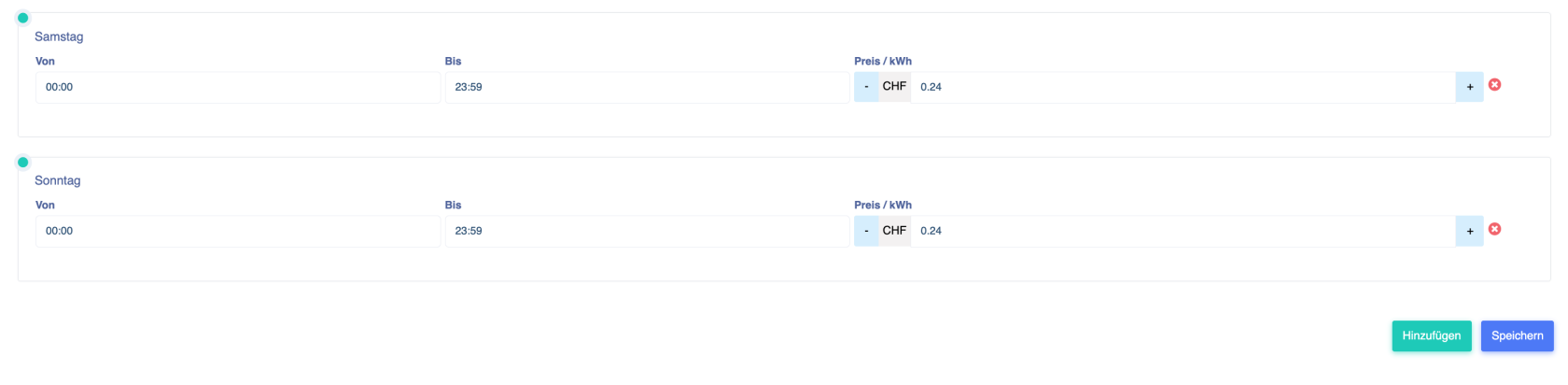](https://wiki.eponet.ch/uploads/images/gallery/2025-01/e0Xgrafik.png) # Assigning a new charging profile to a loaded RFID card This page explains how to assign a loading profile to an invited RFID card immediately. Under RFID Card, you can see the users who are now allowed to load under the "Invited" tab. You can now assign the new loading profile using the green edit icon next to Profile: [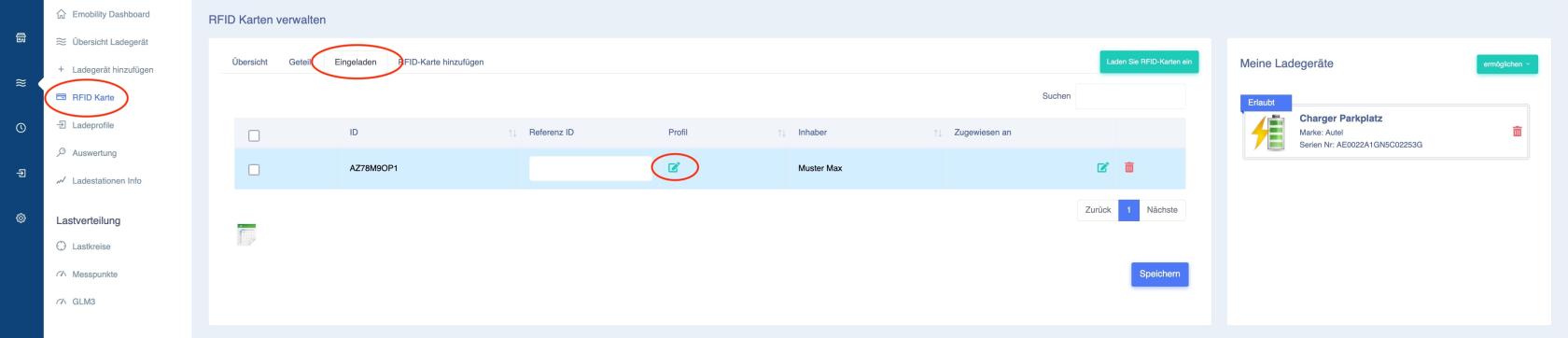](https://wiki.eponet.ch/uploads/images/gallery/2025-07/bildschirmfoto-2025-07-15-um-14-12-17.jpg) Select the new, current charging profile and press Save. It is now active: [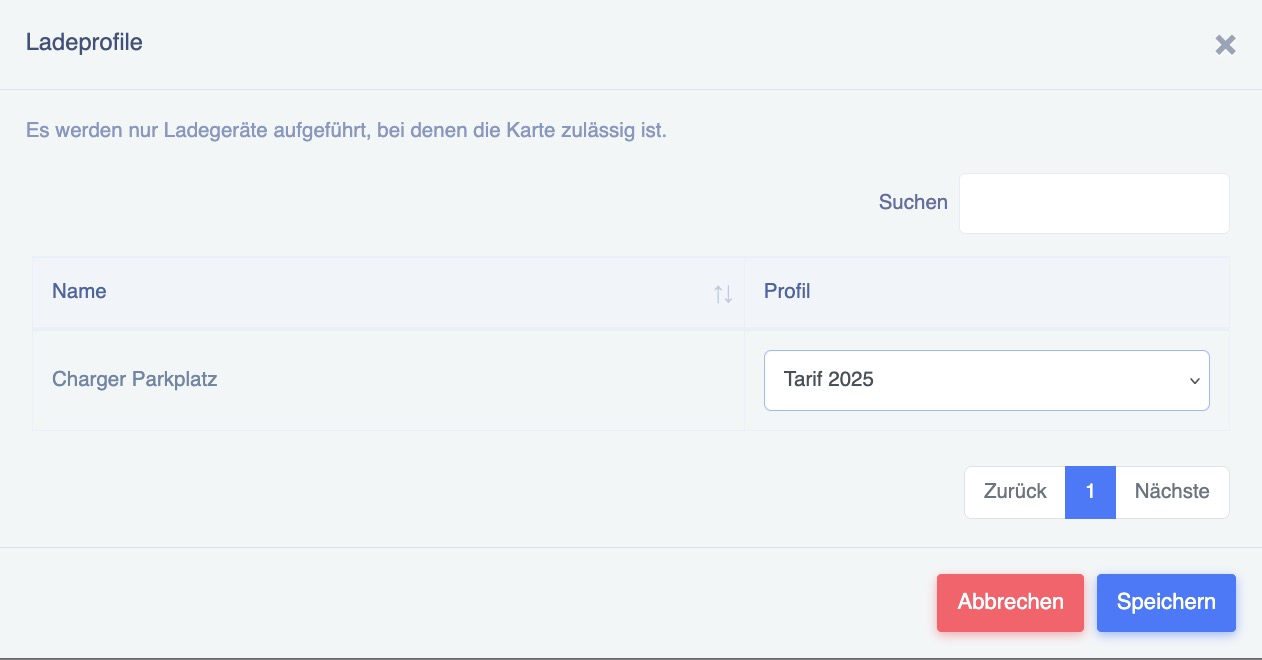](https://wiki.eponet.ch/uploads/images/gallery/2025-07/3Isgrafik.png) # Replace loading profile on appointmentThis page describes how to replace an existing charging profile with a new charging profile on a desired date. It is explained using the example of a property where the active charging profile named "HT / NT STWE 2024" will be replaced by the new charging profile "HT / NT STWE 2025" on 1 January 2025.
#### Preparation: First, create the new load profile, e.g. "HT / NT STWE 2025" as shown here. Once you have created and checked the new load profile, select the green Manage button on the left-hand side. The following window will appear, where you can click on the Add button on the right-hand side: [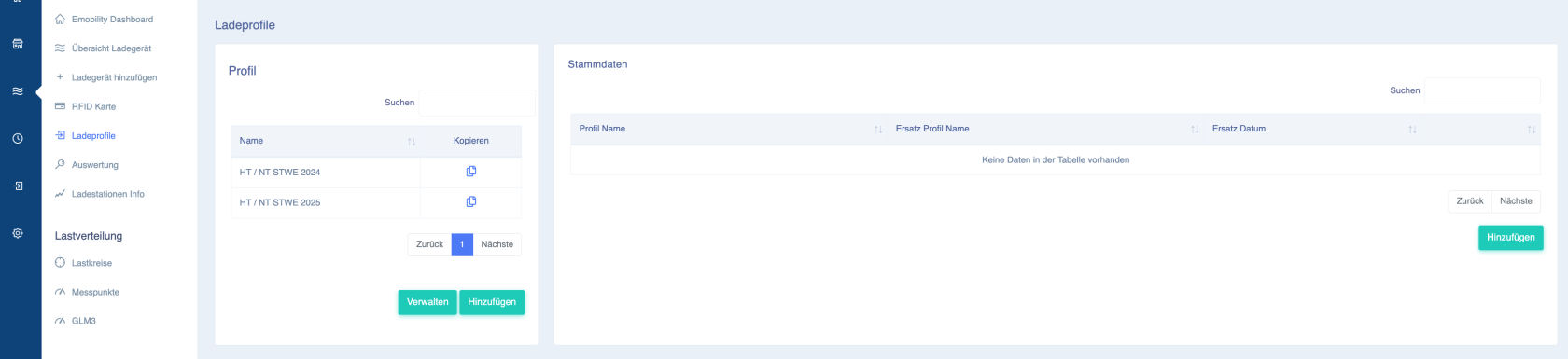](https://wiki.eponet.ch/uploads/images/gallery/2025-01/sTPgrafik.png) The window for adding a replacement profile will then open: Here, enter the desired switchover date and which profile should be replaced by which on that date: [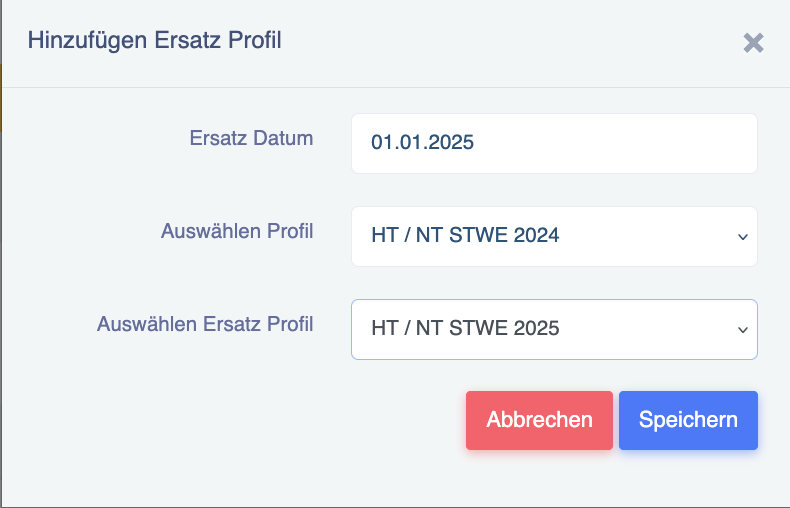](https://wiki.eponet.ch/uploads/images/gallery/2025-01/nxIgrafik.png) The changeover order should now be visible as follows: [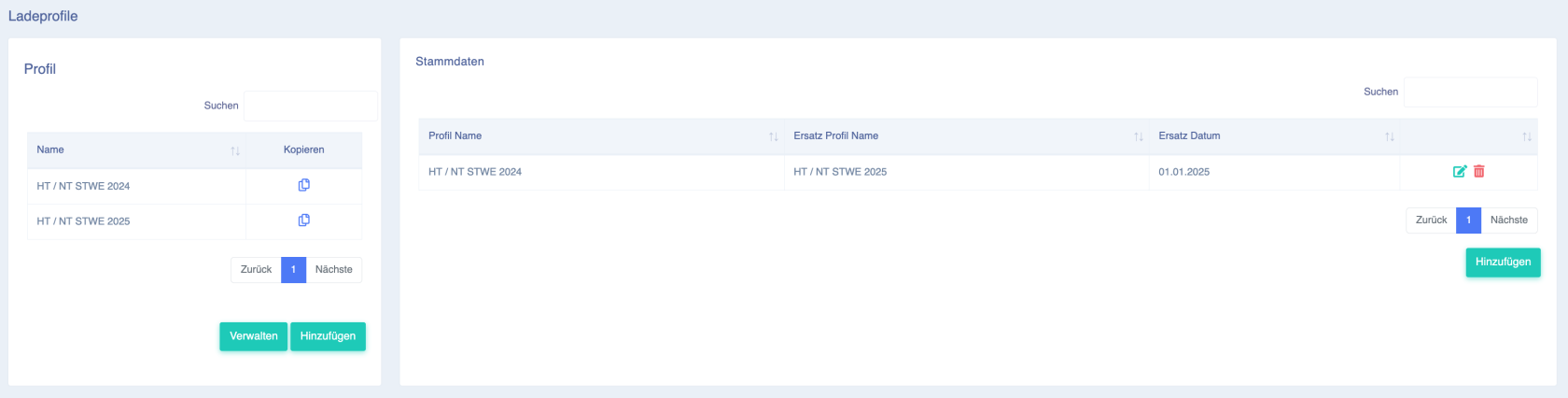](https://wiki.eponet.ch/uploads/images/gallery/2025-01/MHdgrafik.png)**Important information:** All invited users (RFID cards) with the "HT / NT STWE 2024" tariff will be switched to the new charging profile. Anyone who has a different charging profile for any other reason will remain on the other charging profile.
# Couple charging profile with SoC (charging until SoC reached) This function allows you to store a SoC value in a charging profile. For example, the SoC value 75% can be stored in a charging profile and this profile can be assigned to an RFID card or VID vehicle number. Charging with this RFID card or VID vehicle number will then stop at a state of charge (SoC) of 75%. If the battery has more than 75% capacity, charging cannot be started.Prerequisite: This function only works at charging stations that can read the SoC (e.g. DC charging stations). This function is only available in certain business profiles.
This function only works with charging stations that also report the SoC back to the Eponet backend.
#### Setting the SoC in the charging profile You can set the target SoC for each charging profile: [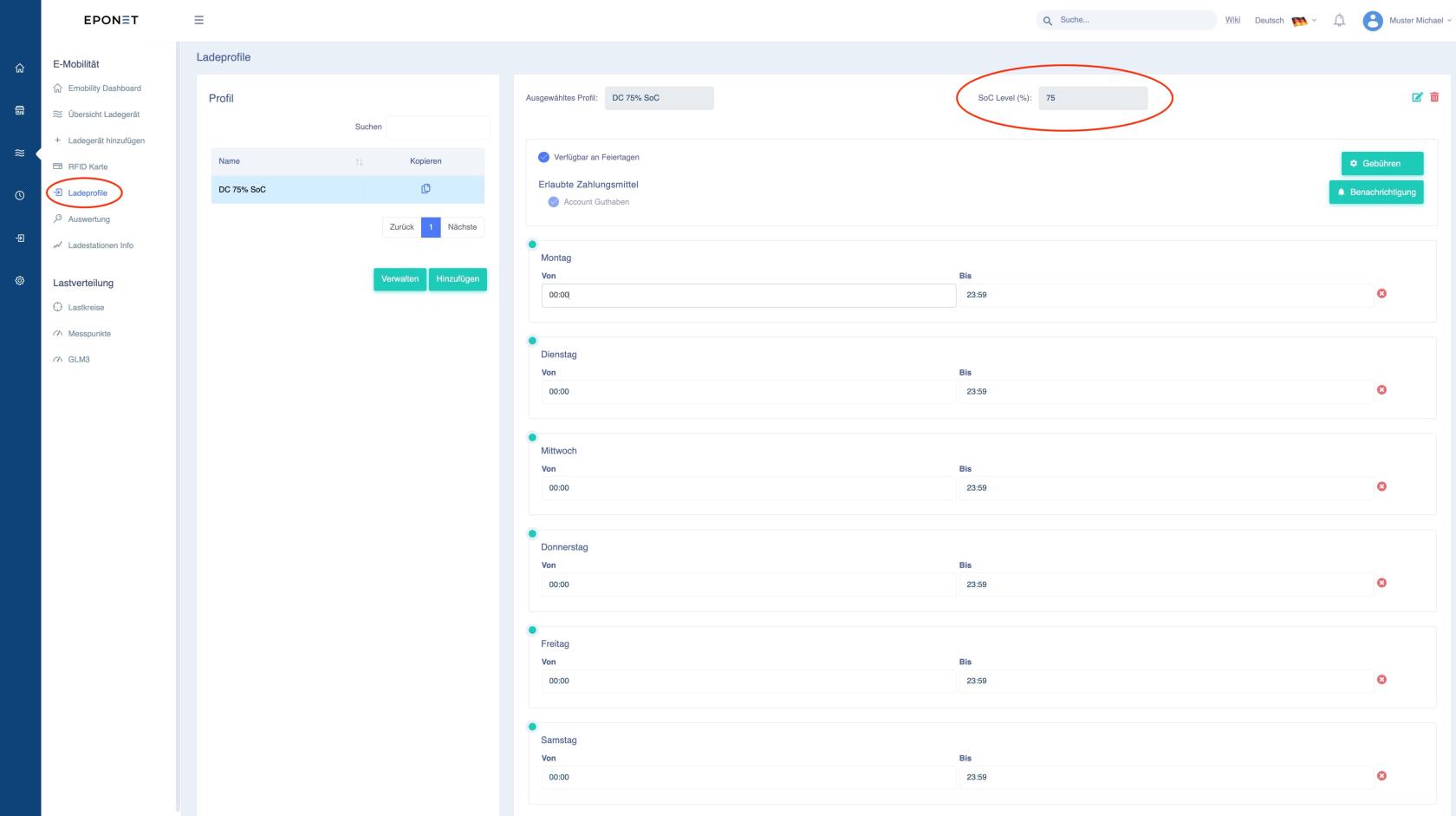](https://wiki.eponet.ch/uploads/images/gallery/2025-07/bildschirmfoto-2025-07-15-um-11-20-55.jpg) This allows you to create different charging profiles with different SoC and assign them to the desired vehicle (RFID card). This is done in the E-mobility section under RFID card. Here you can store the new charging profile with the desired SoC under "Profile": [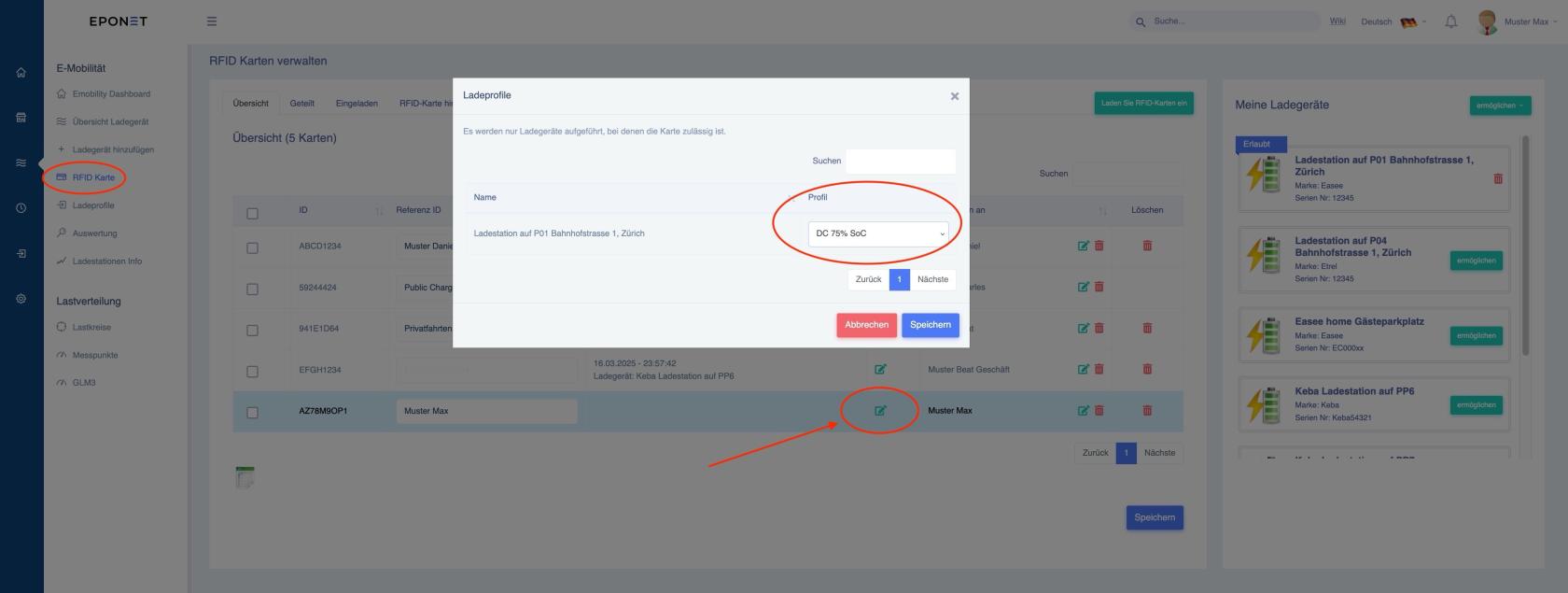](https://wiki.eponet.ch/uploads/images/gallery/2025-07/bildschirmfoto-2025-07-15-um-11-27-01.jpg) Under the menu item "Fees", you can now tick the "SoC Level (%)" box in addition to the prices. [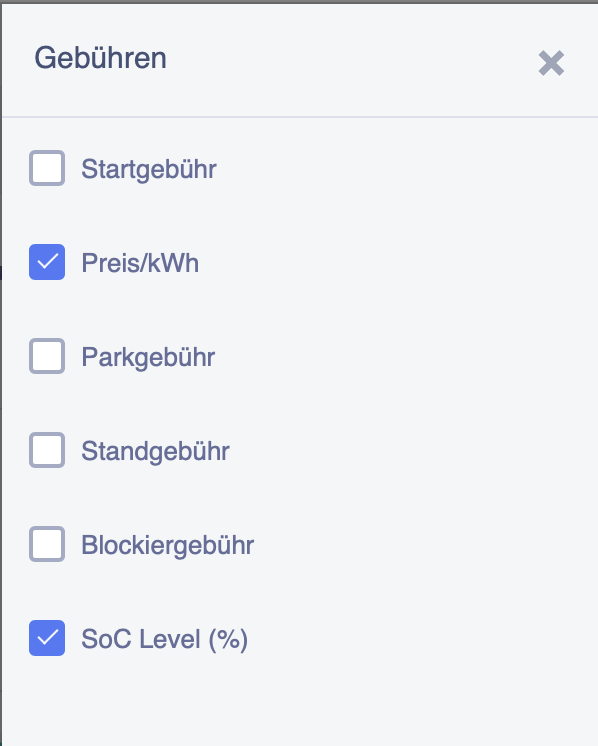](https://wiki.eponet.ch/uploads/images/gallery/2025-07/image.png) This allows you to set the SoC to a different value on certain days. This means that even if the overall limit described above is set to 60%, for example, you can limit it to a different value on certain days, such as at the weekend, as shown below. [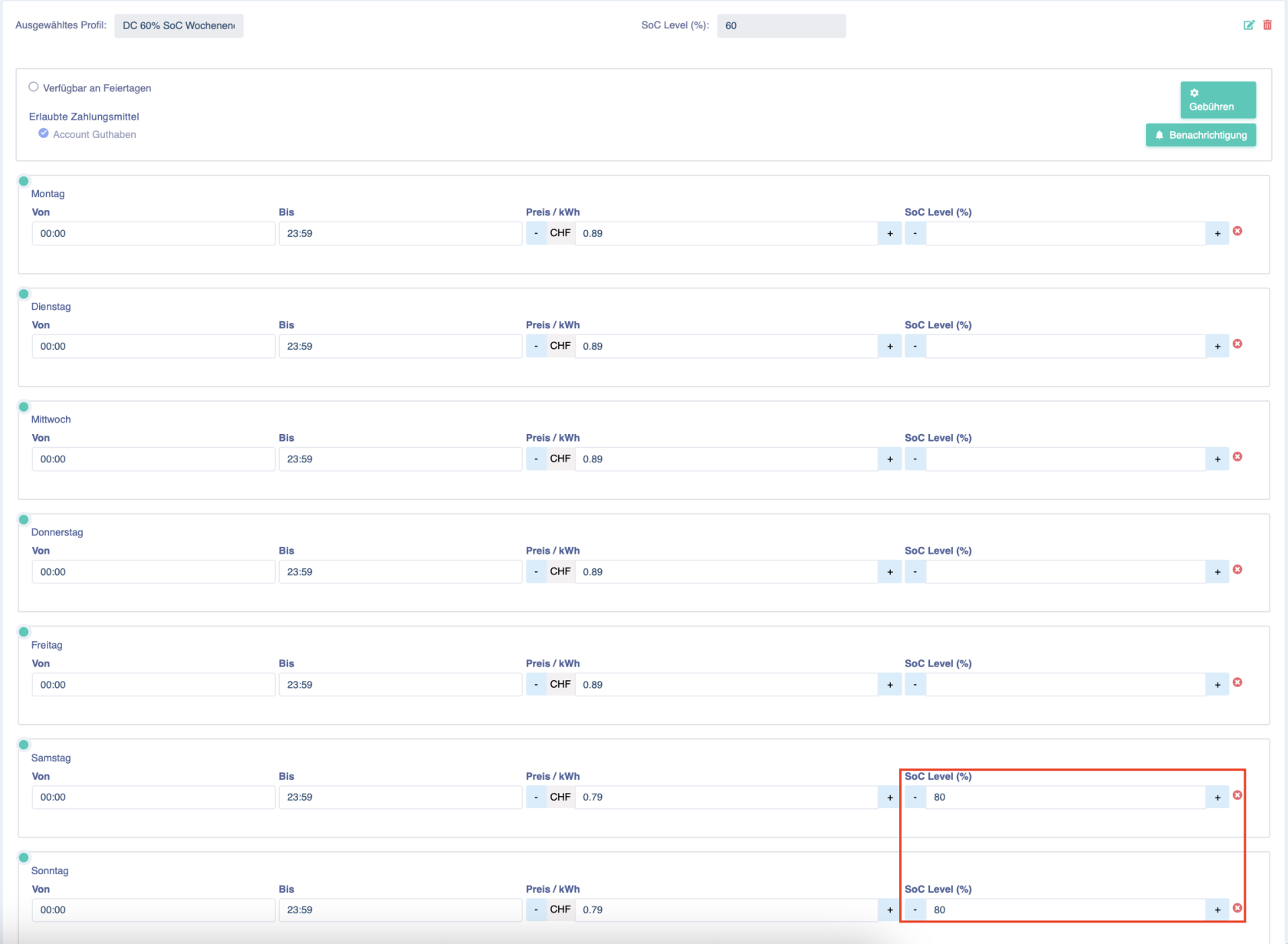](https://wiki.eponet.ch/uploads/images/gallery/2025-07/SGCimage.png) As can be seen above, the SoC is limited to 60%, but up to 80% can be charged at the weekend.The SoC value for individual days is always taken into account first. If nothing is entered there, the total SoC value from the profile is taken into account.
#### Charging profile with SoC for "public charging" with QR code This function of linking the charging profile with SoC opens up new possibilities at busy charging stations. For example, in garages with workshops, where a fast charging station is used for customer vehicles but also for public charging. It can be set so that during opening hours, for example, only up to 70% SoC can be charged – and up to 100% at weekends. This is a great feature, but it is essential that customers are informed about it. Firstly, so that customers are not charged expensive blocking fees (example: a customer arrives with 60% SoC and wants to charge to 100%, plugs in and leaves the vehicle – after a few minutes, 70% is reached and the blocking fees begin). We recommend storing this information in the "Operator Information" section (visible when scanning the QR code) and, to be on the safe side, describing it directly at the charging station. This could look as follows: [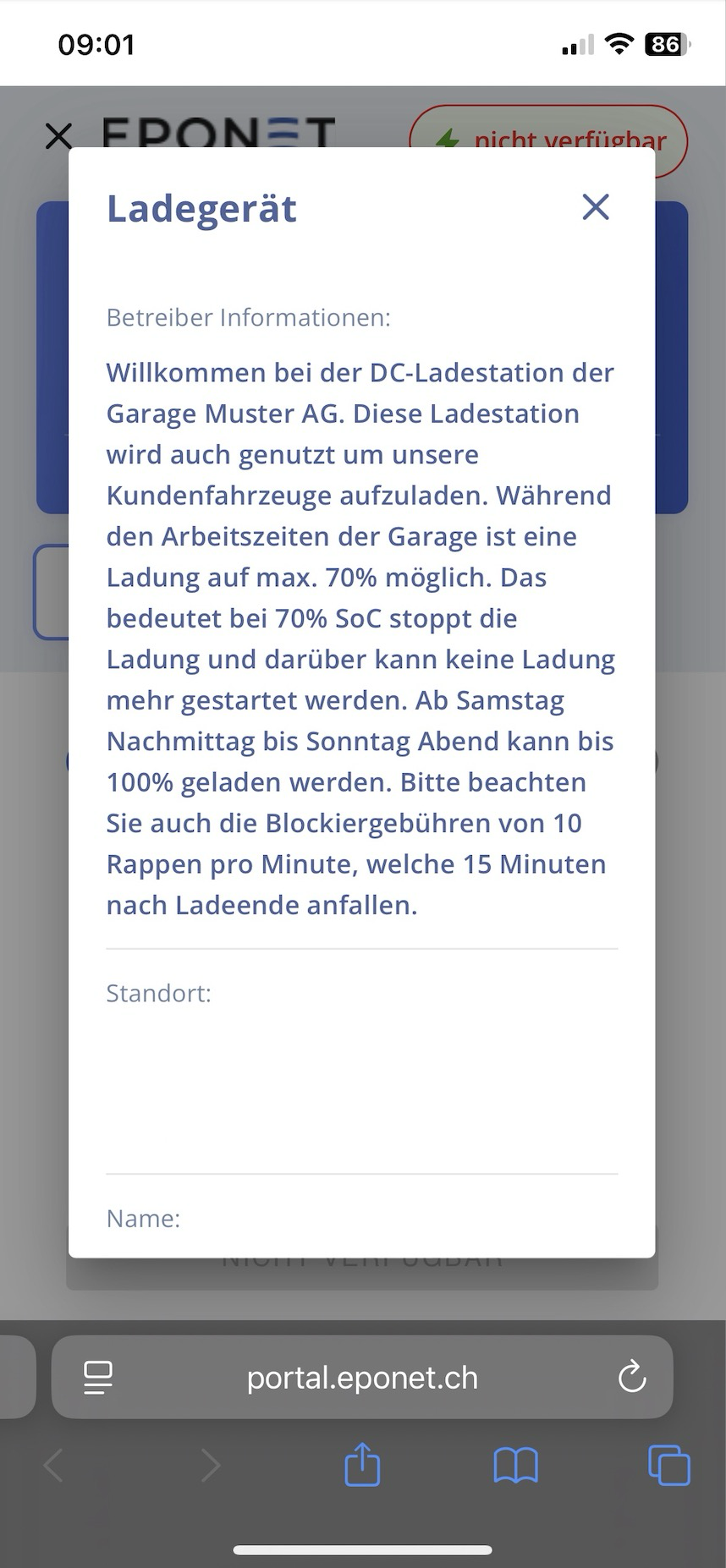](https://wiki.eponet.ch/uploads/images/gallery/2025-07/wqlgrafik.png) The operator information can be entered individually for each charging point: [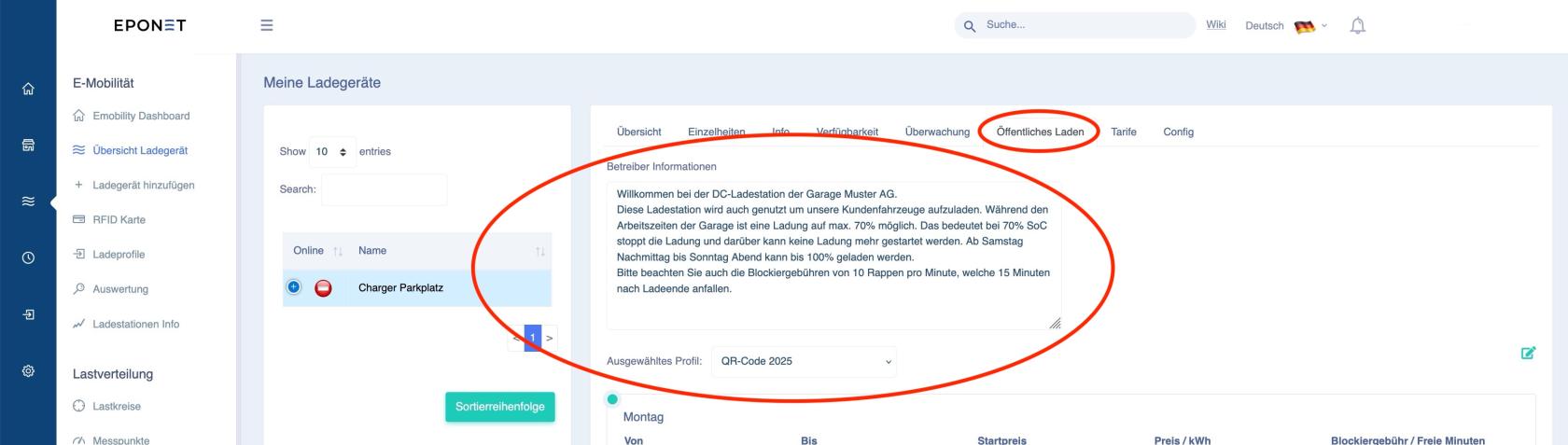](https://wiki.eponet.ch/uploads/images/gallery/2025-07/bildschirmfoto-2025-07-24-um-09-02-29.jpg)**Please note:** If this function triggers support from Eponet – especially because no information is visible at the charging point and the customer calls Eponet because, for example, charging always stops at 70% – this support effort may be charged to the infrastructure operator.