In collaboration with Fischer Schriften AG, Eponet offers a professional labelling service for your charging stations. The labels contain a QR code for unique identification of your charging station and enable public charging by third parties.
##### **Overview** With our labelling service, you receive high-quality, weatherproof labels for your charging stations that contain the following information: - **Charger ID** (e.g. 25-5889) - **EVSE ID** (e.g. CHEPOE0001749) - **QR code** for public charging - **Optional:** your company logo or customised ##### **variants** Standard sticker (format 50 x 25 mm) - **White** – classic and easy to read - **Black** – modern and elegant - **Grey** – subtle and understated [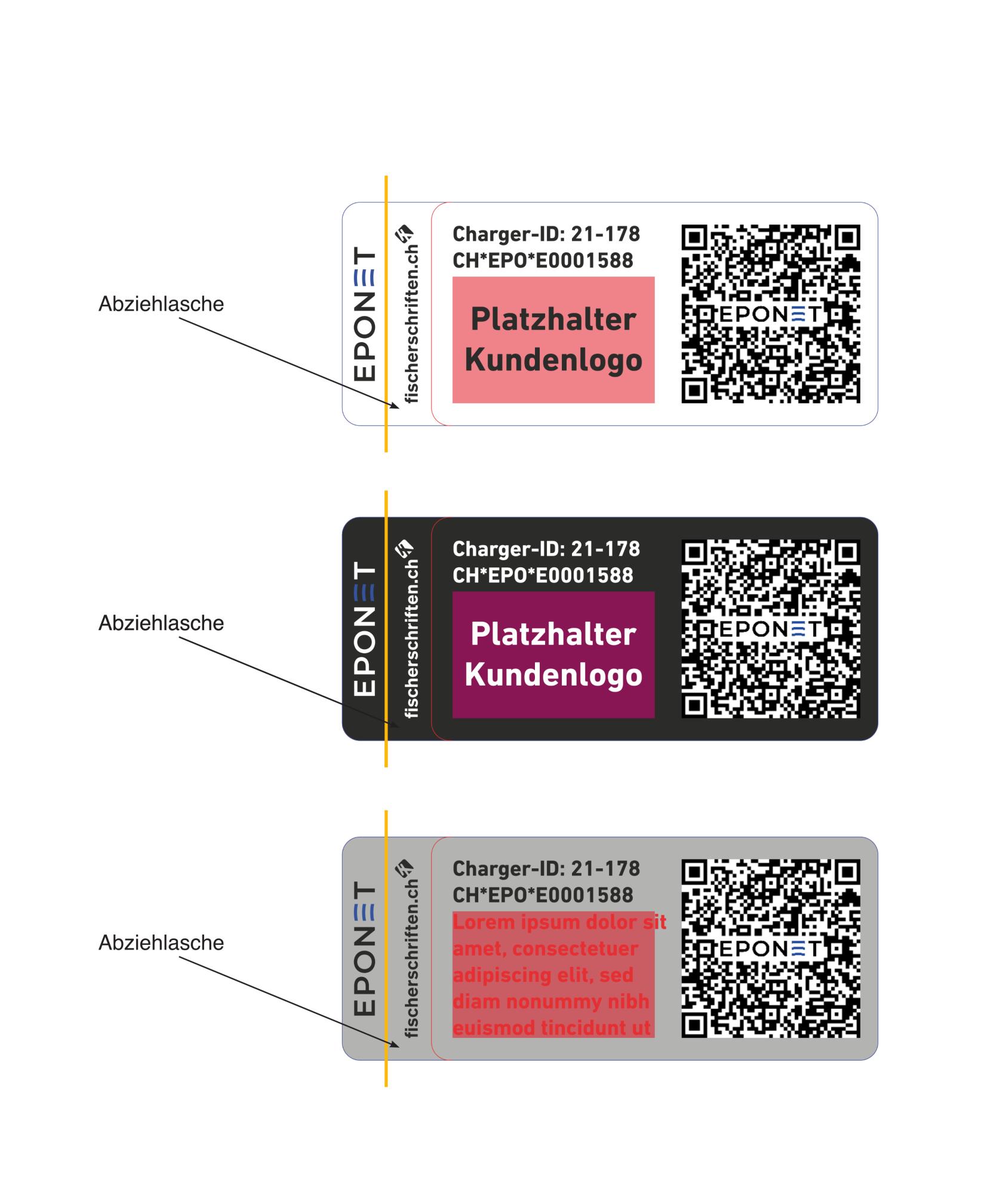](https://wiki.eponet.ch/uploads/images/gallery/2025-12/abziehlasche-4-1.jpg) Each standard sticker contains: - Charger ID and EVSE ID - QR code with Eponet logo - Your company logo or Fischer Schriften logo (optional) - Peel-off tab for easy application For special requirements, we offer customised labels that are tailored precisely to your charging station type. Examples of supported models: - Easee (Type Up) - ABB (Terra AC type) - Zaptec (Type Pro) - Autel (Type AC Wallbox) - and others on request [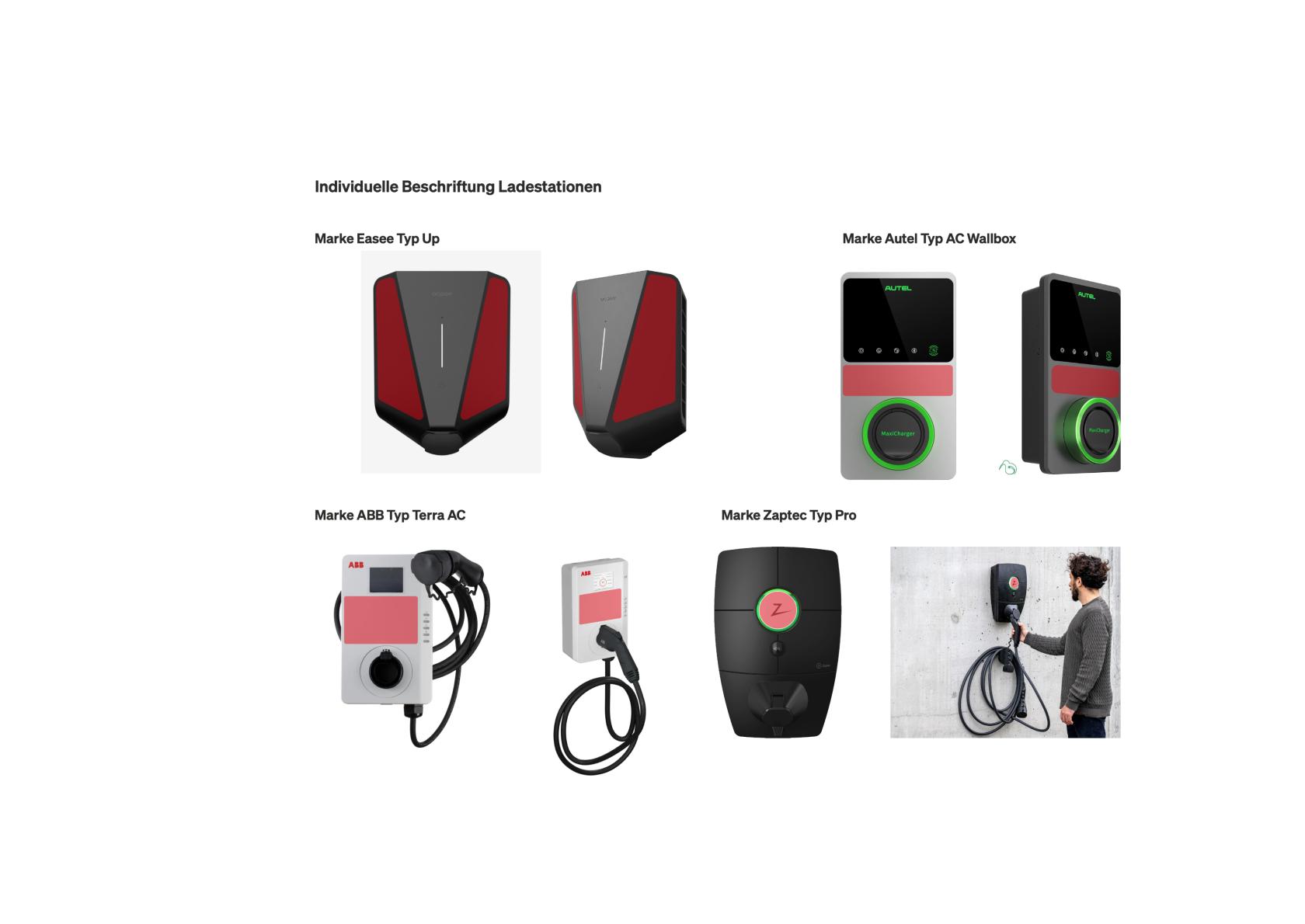](https://wiki.eponet.ch/uploads/images/gallery/2025-12/ladest1.jpg)Note: For custom designs, we require a photo and the exact model name of your charging station. You will then receive a specific quote.
##### **Prices (excluding VAT)** All prices are flat rates and include: - Digital printing on strong adhesive film - Protective lamination - Data handling and setup costs - Postage by letter post| **Quantity** | **Price (standard adhesive)** |
| 1–4 items | CHF 100 (flat rate) |
| 5–10 items | CHF 130 (flat rate) |
| 11–20 | CHF 165 (flat rate) |
| Additional quantities / custom designs | On request |
Important: The flat rate applies regardless of the exact number of items within the quantity scale. Whether you order 1 or 4 labels, the price is £100.
##### **Ordering process** **Step 1:** Download the QR code from the Eponet portal 1. Log in to the Eponet portal 2. Navigate to E-mobility → Chargers 3. Select the desired charging station 4. Scroll down to the QR code section 5. Click on the "Download" button 6. Select the desired format: \- JPG – for universal use \- PDF – for high-quality printing \- SVG – for scalable vector graphics (recommended) 7. Optional: Add an additional information field (e.g. Hubjeet number) 8. Click on "Save" to start the download **Tip:** The QR code is automatically generated with your Charger ID and EVSE ID. This information is also displayed on the label. **Step 2:** Fill out the order form [**DOWNLOAD THE ORDER FORM HERE**](http://eponet.info/epowiki/bestellformular_ladestations-etiketten.docx) 1. Download the order form (see download link below) 2. Fill in your customer details completely 3. Select the desired variant (standard or customised) 4. Select the colour variant (only for standard stickers) 5. Enter the following for each charging station: \- Charger ID - EVSE ID - File name of the QR code file - Desired logo or text (optional) \- Number of labels \- Name of QR code fileFor multiple charging stations: The form has space for 3 charging stations. If you have more than 3 stations, you can send a separate list by email or simply copy the existing sections.
**Step 3:** Compile documents Prepare the following files: - Completed order form (Word or PDF) - QR code files for each charging station (JPG, PDF or SVG) **Optional:** - Your company logo in ***EPS*** format ***or as a high-resolution PDF*** - For custom designs: ***Photo of the charging station*** and exact type designation**Important:** The higher the resolution of your logo, the better the print quality will be. EPS files (vector graphics) deliver the best results
**Step 4:** Submit your order Send all documents by email to: **Email:** info@fischerschriften.ch **Telephone:** +41 62 387 79 30 **Contact person:** Sandra Feri **Suggested subject line:** "Order for charging station labels – \[your company name\]" ##### **Delivery and production** - Production time: You will be notified of the exact production time after your order has been received - Shipping: By post (included in the flat rate) - Quality: Digital printing on strong, weatherproof film with protective lamination ##### **Downloads** - **Order form:** [Order form\_charging station labels.docx](http://eponet.info/epowiki/bestellformular_ladestations-etiketten.docx) ##### **Frequently asked questions** **Can I combine different colour options in one order?** Yes, please specify the desired colour for each charging station on the order form or in a separate list. **What happens if I need more than 20 labels?** Contact Fischer Schriften directly for an individual quote for larger quantities. **How long do the labels last outdoors?** The labels are weatherproof and UV-resistant thanks to their protective lamination. You can obtain precise durability information from Fischer Schriften. **Can I apply the labels myself?** Yes, the labels have a peel-off tab and are very easy to apply. ##### **Contact** **If you have any questions about the labelling service, please contact:** Fischer Schriften AG – Die Werbemanufaktur Email: info@fischerschriften.ch Telephone: +41 62 387 79 30 Contact person: Sandra Feri # How do I download my QR code for my charging station from the Eponet portal?These instructions show you step by step how to download the QR code for your charging station from the Eponet portal. This QR code is required to order the charging station labels.
##### **What is the QR code?** The QR code uniquely identifies your charging station and enables: - Public charging by third parties (if activated) - Easy identification of the charging station - Automatic start of charging and payment when scanned ##### **Requirements** - Access to the Eponet portal - Authorisations for the "E-mobility" area - The charging station must already be registered in the system ##### Step-by-step instructions **Step 1:** Log in to the Eponet portal 1. Open your web browser 2. Navigate to the Eponet portal URL 3. Log in with your access data **Step 2:** Navigate to the charging station 1. Click on "E-mobility" in the main menu 2. Select "Chargers" from the submenu 3. You will now see an overview of all your charging stations **Step 3:** Select charging station 1. Find the desired charging station in the list 2. Click on the charging station to open the detailed view 3. The master data and information about the charging station will be displayed **Step 4:** Open the QR code area 1. Scroll down in the detailed view 2. Find the "QR code" section 3. Here you will see: \- A preview of the QR code with the Eponet logo - The charger ID (e.g. 25-5889) \- The EVSE ID (e.g. CHEPOE0001749) **Step 5:** Add additional information (optional) 1. Below the QR code, you will find a text field 2. Here you can enter additional information, e.g.: \- Hubjeet number - Internal location name - Parking space number 3. This information will be embedded in the downloaded file**Note:** The additional information field is particularly useful if you manage multiple charging stations and want to distinguish between them internally.
**Step 6:** Download QR code 1. Click on the "Download" button (with drop-down arrow) 2. A drop-down menu appears with three format options: JPG (JPEG image file) \- Universally applicable \- Good compression - Recommended for: Emailing, easy use PDF (Portable Document Format) \- High-quality print quality - Retains sharpness - Recommended for: Professional print products SVG (Scalable Vector Graphics) – Lossless scaling – Best quality at any size – Recommended for: Ordering labels from Fischer Schriften 3. Select the desired format (for labels: SVG recommended) **Step 7:** Save file 1. The download will start automatically 2. The file will be saved with the following name: \- Format: QR code\_\[EVSE ID\].\[Format\] \- Example: QR code\_CH-EPO-E0001749.svg 3. Save the file in an easily accessible location 4. **Important:** Make a note of the file name for the order form for the individual labels **Step 8:** Make a note of the information for the order form Make a note of the following information (required on the order form): - Charger ID: \_\_\_\_\_\_\_\_\_\_\_\_\_\_\_\_\_\_\_\_\_\_\_\_\_\_\_ - EVSE ID: \_\_\_\_\_\_\_\_\_\_\_\_\_\_\_\_\_\_\_\_\_\_\_\_\_\_\_ - QR code file name: \_\_\_\_\_\_\_\_\_\_\_\_\_\_\_\_\_\_\_\_\_\_\_\_\_\_\_ ##### **Multiple charging stations** If you have multiple charging stations: 1. **Repeat steps 3-8** for each charging station 2. Save all QR codes in a **shared folder** 3. Name the files **uniquely** if automatic names are the same 4. Create a **list** with all charger IDs and EVSE IDsTip: Use an Excel list or the order form to keep track.
##### **Further use of the QR code** The downloaded QR code can also be used for: - **Your own signage** at the charging point - **Information material** for users - **Software display** on screens or websites**Important:** The QR code should always be displayed in combination with the EVSE ID, as this is not displayed in the Hubjeet network.